

Aller à ‘Calendrier’
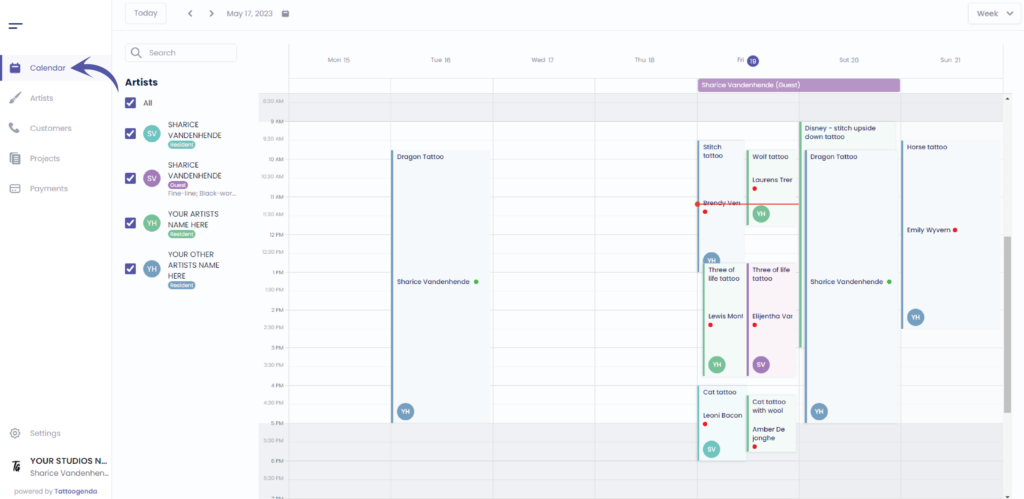
L'écran suivant s'affiche
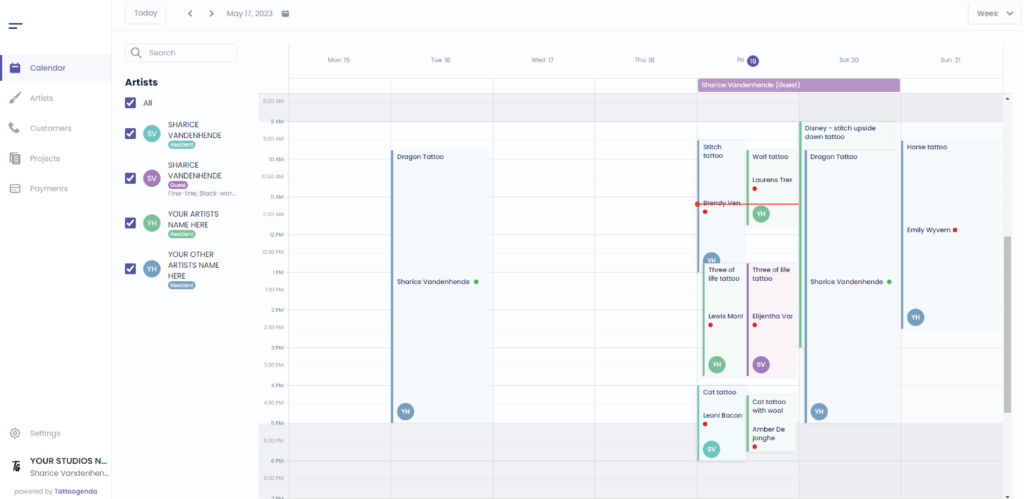
We will select this appointment in this tutorial

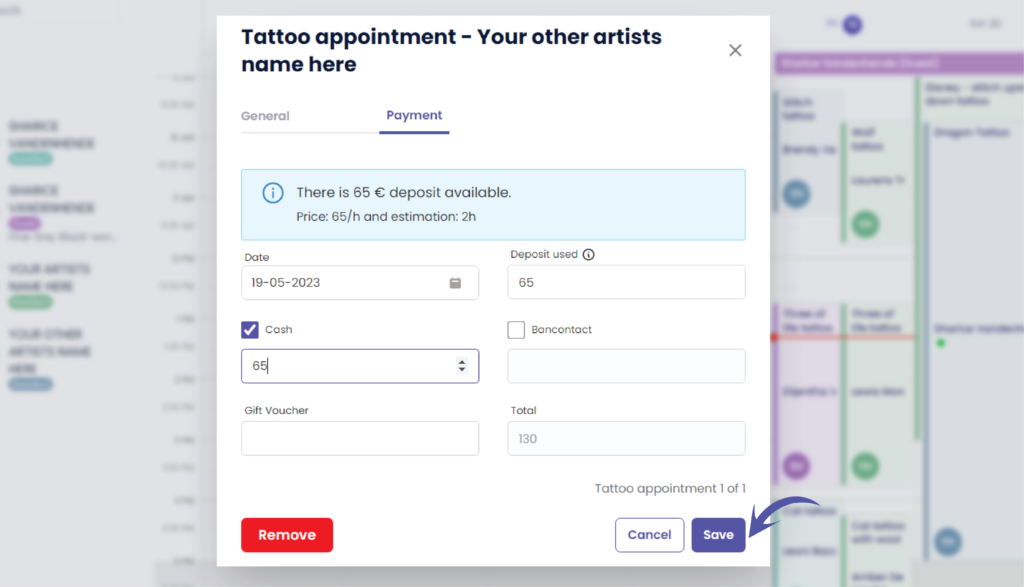
You will see the following popup screen
Aller à ‘Paiements’
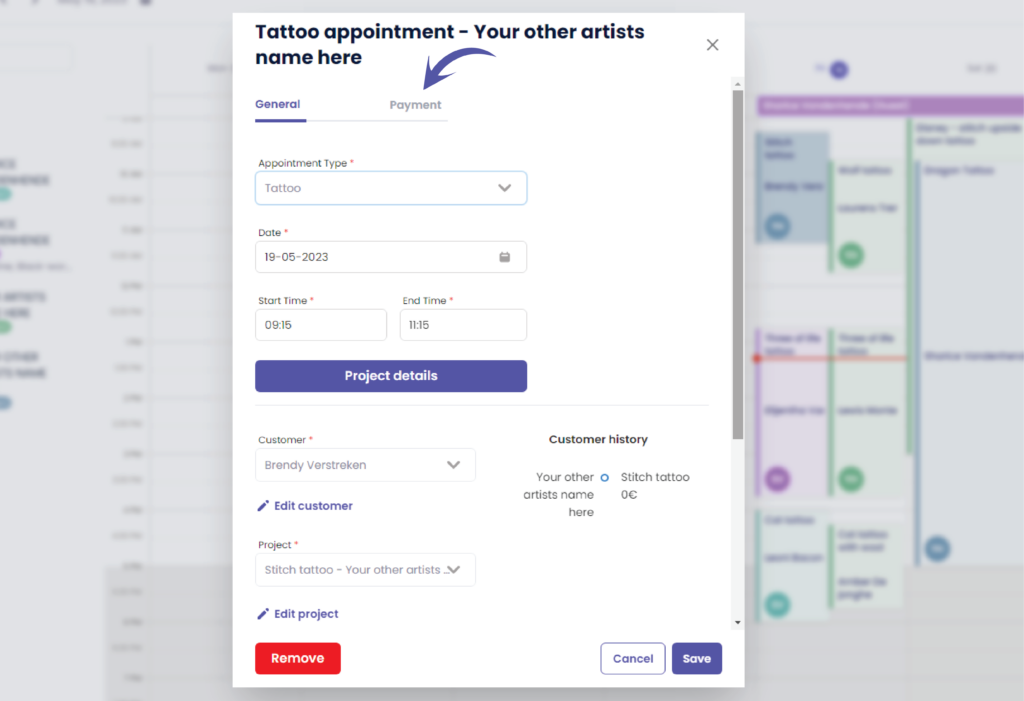
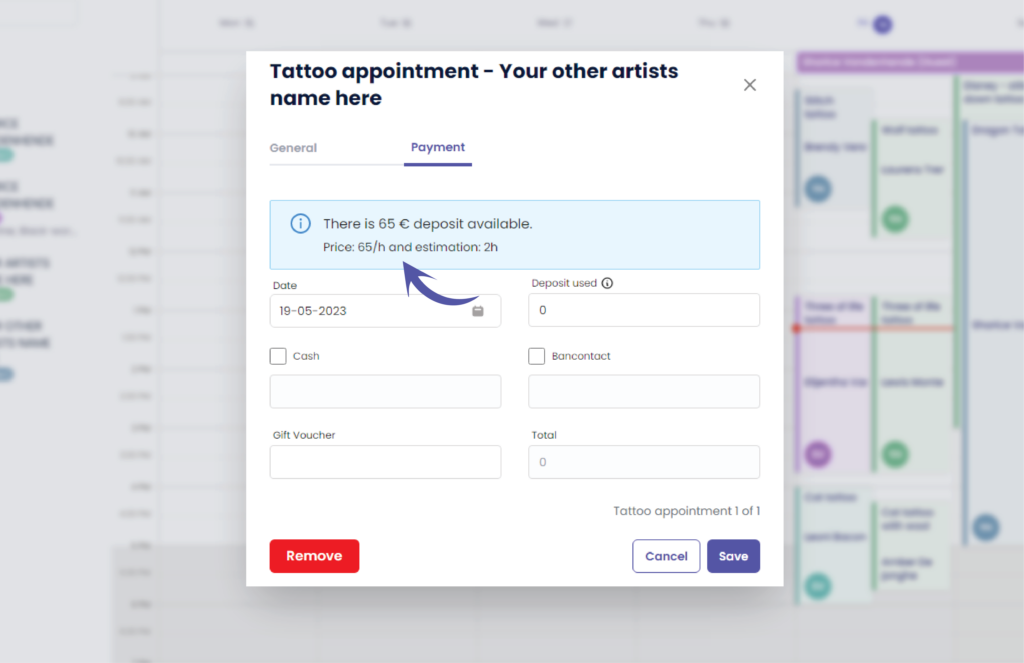
Here you can check if u still have a deposit available
( e.g. Available deposit €65 )
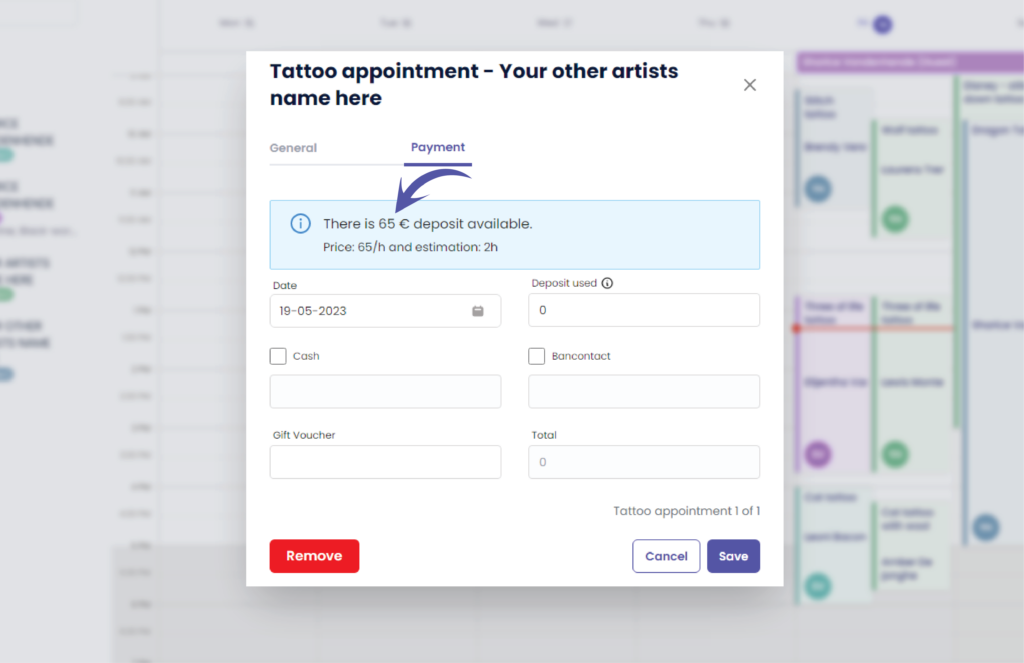
Here you can see the price and estimation details that was agreed to your customer
( e.g. Price was €65 / h – Estimated time was 2h )
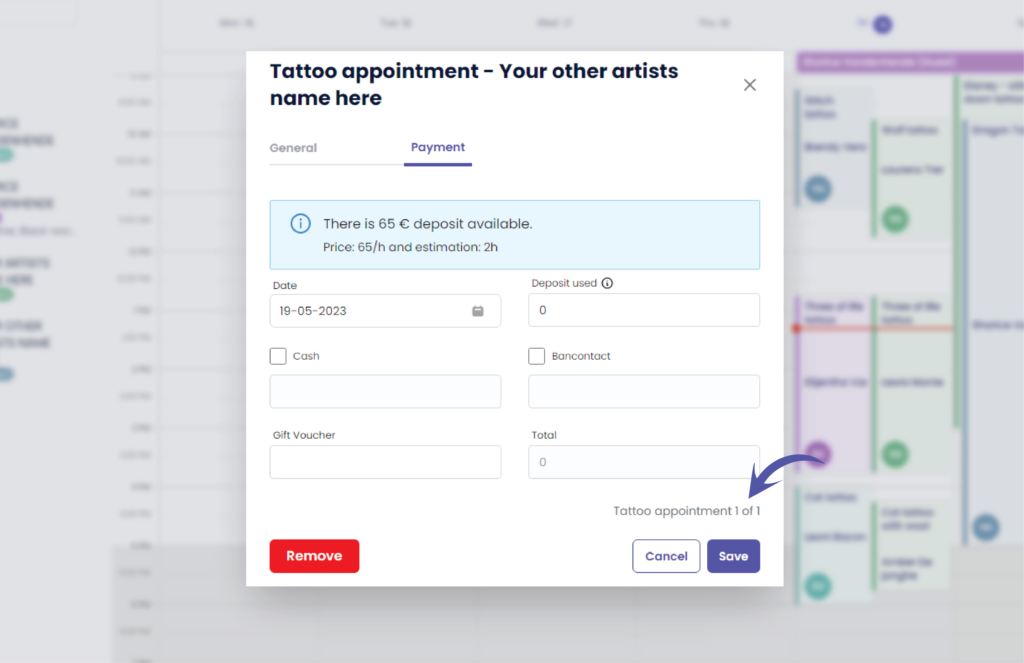
Here you can see the current appointment and how many appointments there are for this project
( e.g. 1 of 1 )
This helps you decide if you should use the deposit already or not. Mostly you use the deposit only on the last appointment.
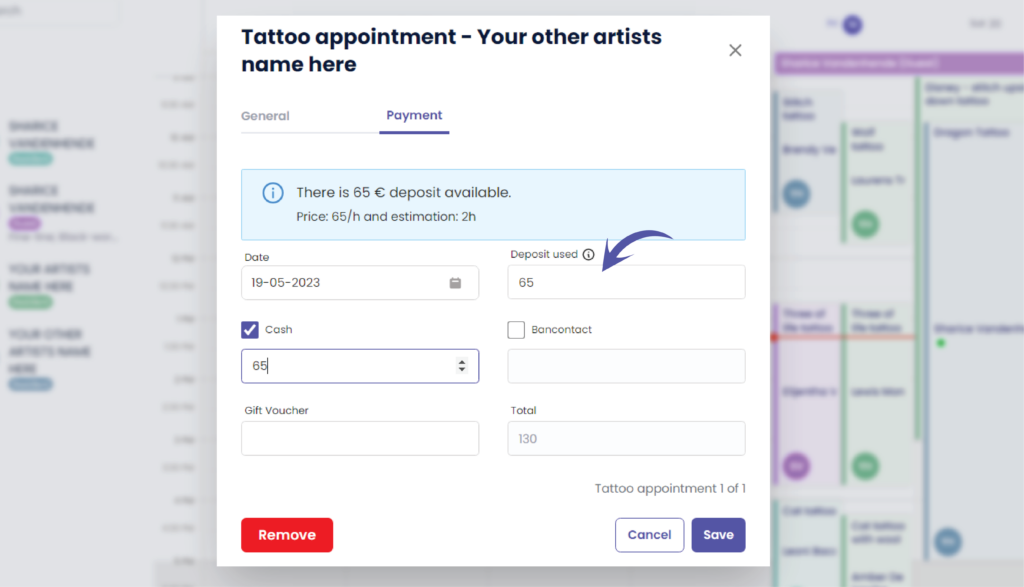
Here you fill out the amount of deposit you wish to use in this payment
( e.g. €65 )
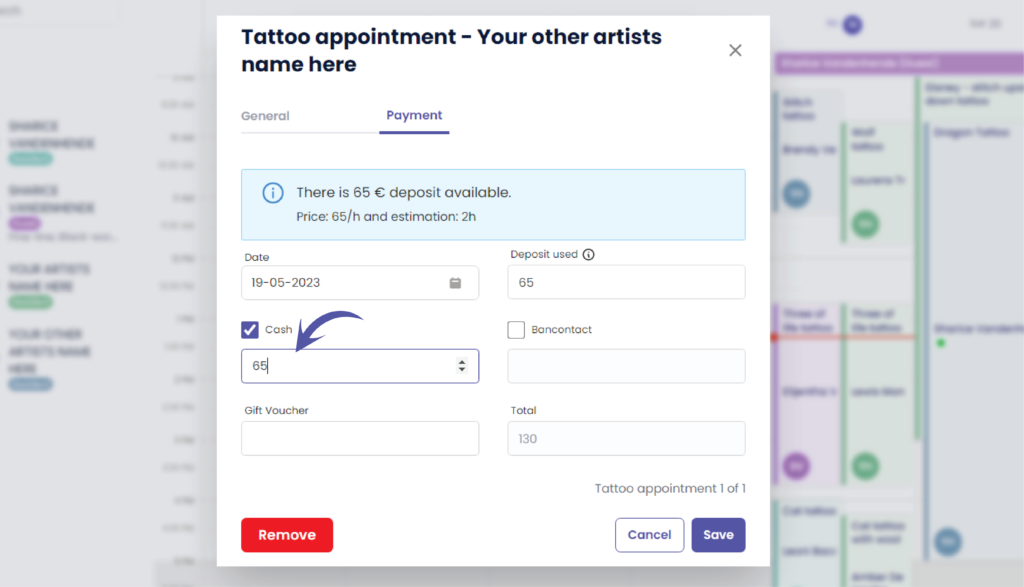
If your customer would pay in cash you can check the checkbox and fill out the amount
( e.g. €65 )
Cliquez sur ‘Sauvegarder’ to register your payment for this appointment
You will be brought back to the calendar
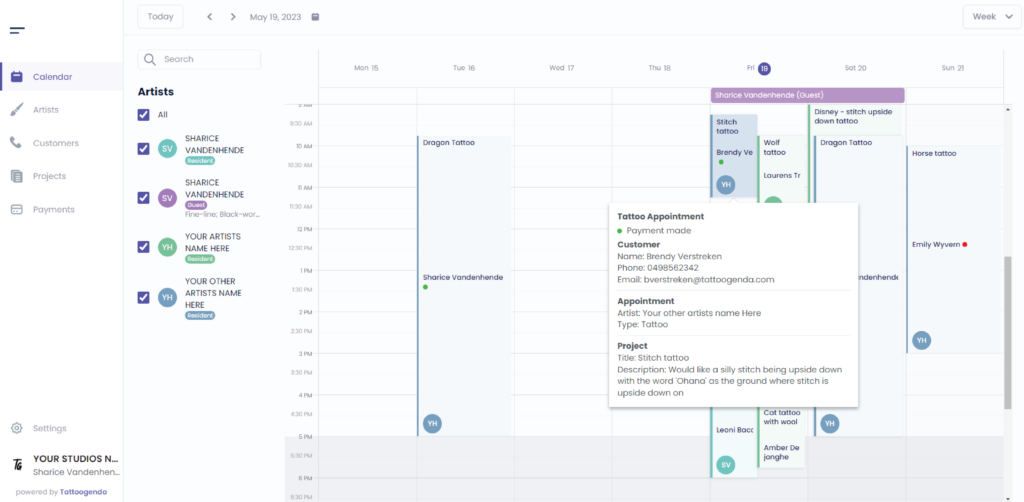
Take a closer look to this paid appointment
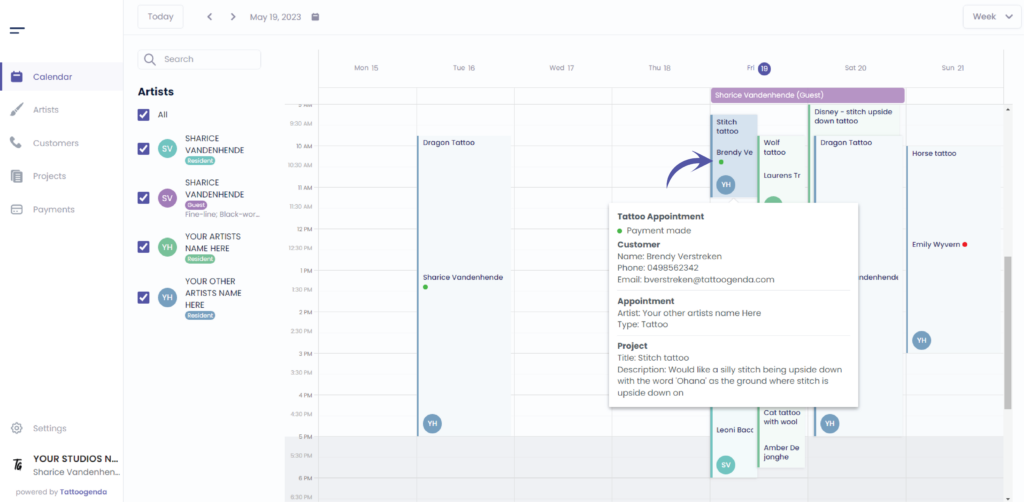
You will notice a green dot
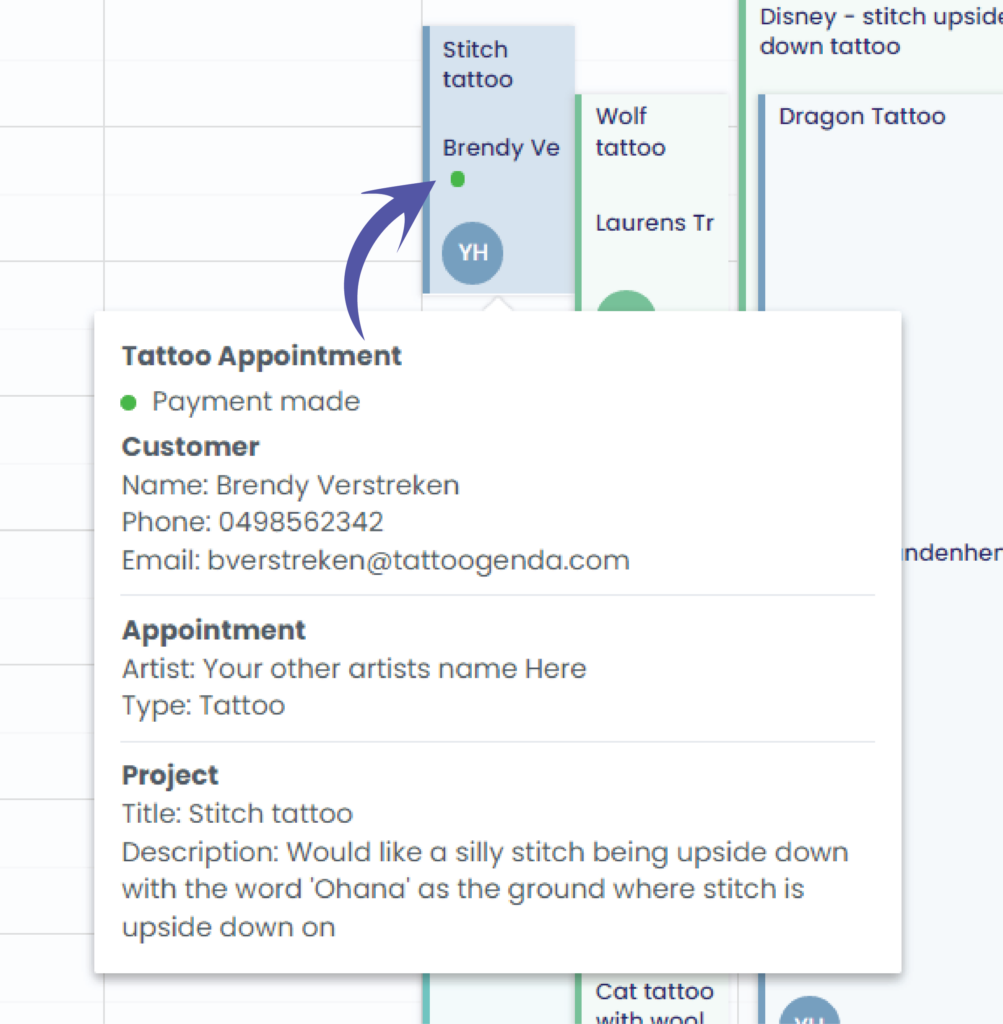
The green dot means a payment was made for this appointment
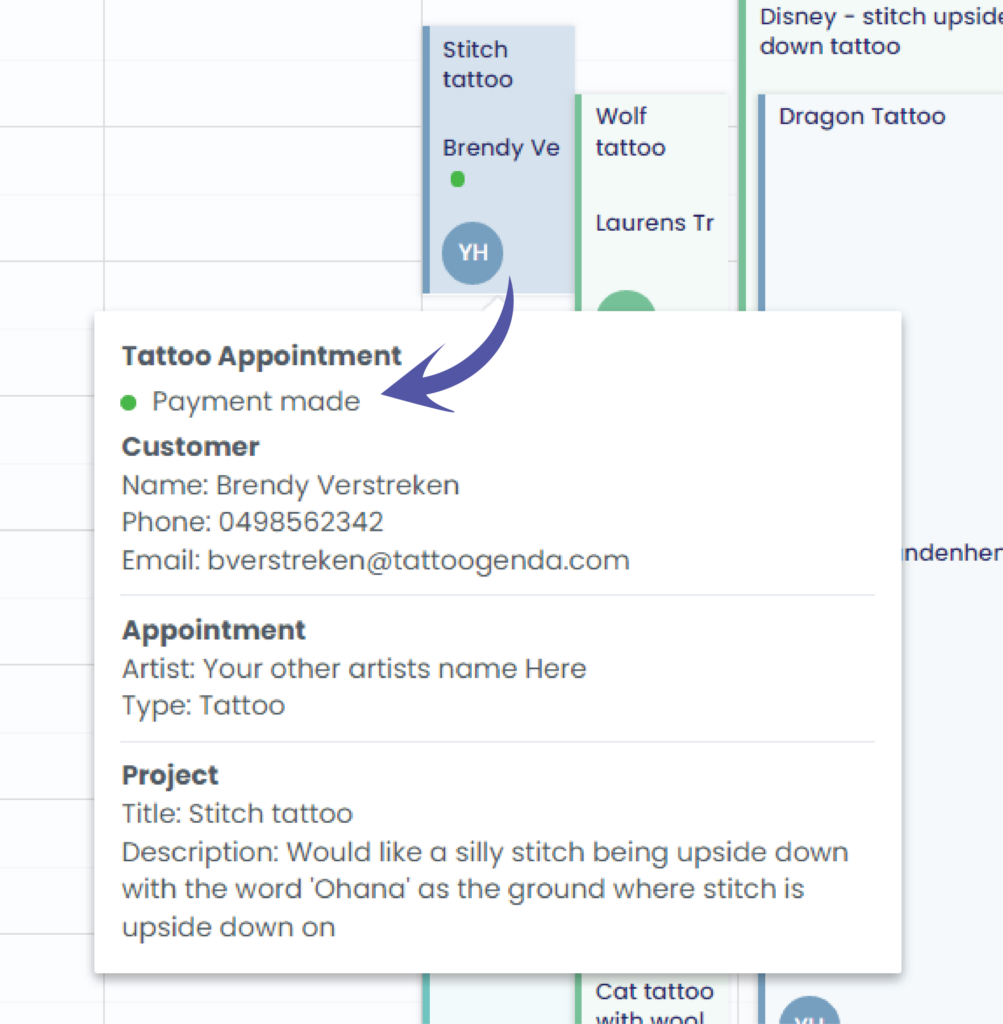
Click back on your appointment to get to the following screen
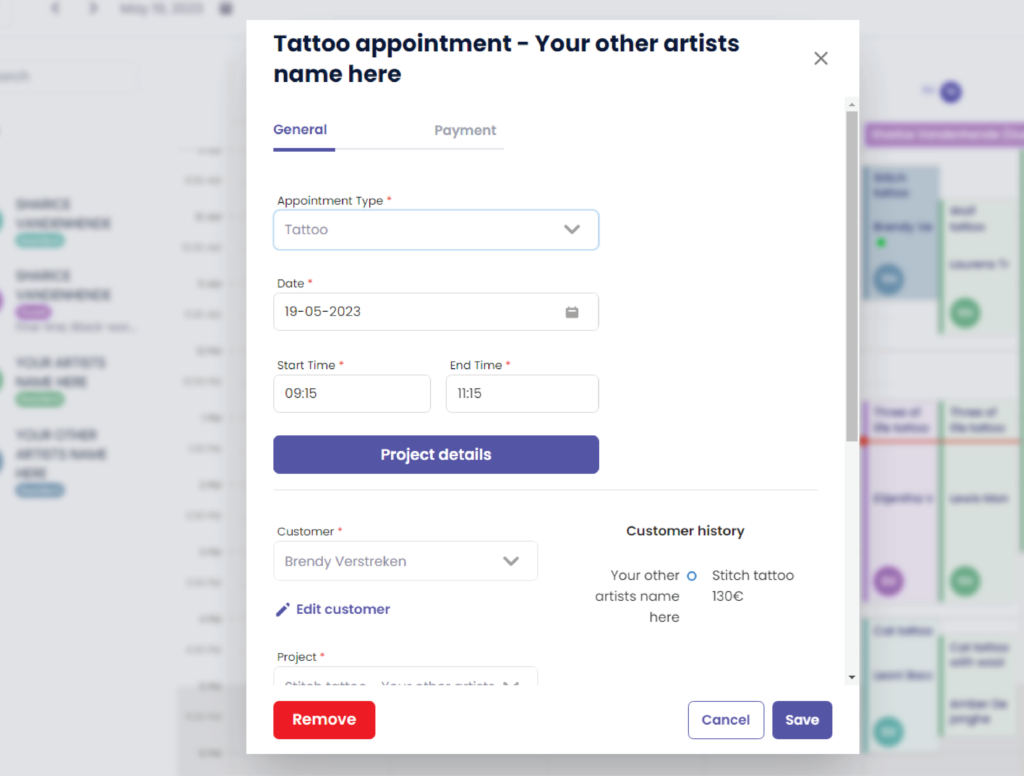
You can see that the payment into your customers history
lien ici More information about customer history here lien ici
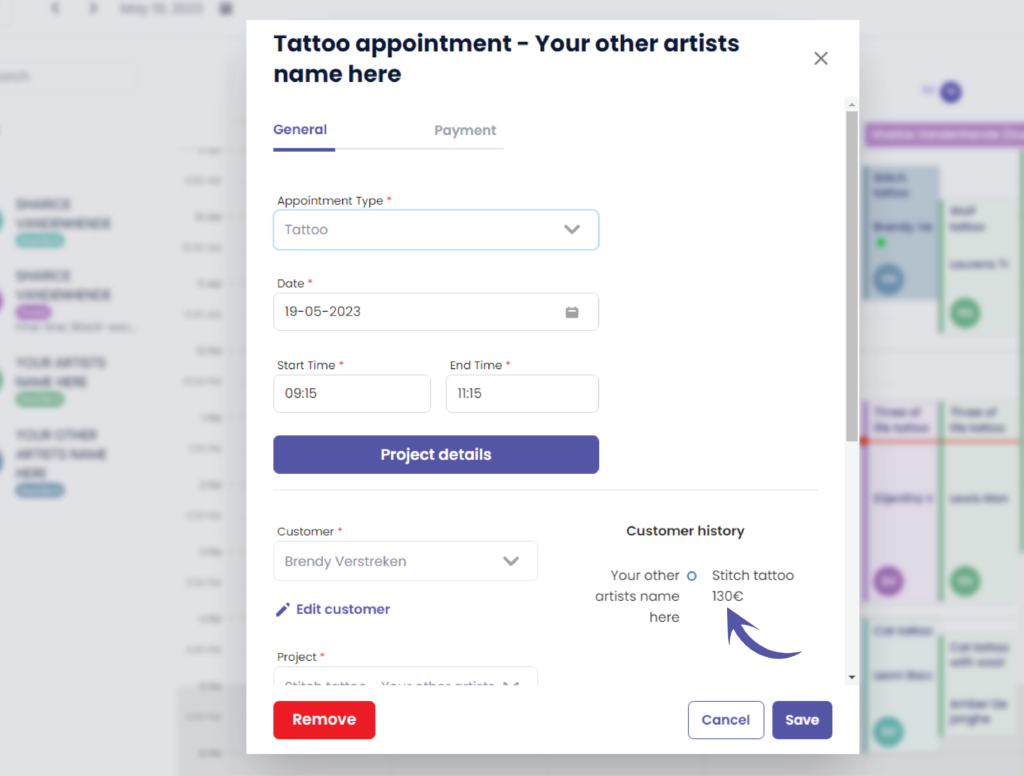
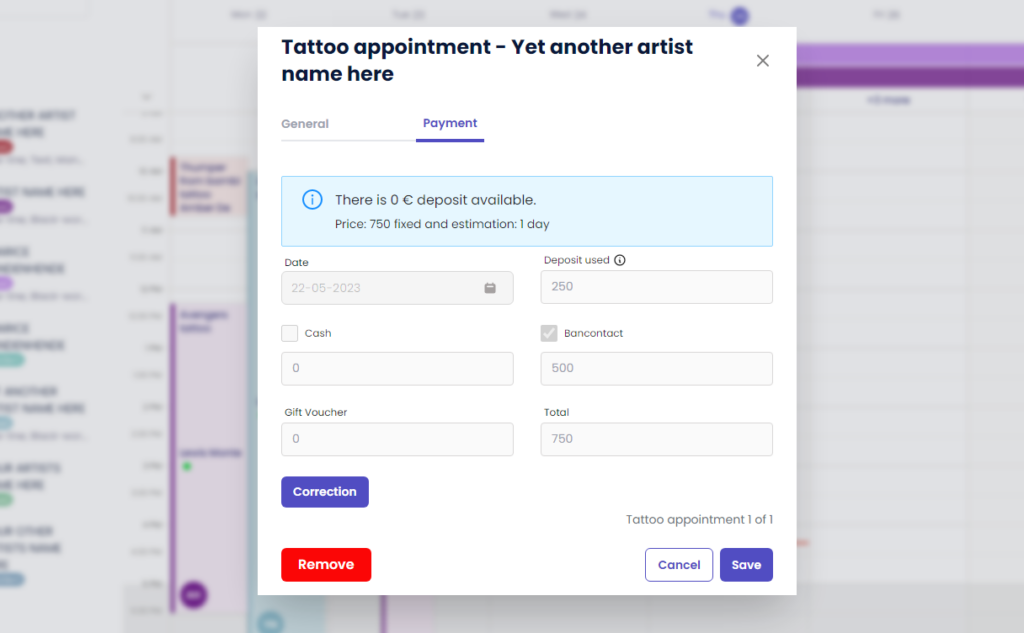
Go to payment
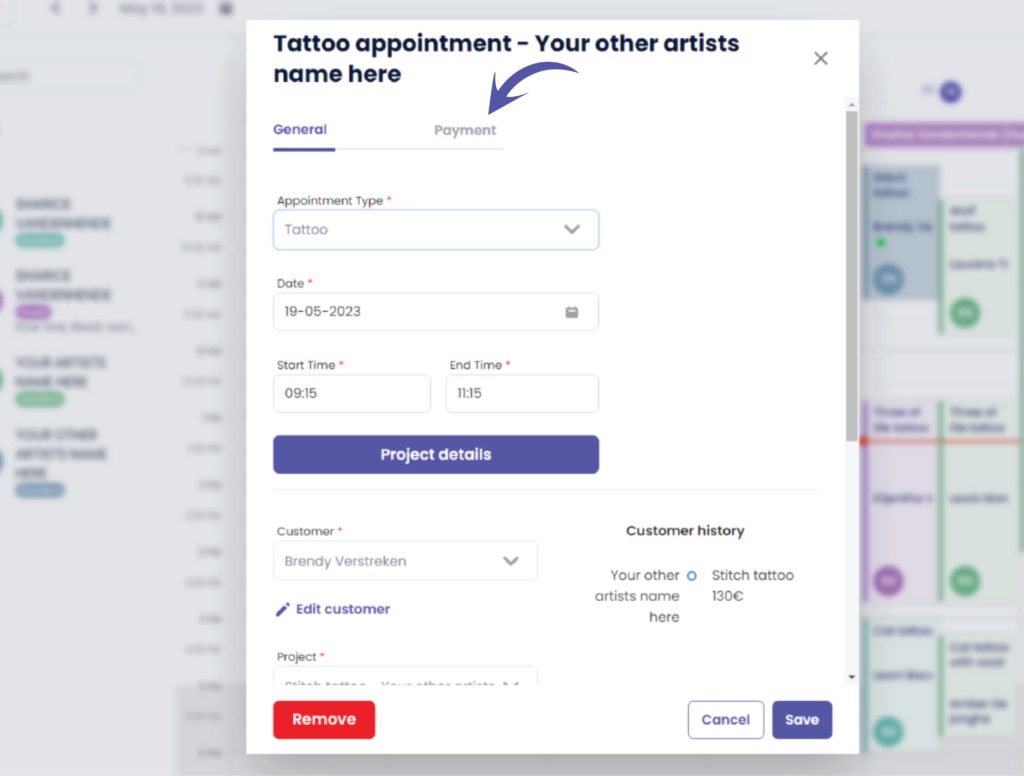
Notice that everything is grayed out, the correction button will only be visible for
The main account & for receptionists with full access.
Full access means that the receptionist is able to edit payments.
Check out the following article on how to add a receptionist with full or no full access.
This is to avoid that corrections can be made by artists or by receptionists without ‘edit payment’ access.
Vous avez encore un problème ou une question ?
Vous trouverez ci-dessous un petit lien intitulé ‘Toujours bloqué ? Comment pouvons-nous vous aider ?’
Rédigé par
Sharice Vandenhende
Par Tattoogenda


 English
  Dutch
Dutch  Dutch (Belgium)
  French
  German
  Spanish