

Ga naar ‘Kalender’
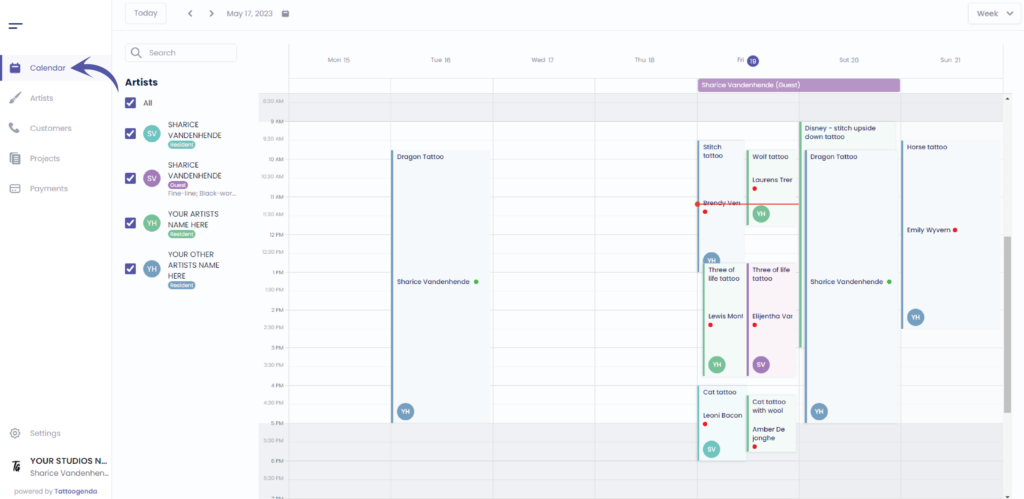
U ziet het volgende scherm
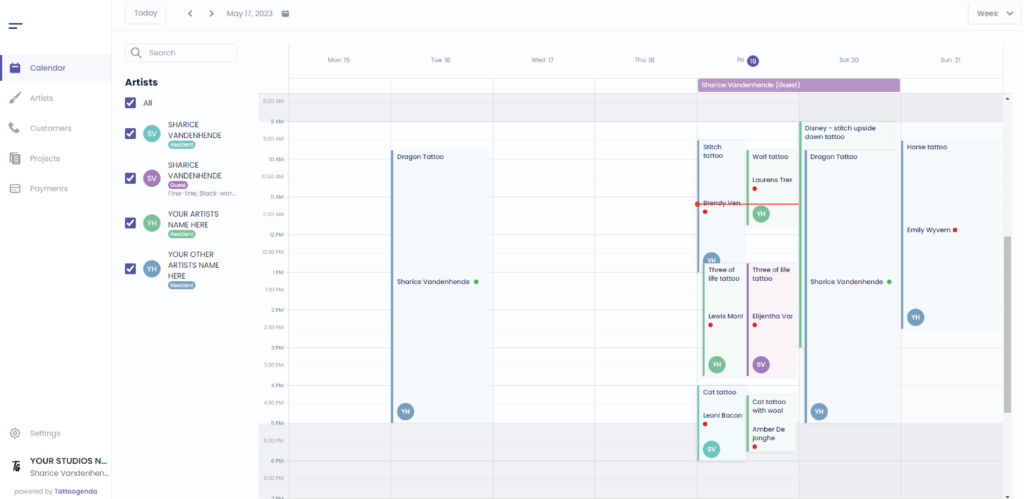
We selecteren deze afspraak in deze tutorial

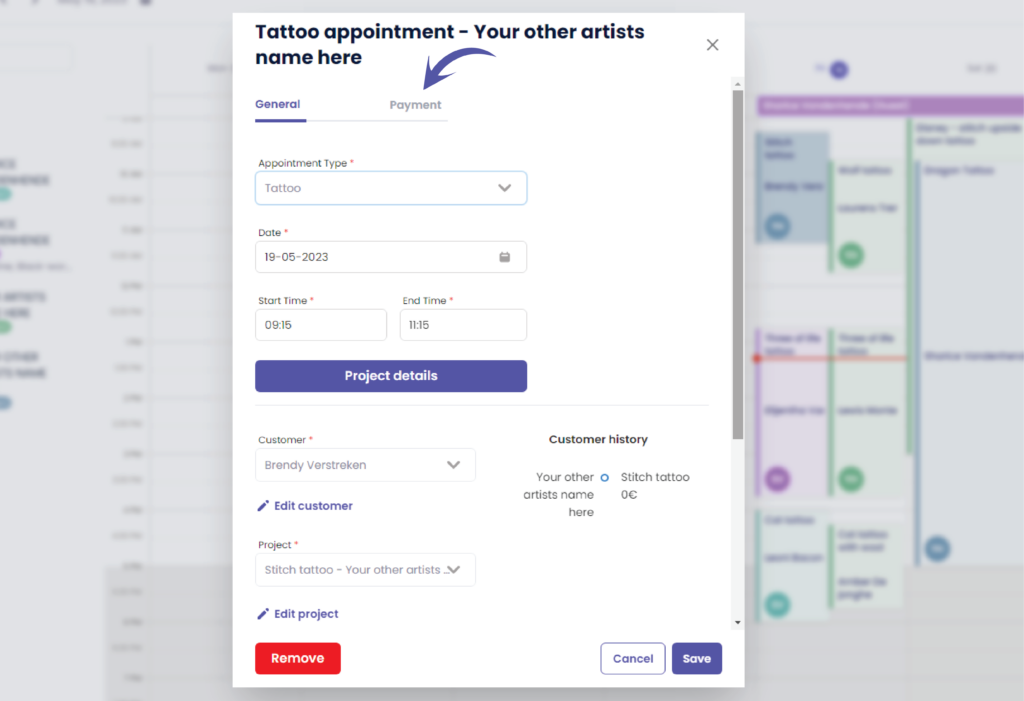
U ziet het volgende pop-upscherm
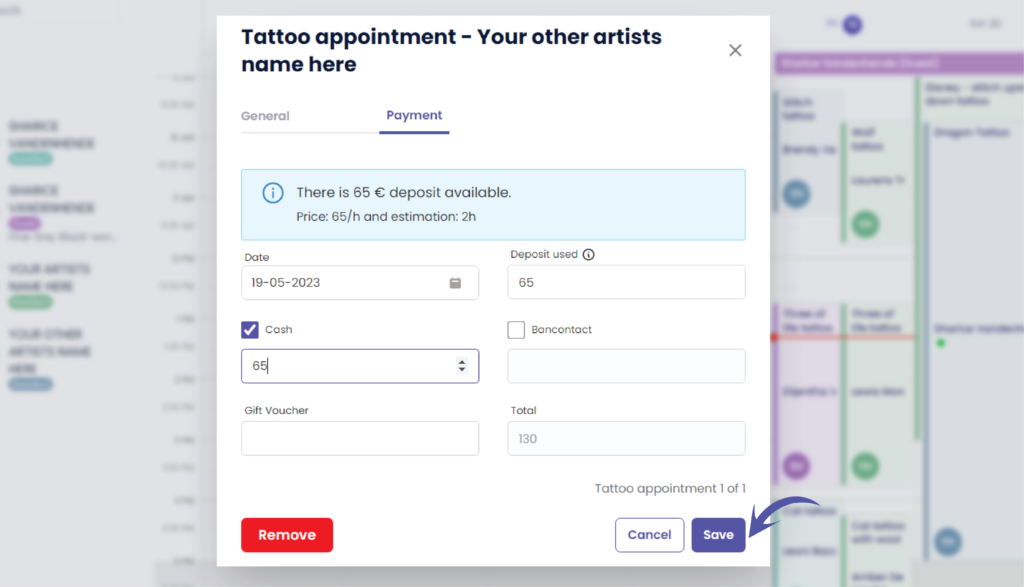
Ga naar ‘Betalingen’
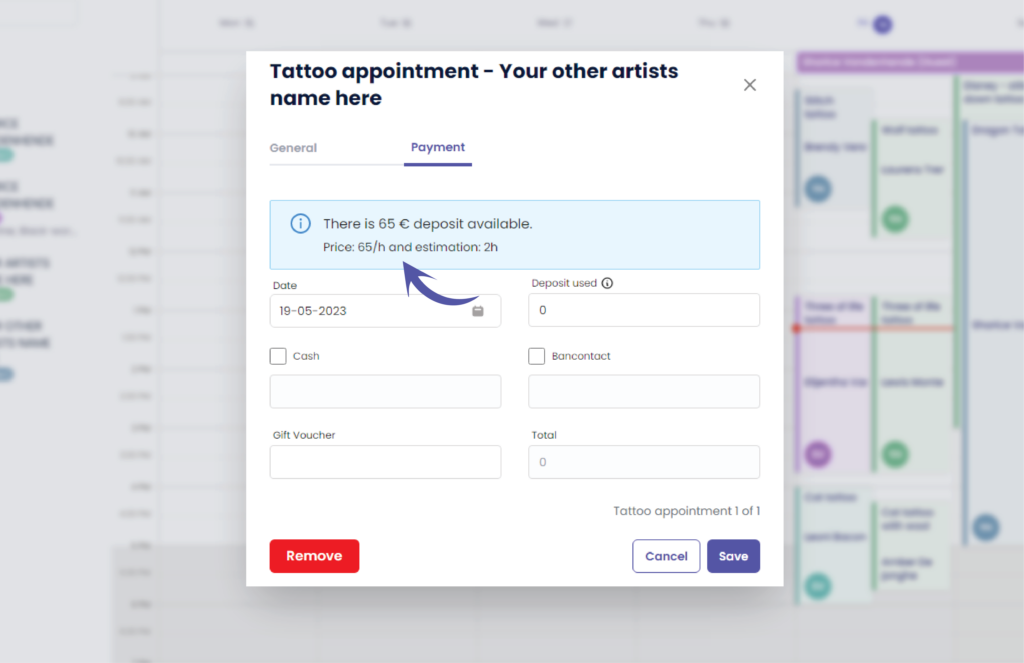
Here you can check if u still have a deposit available
( e.g. Available deposit €65 )
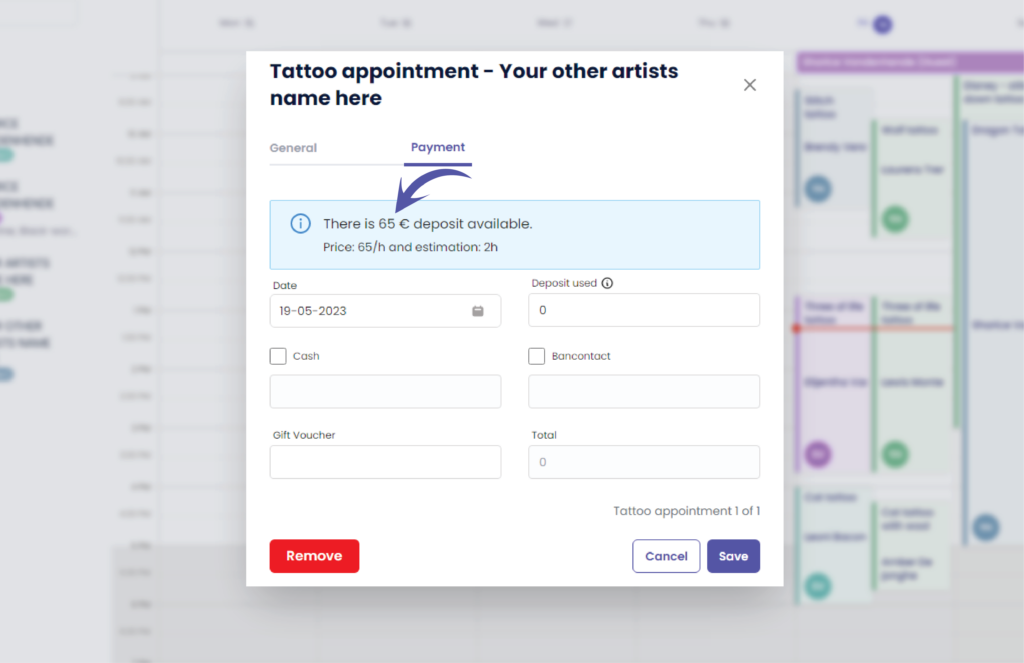
Here you can see the price and estimation details that was agreed to your customer
( e.g. Price was €65 / h – Estimated time was 2h )
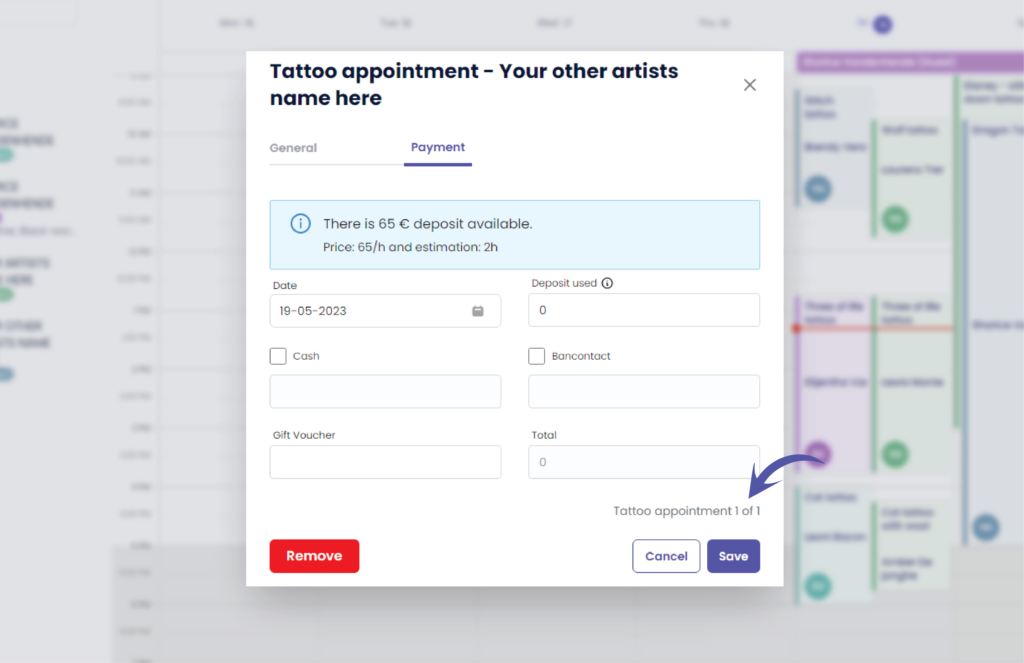
Here you can see the current appointment and how many appointments there are for this project
( e.g. 1 of 1 )
This helps you decide if you should use the deposit already or not. Mostly you use the deposit only on the last appointment.
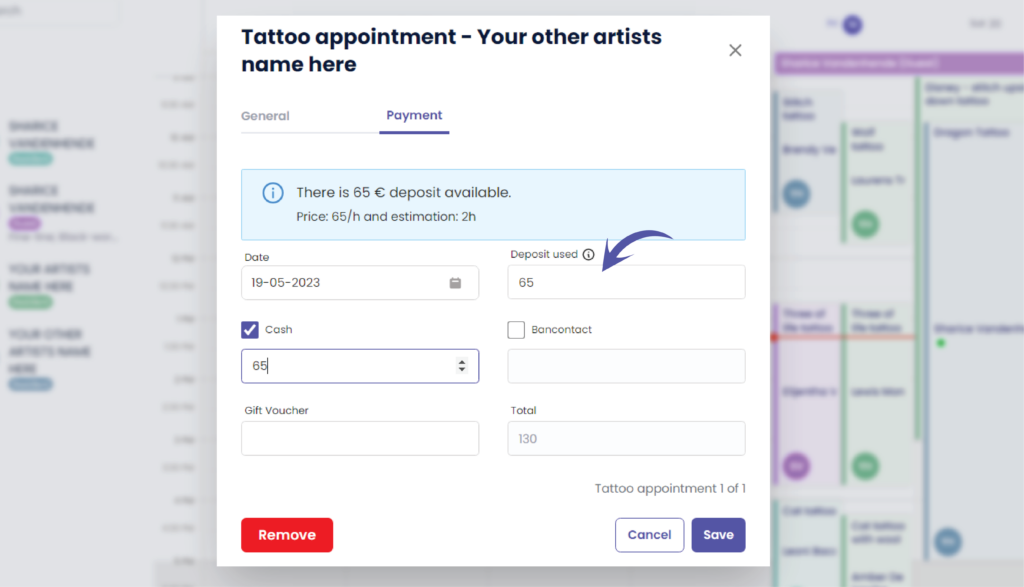
Here you fill out the amount of deposit you wish to use in this payment
( e.g. €65 )
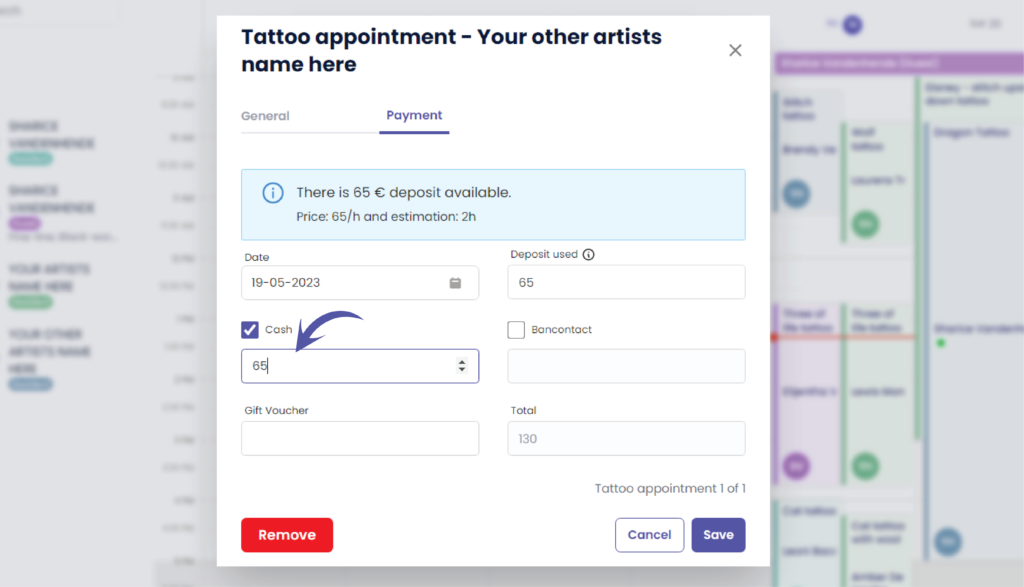
If your customer would pay in cash you can check the checkbox and fill out the amount
( e.g. €65 )
Klik op ‘Opslaan’ to register your payment for this appointment
U wordt teruggebracht naar de kalender
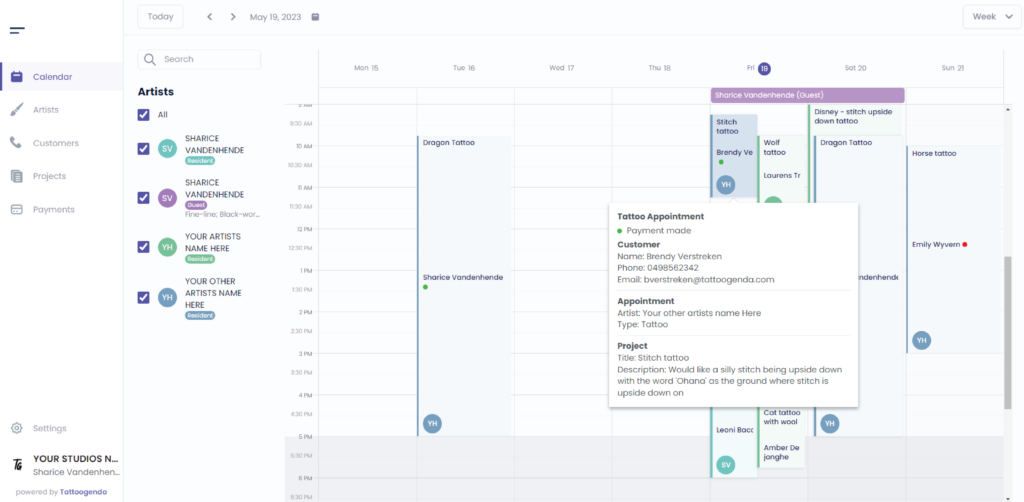
Take a closer look to this paid appointment
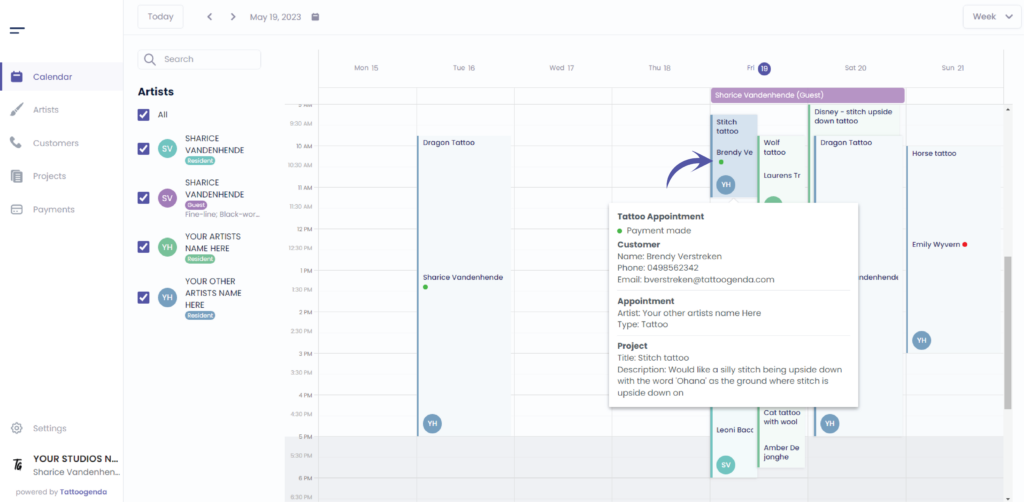
You will notice a green dot
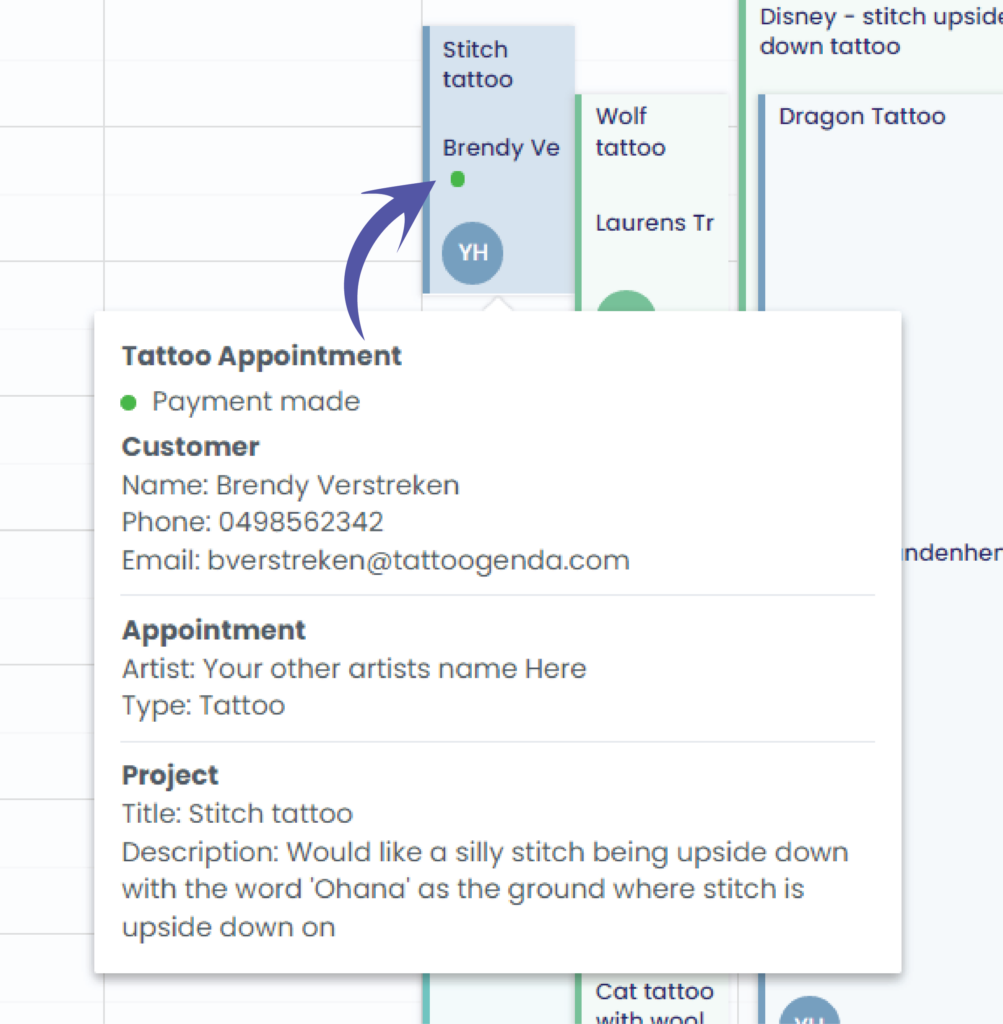
The green dot means a payment was made for this appointment
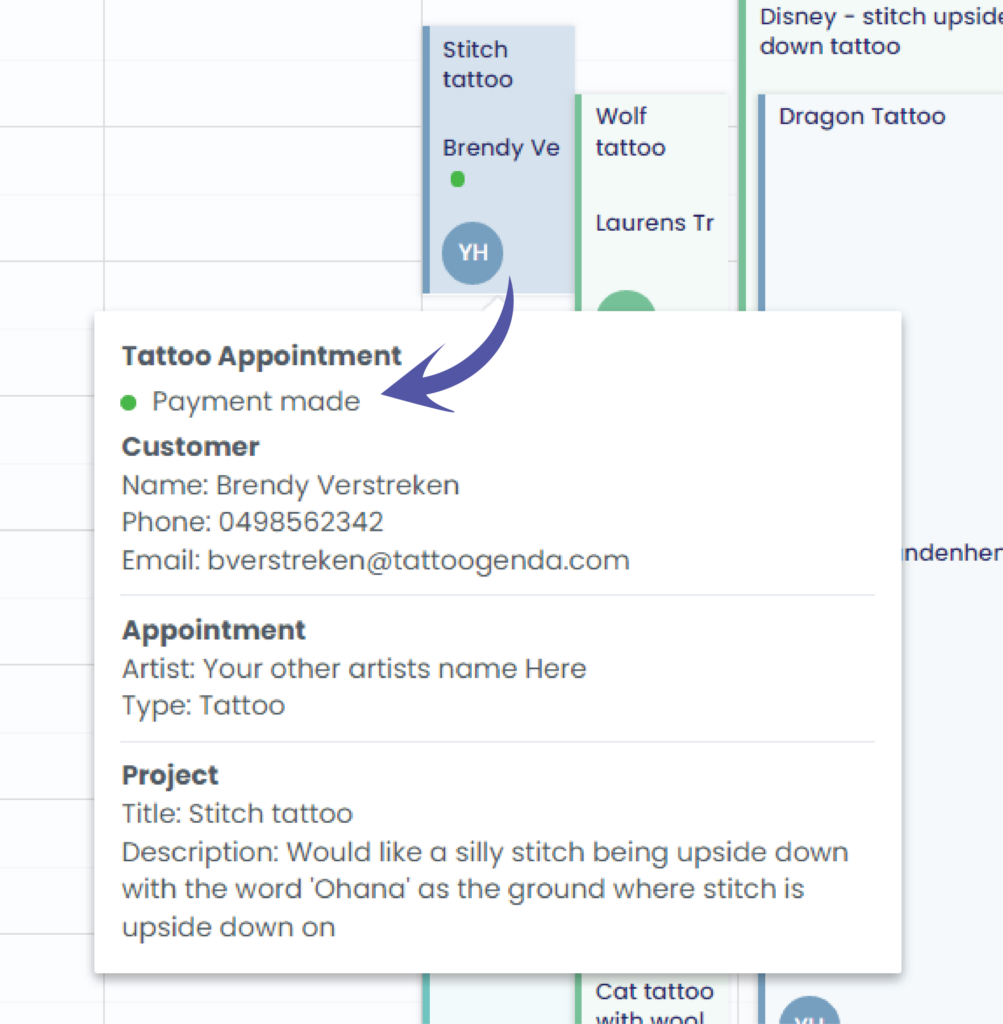
Click back on your appointment to get to the following screen
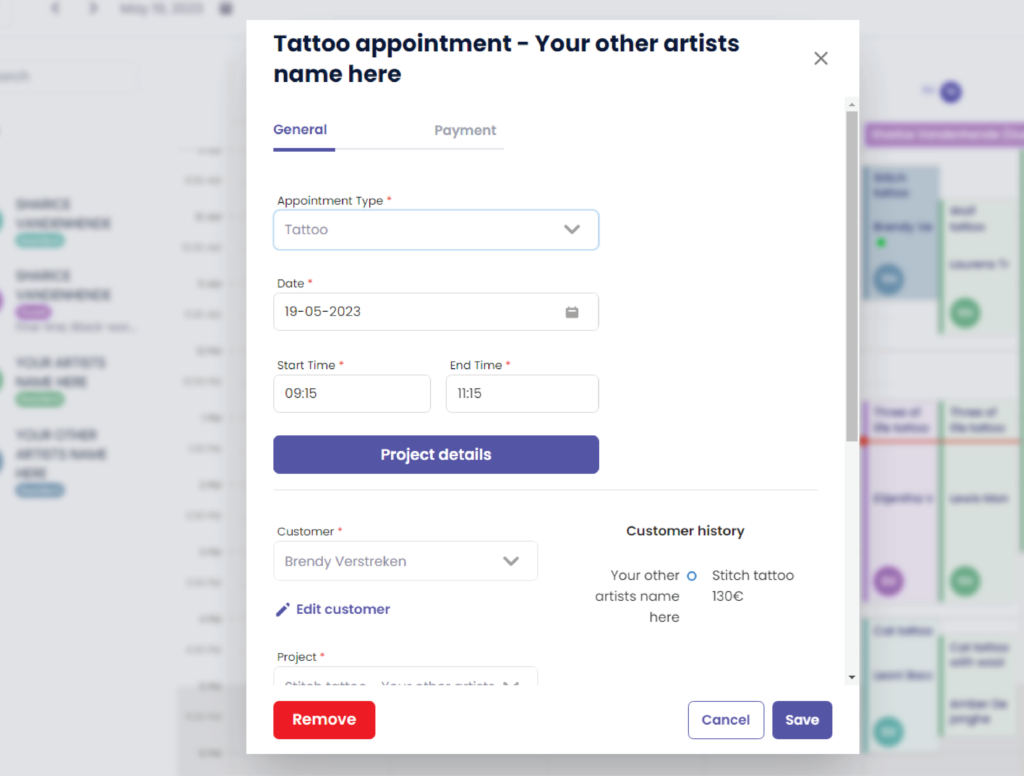
You can see that the payment into your customers history
link hier More information about customer history here link hier
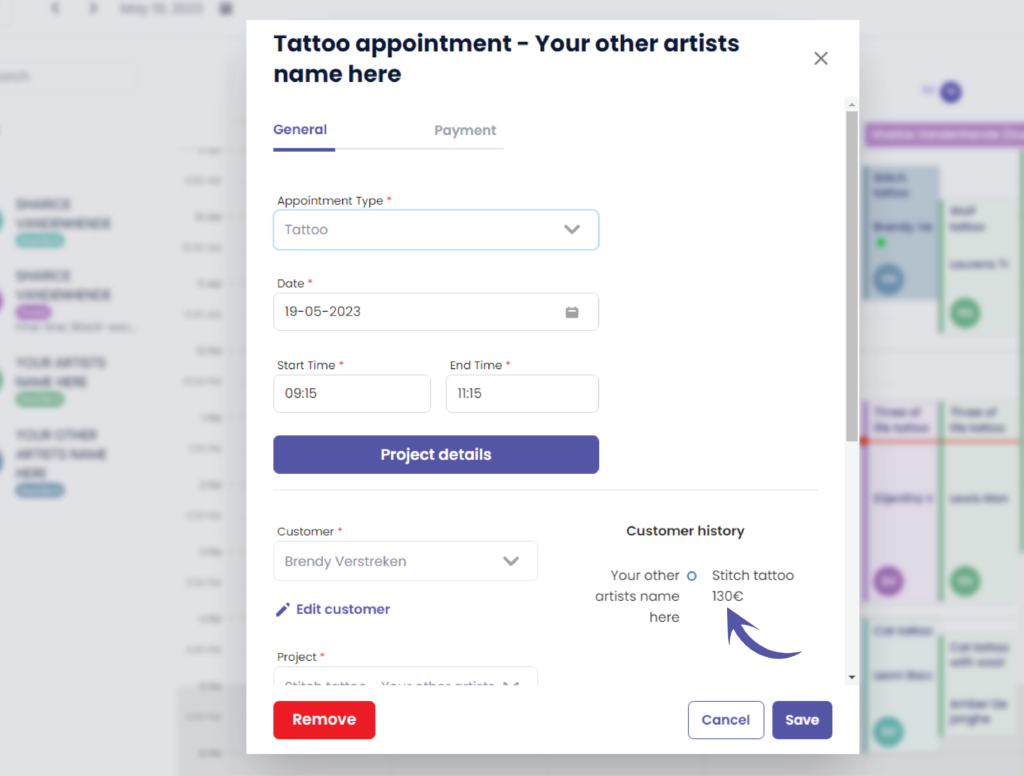
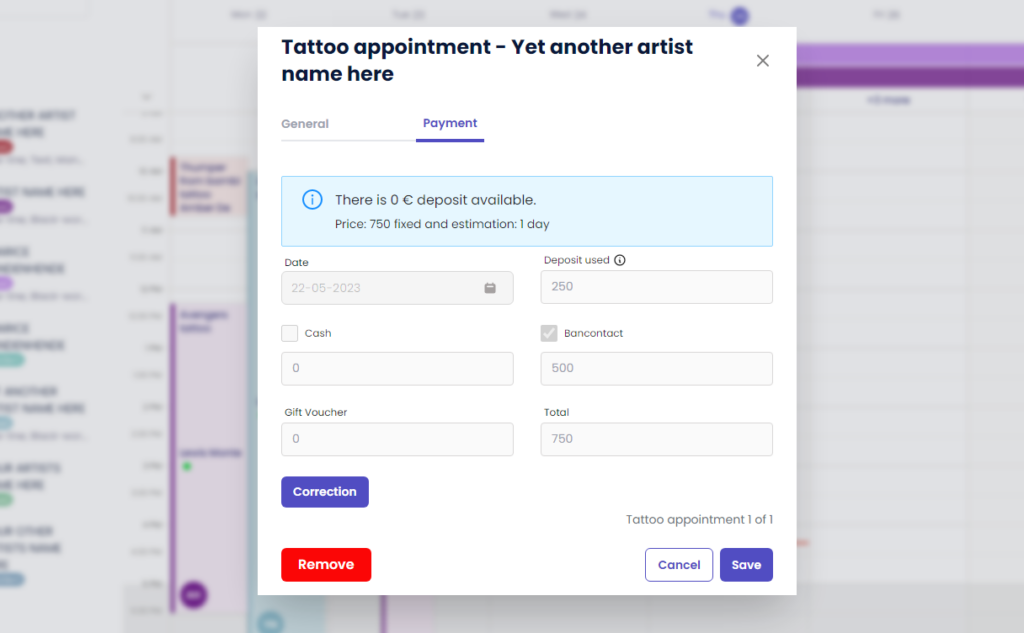
Go to payment
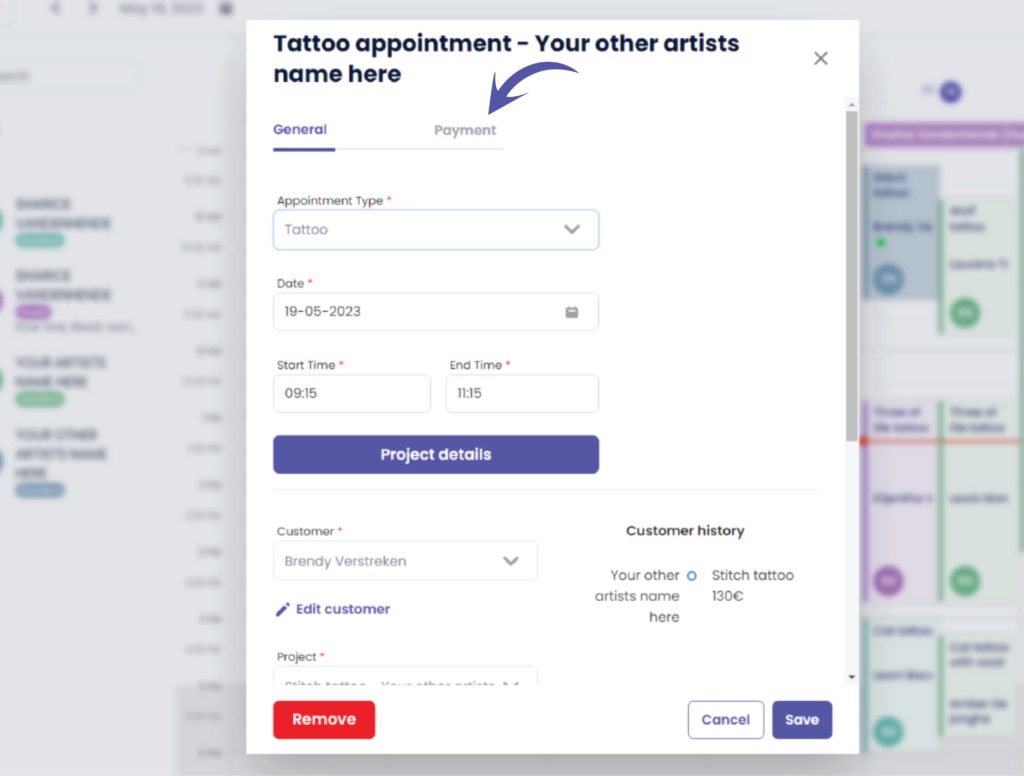
Notice that everything is grayed out, the correction button will only be visible for
The main account & for receptionists with full access.
Full access means that the receptionist is able to edit payments.
Check out the following article on how to add a receptionist with full or no full access.
This is to avoid that corrections can be made by artists or by receptionists without ‘edit payment’ access.
Heb je nog steeds een probleem of een vraag?
Hieronder vind je een kleine link met de naam ‘Nog steeds vast? Hoe kunnen we helpen!’
Geschreven door
Sharice Vandenhende
Door Tattoogenda


 English
  Dutch
Dutch  Dutch (Belgium)
  French
  German
  Spanish