

BELANGRIJK
HEB JE HET VOLGENDE ABONNEMENT NODIG
Deposito's zijn beschikbaar vanaf de ‘Grotere studio’ plan.
Deze opties zullen niet beschikbaar zijn voor jou als je dit plan niet of niet hoger hebt.
Houd in gedachten dat stortingsherinneringen zijn alleen beschikbaar in de ‘Expertstudio’ plan.
WHY SETUP STRIPE WITH TATTOOGENDA
Connecting Stripe with Tattoogenda allows you om het statiegeld te vragen voor tatoeage afspraken
in geautomatiseerde e-mails en laat de klant digitaal betalen.
If you do not have Stripe connected with tattoogenda,
je zult niet hebben de ‘afspraak bevestigen’ knop in je geautomatiseerde e-mails.
De e-mails zullen je klant nog steeds herinneren aan de aanbetaling, maar ze zullen de aanbetaling niet online kunnen betalen.
Klik op de onderstaande artikelen voor meer informatie over automatische e-mails zoals:
appointment list, deposit reminders, How to personalize your automated emails and how to setup a Mollie connection.
In uw Tattoogenda studio software,
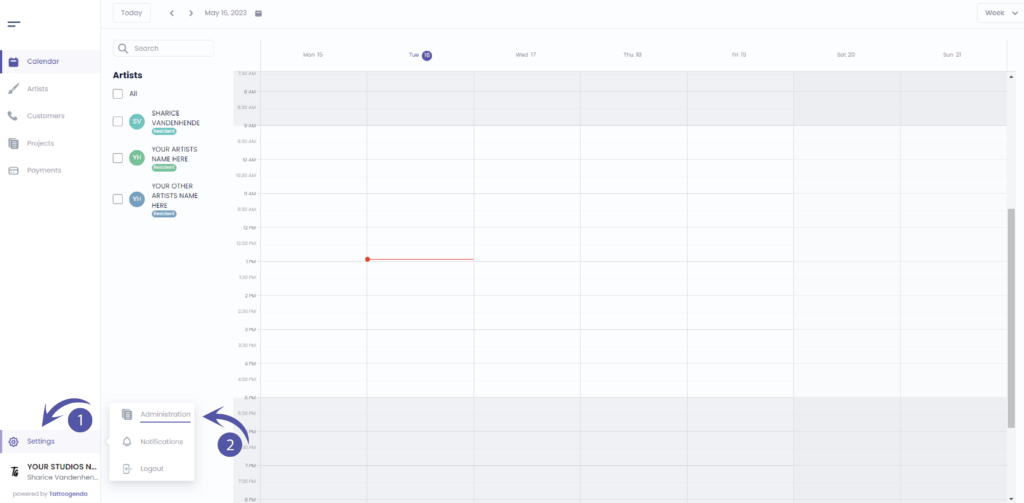
U vindt uw instellingen linksonder in uw scherm boven uw studionaam.
Ga naar je instellingen en kies ‘Administratie’.
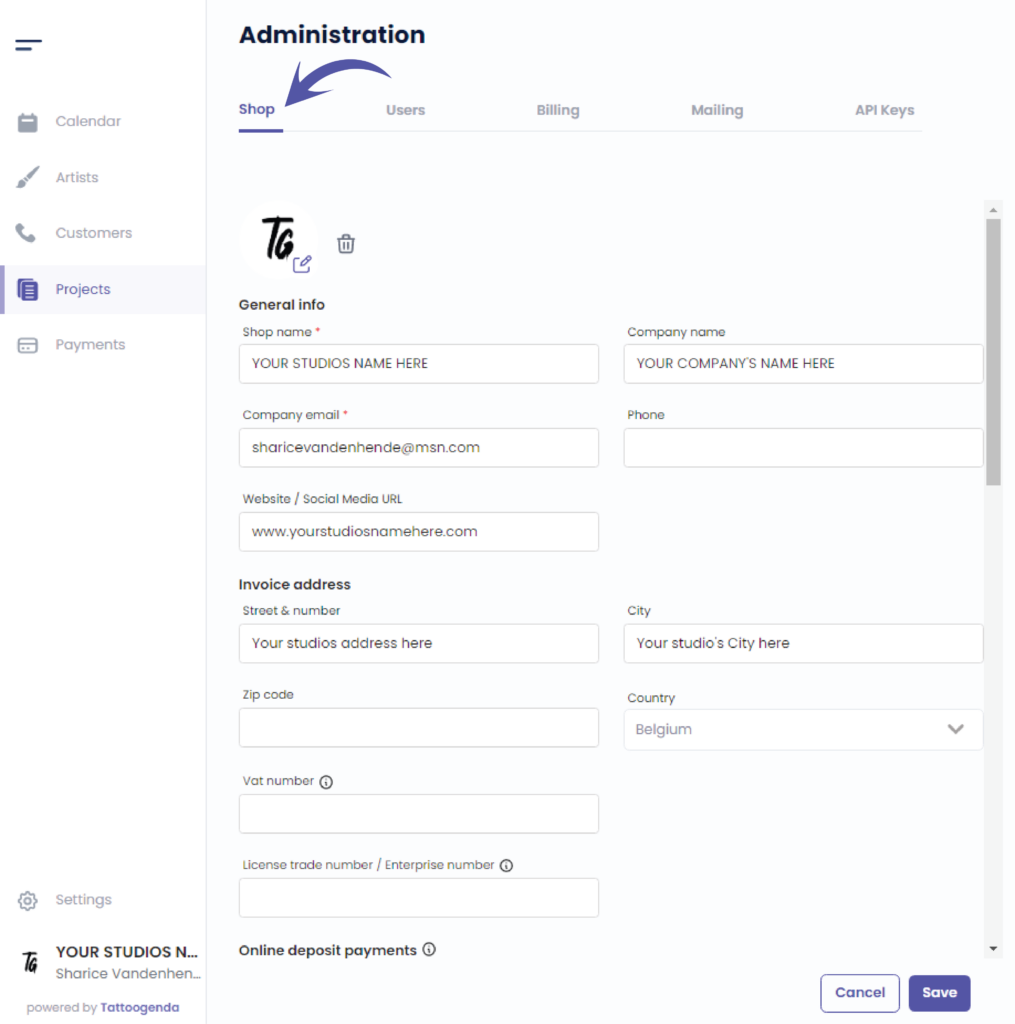
Je komt automatisch in de ‘Winkel’ tab.
You can check that here.
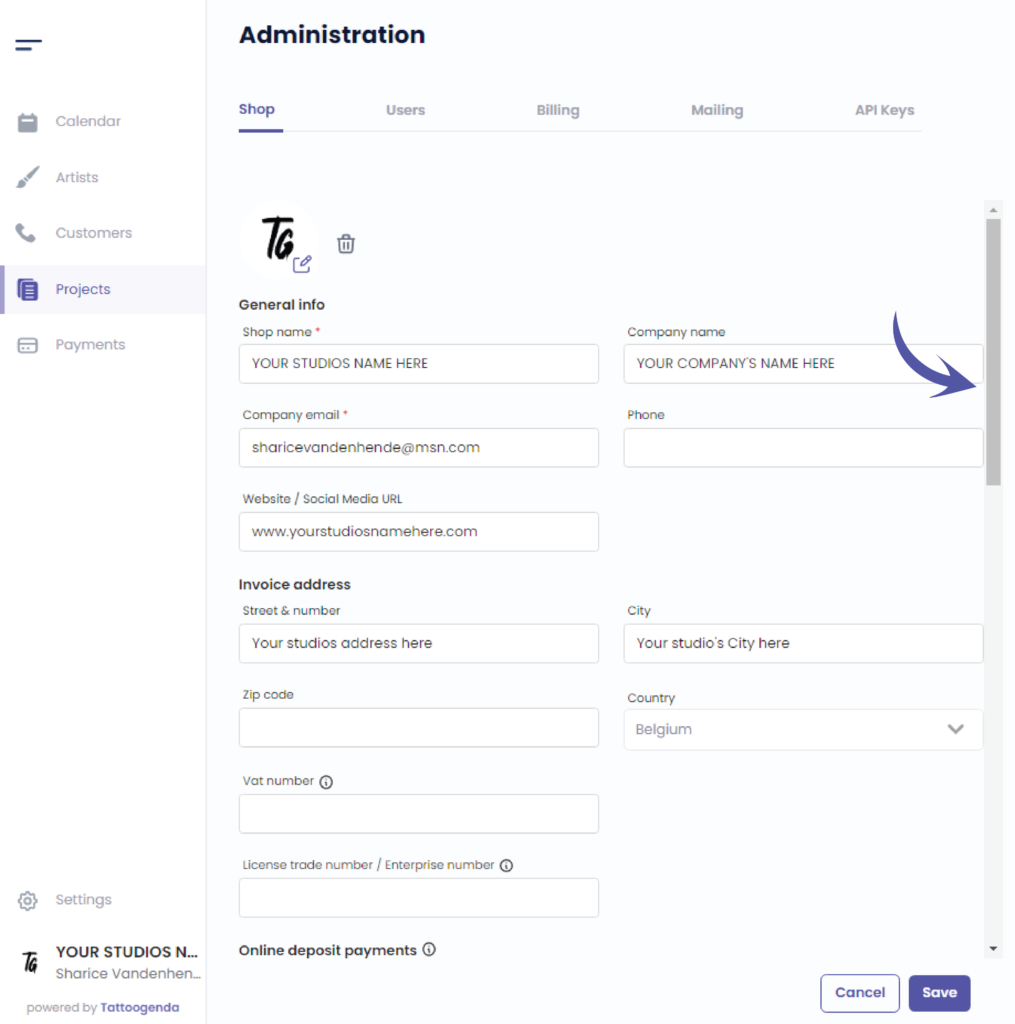
We gebruiken de schuifbalk om naar ‘Online stortingen’.
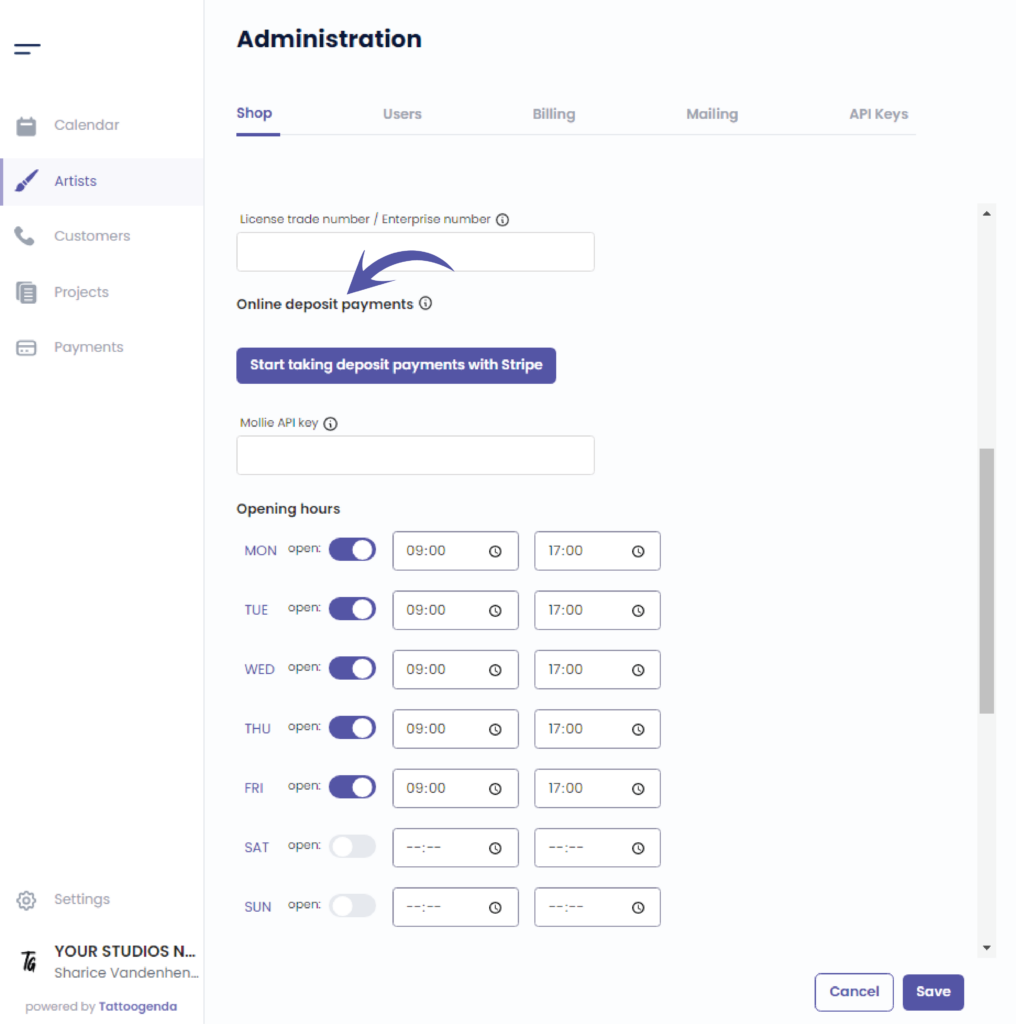
Klik op ‘Start taking deposit payments with Stripe’.
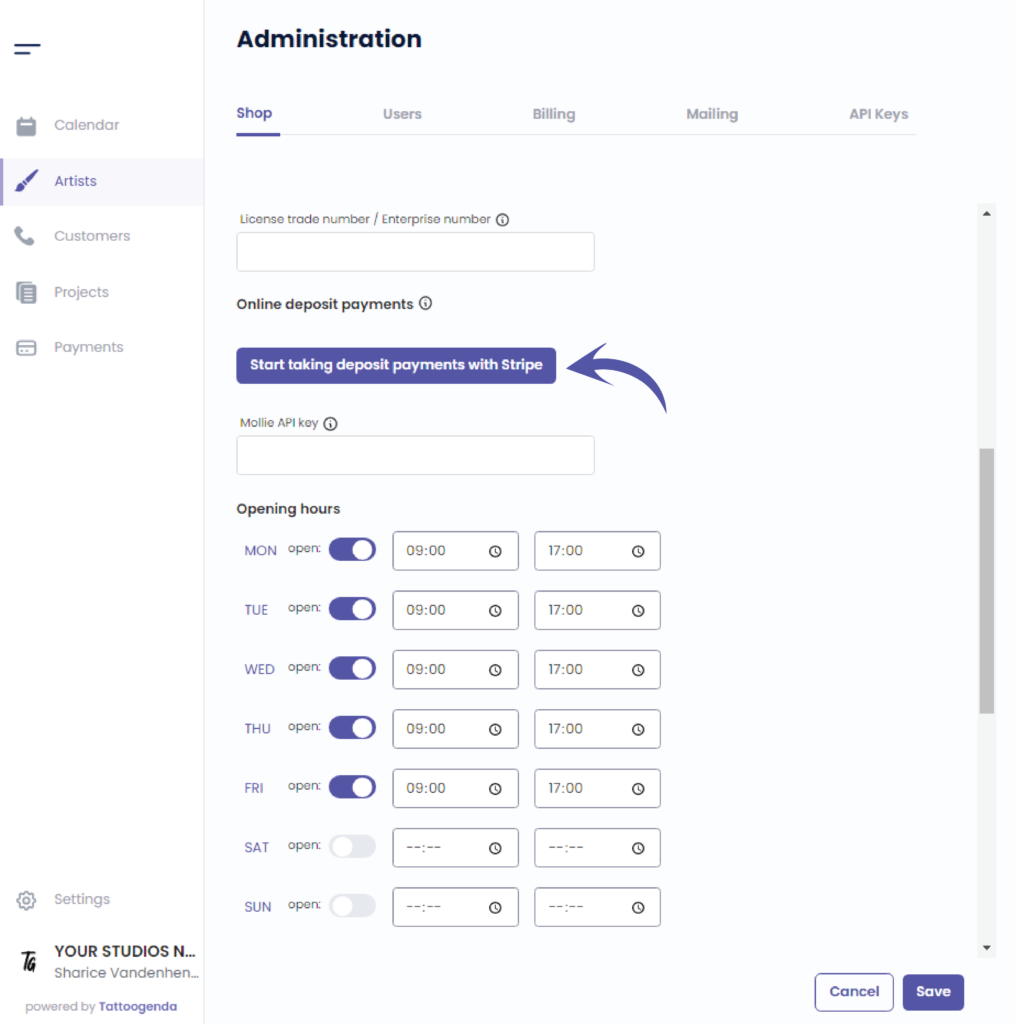
This action will take you to a new tab into your browser.
The email you have filled out for your shop will be prefilled here.
Klik op ‘Continue’.
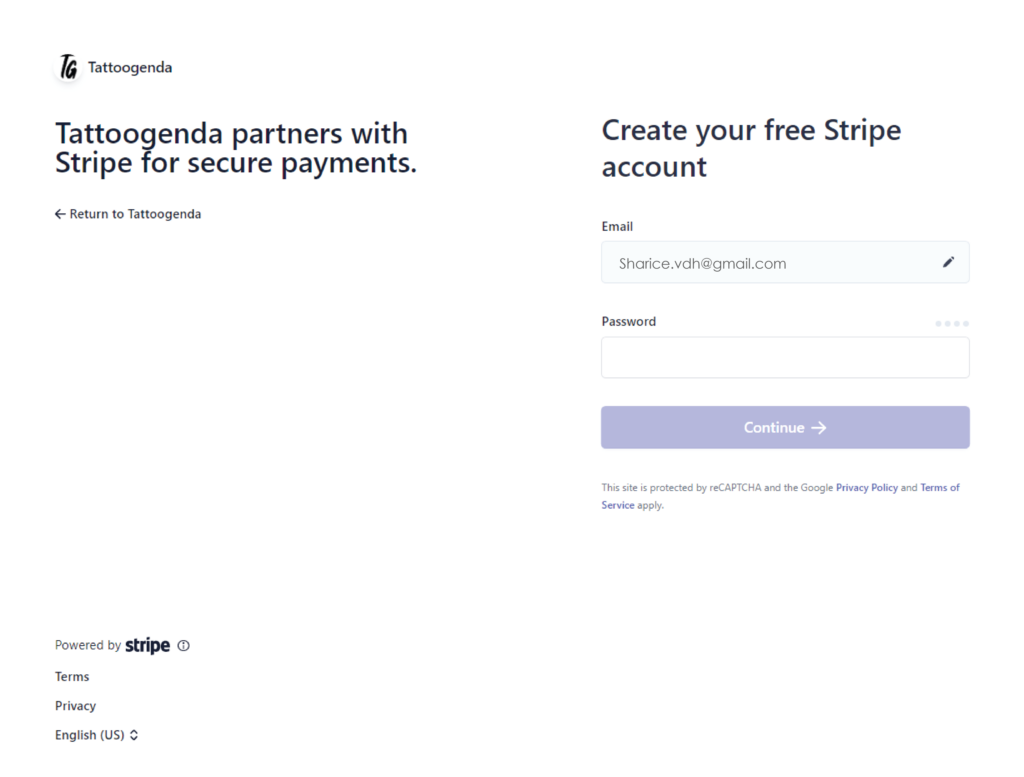
Create your free stripe account.
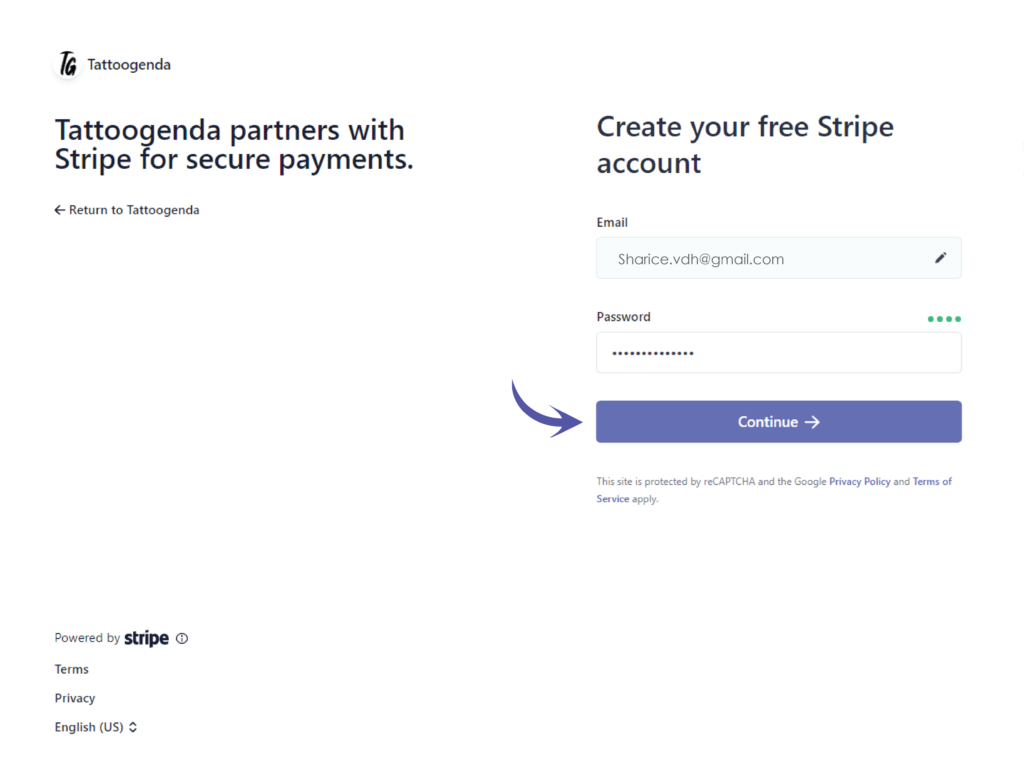
You have to create a new Stripe account to use with TG. If you already have a Stripe account, you can not use the same one.
Enter your chosen password and click on continue.
Secure your account with a mobile number.
Enter your mobile number here.
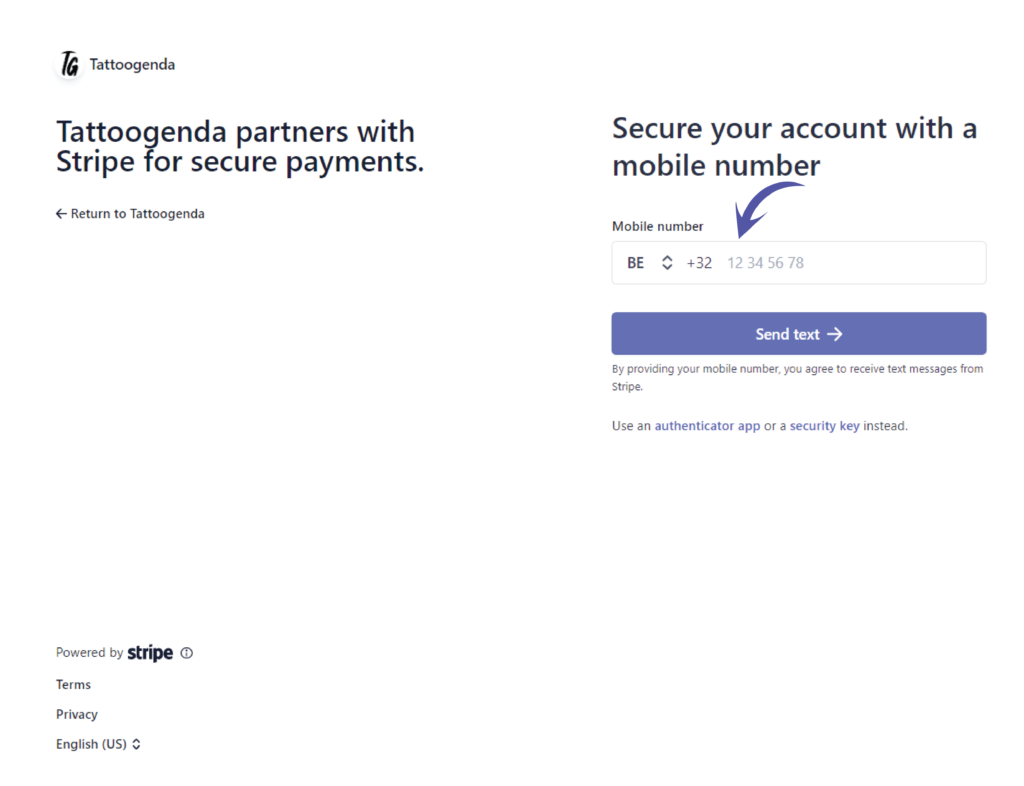
Click on Send text.
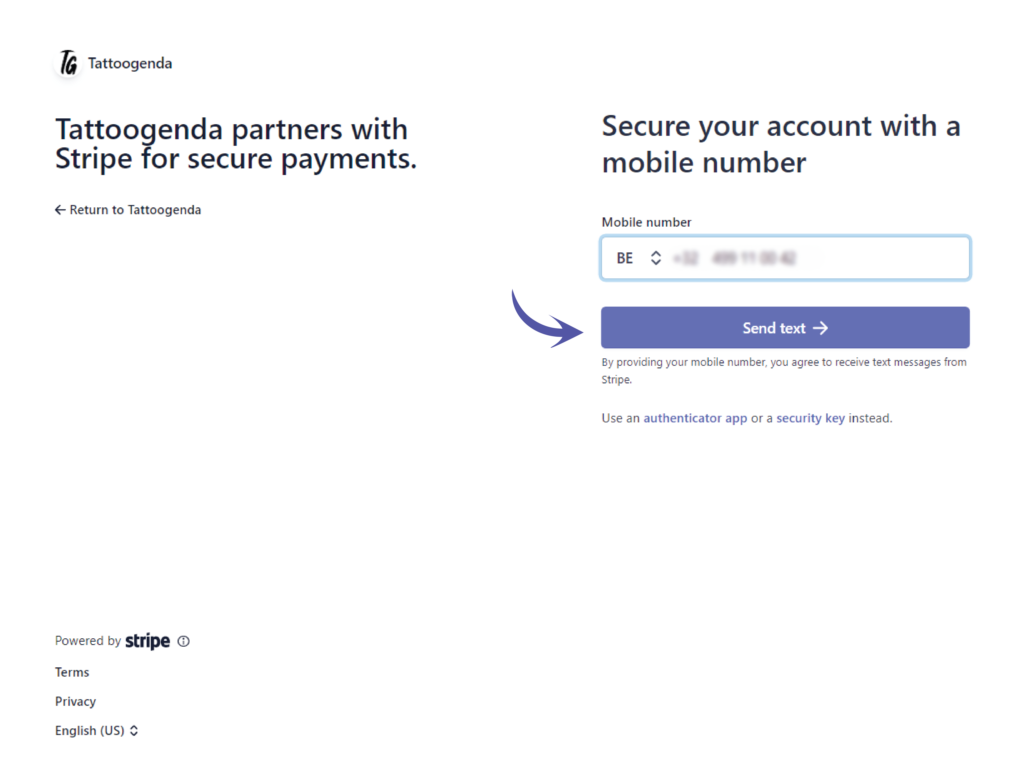
You will automatically receive an SMS on the number you just entered.
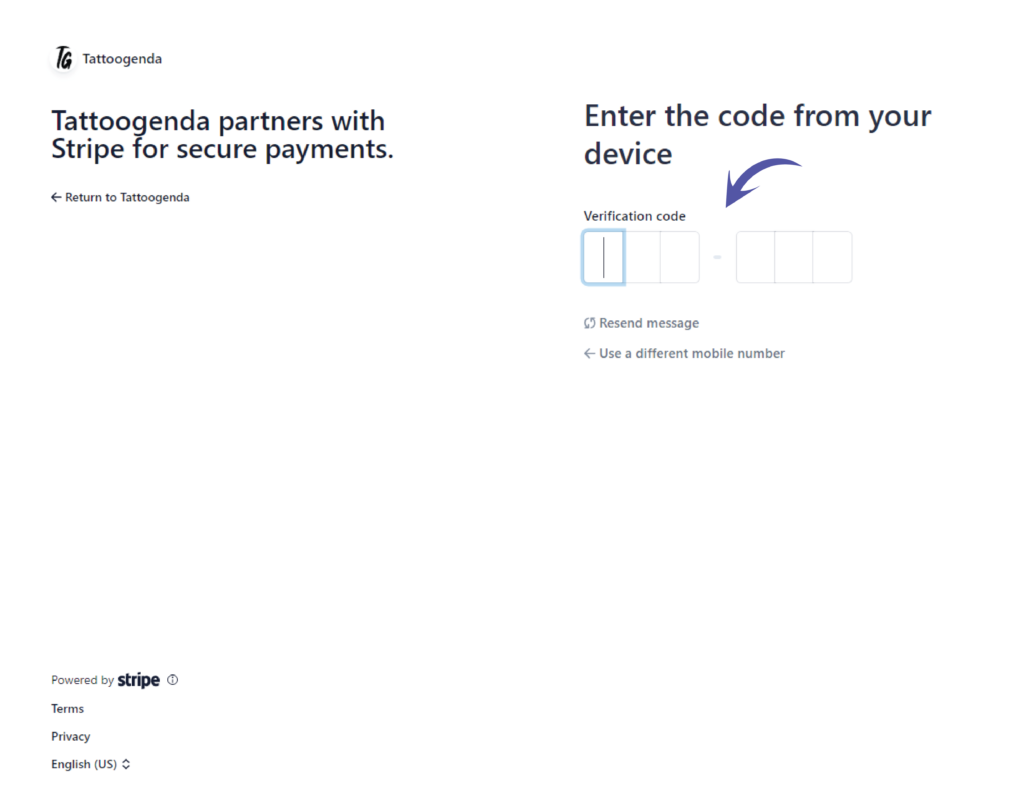
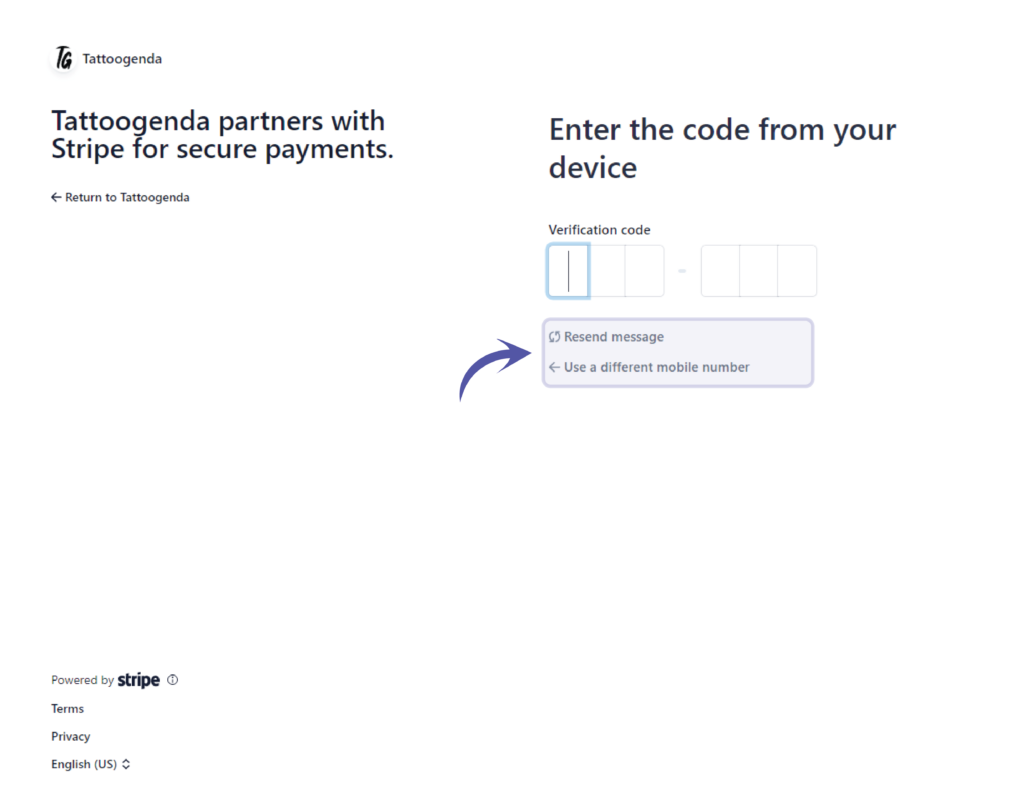
If you did not receive an SMS you can try to resend message OF use a different mobile number.
If the last four digits where correct you should have received an SMS that could look like this on your phone.
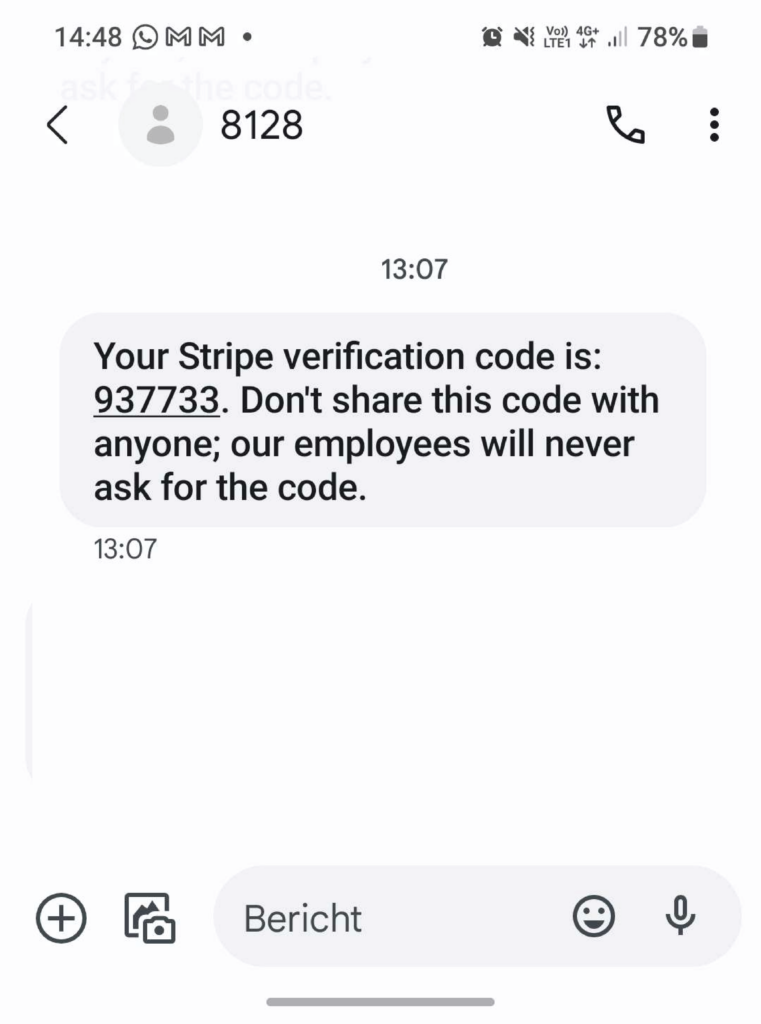
Fill out your own SMS code here.
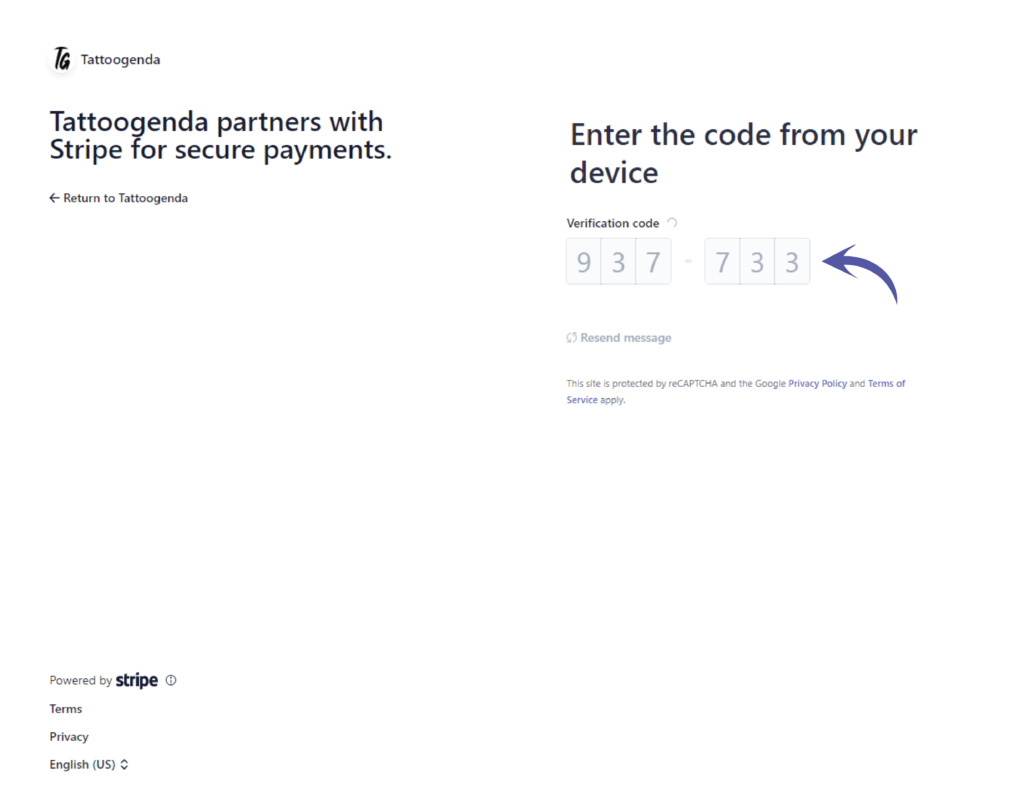
It will automatically start verifying the code you have entered.
Please be patient.
Your account is secure
Store this code carefully, download the code or copy it and put it somewhere safe!
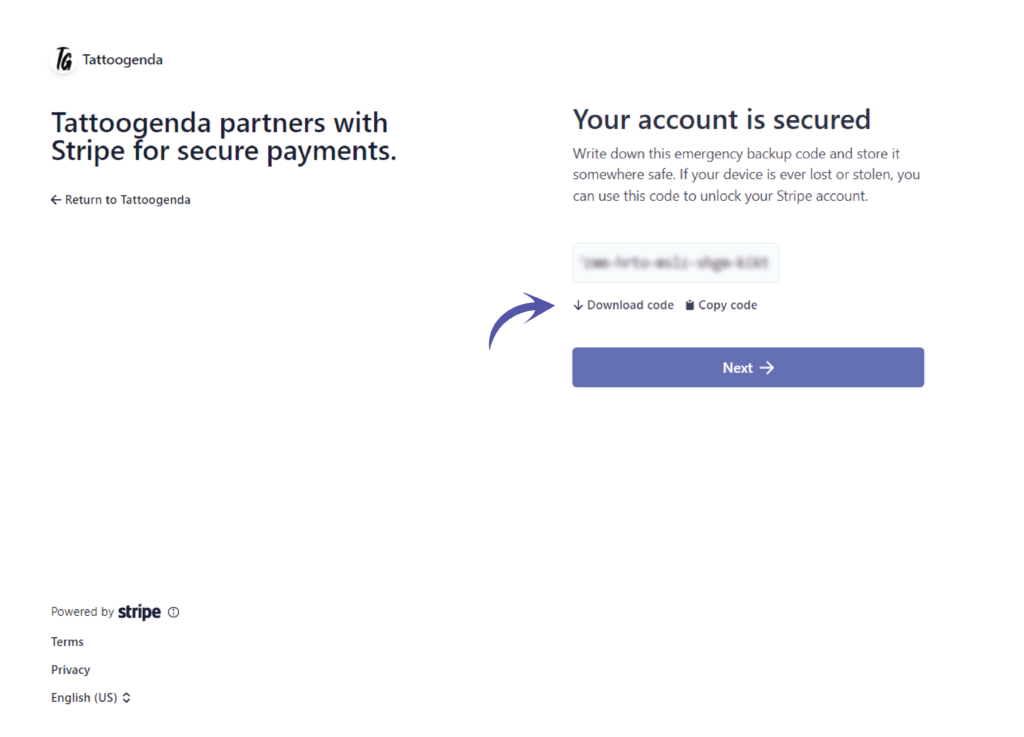
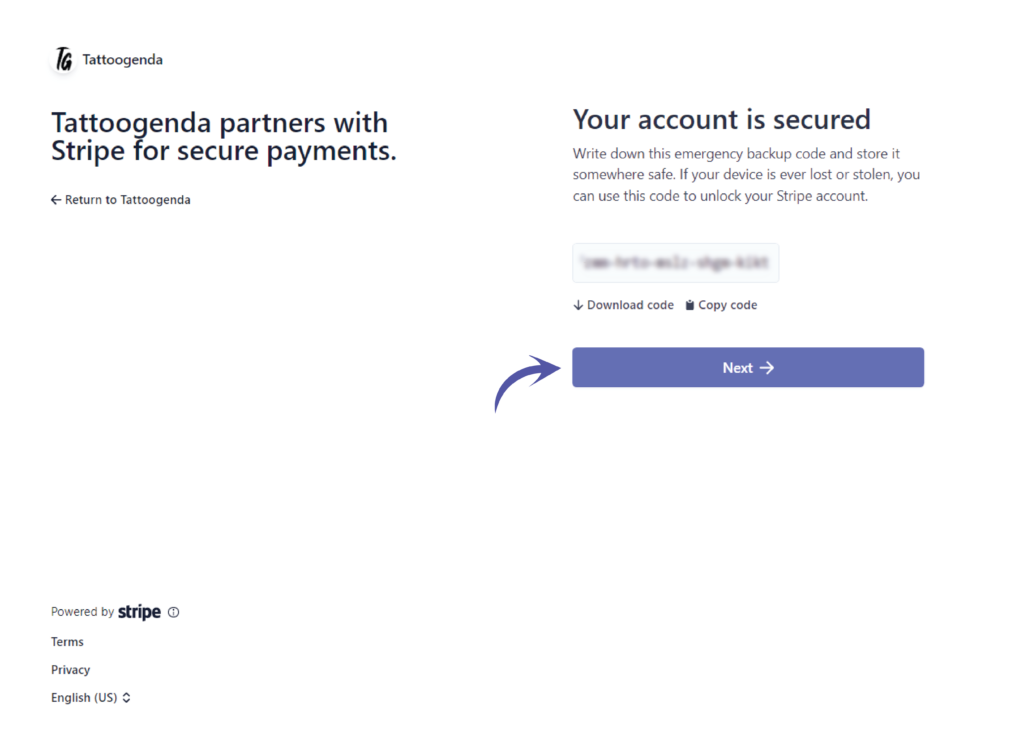
Click ‘Next’.
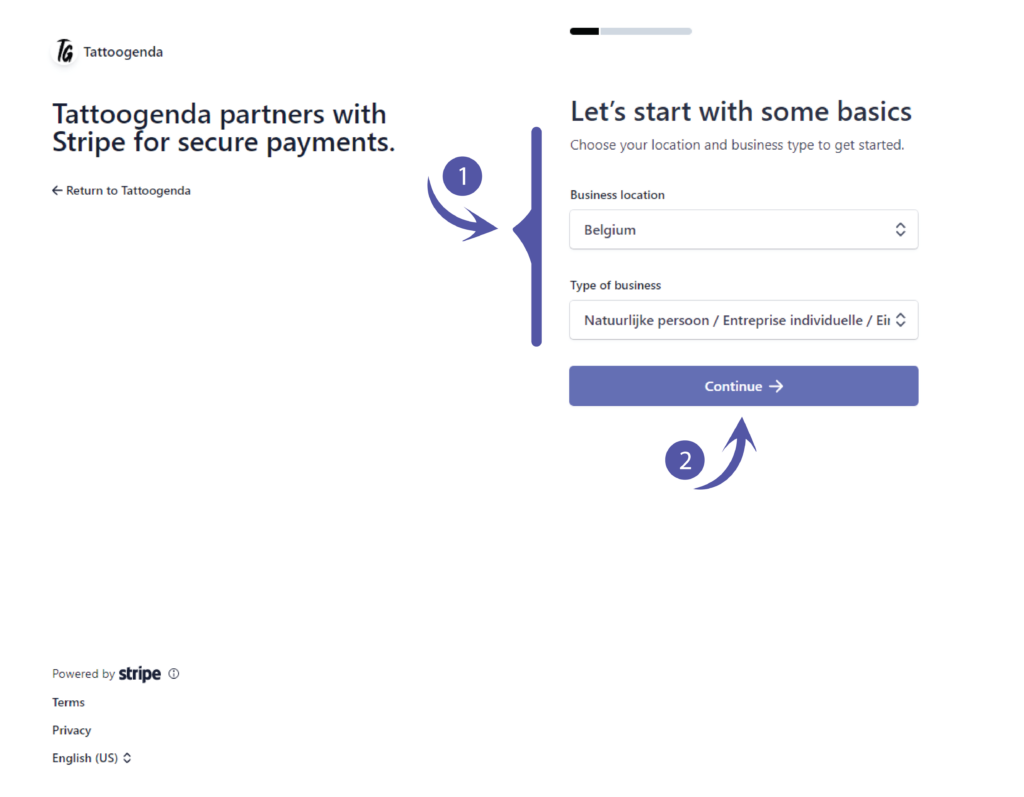
Let’s start with some basics.
Please fill out what applies to you and click continue.
Verify your personal details
You should see the following screen
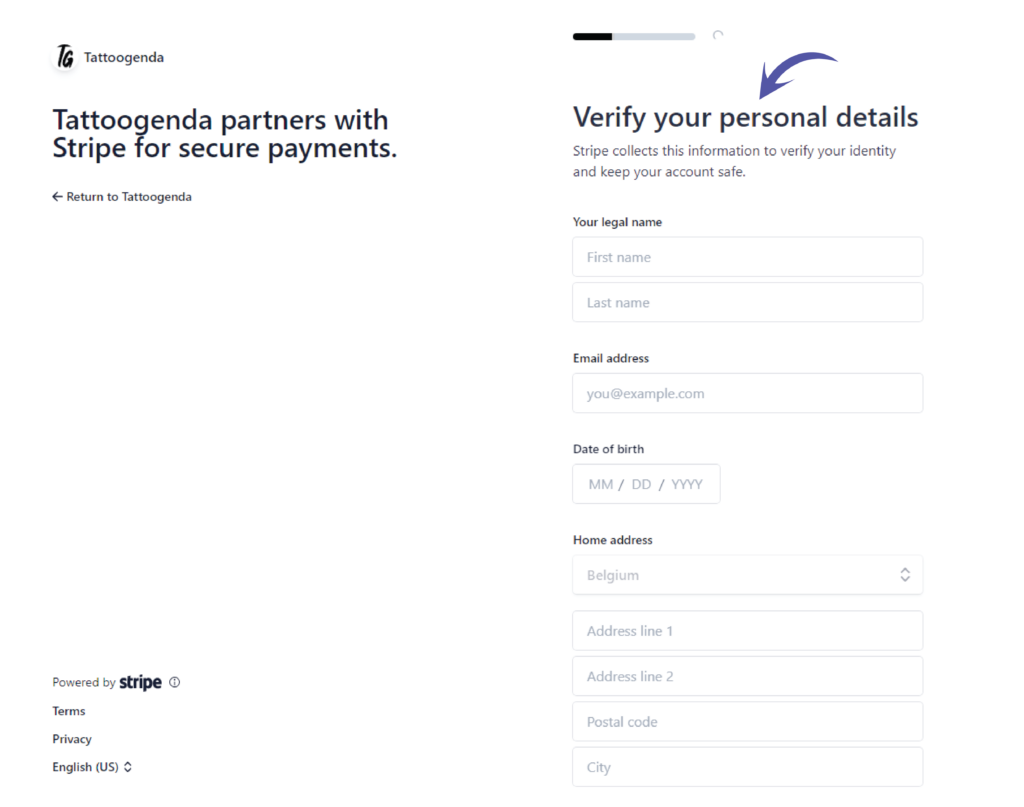
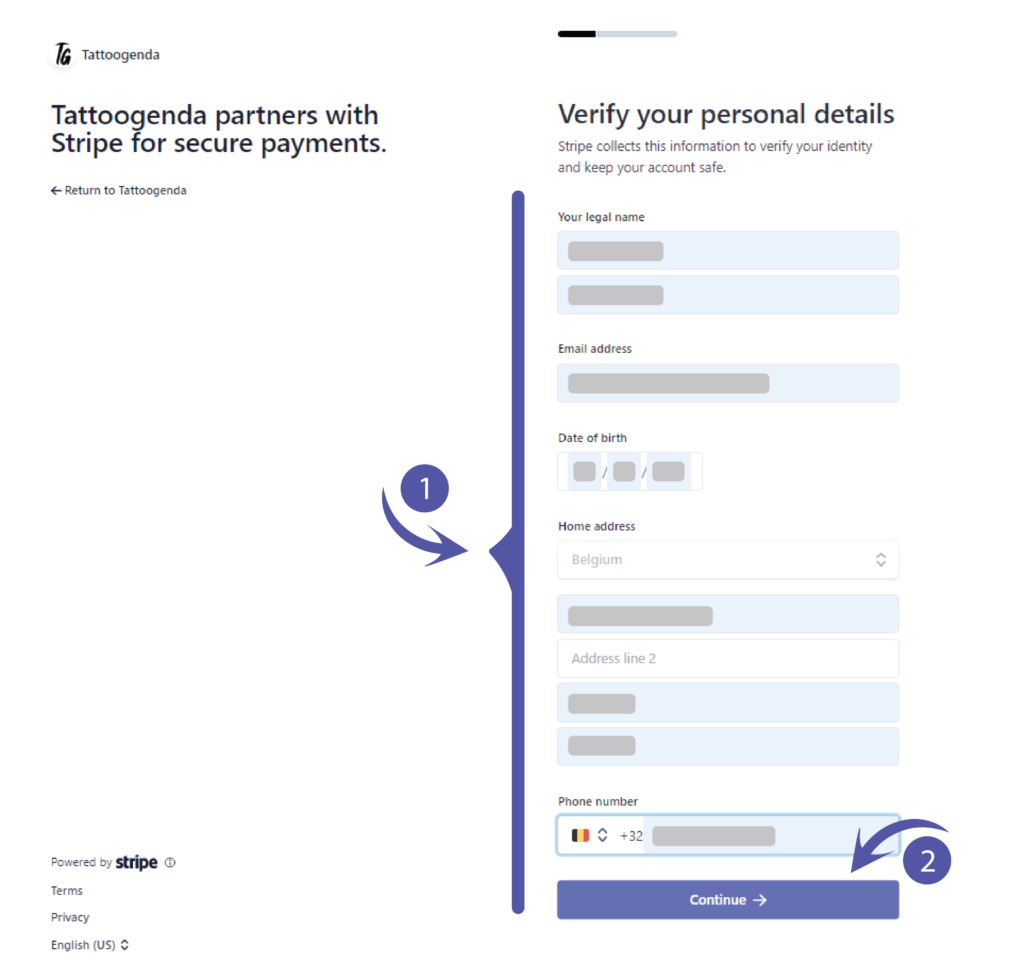
Fill out your credentials en click continue.
Professional details.
You should see the following screen.
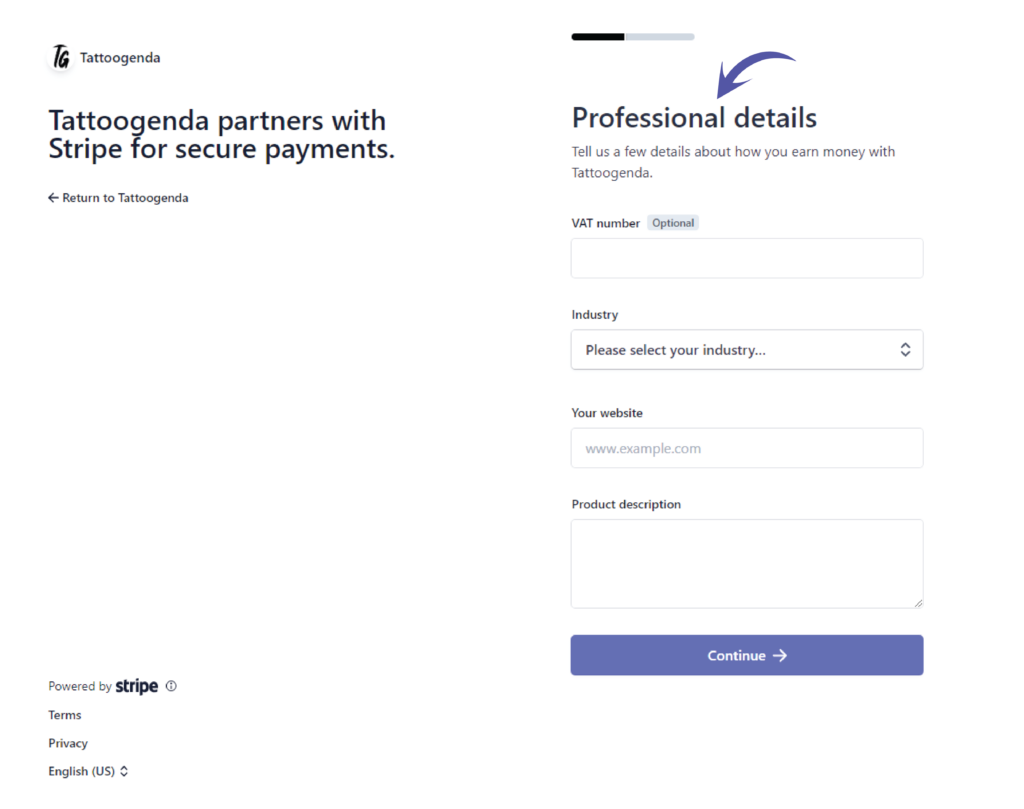
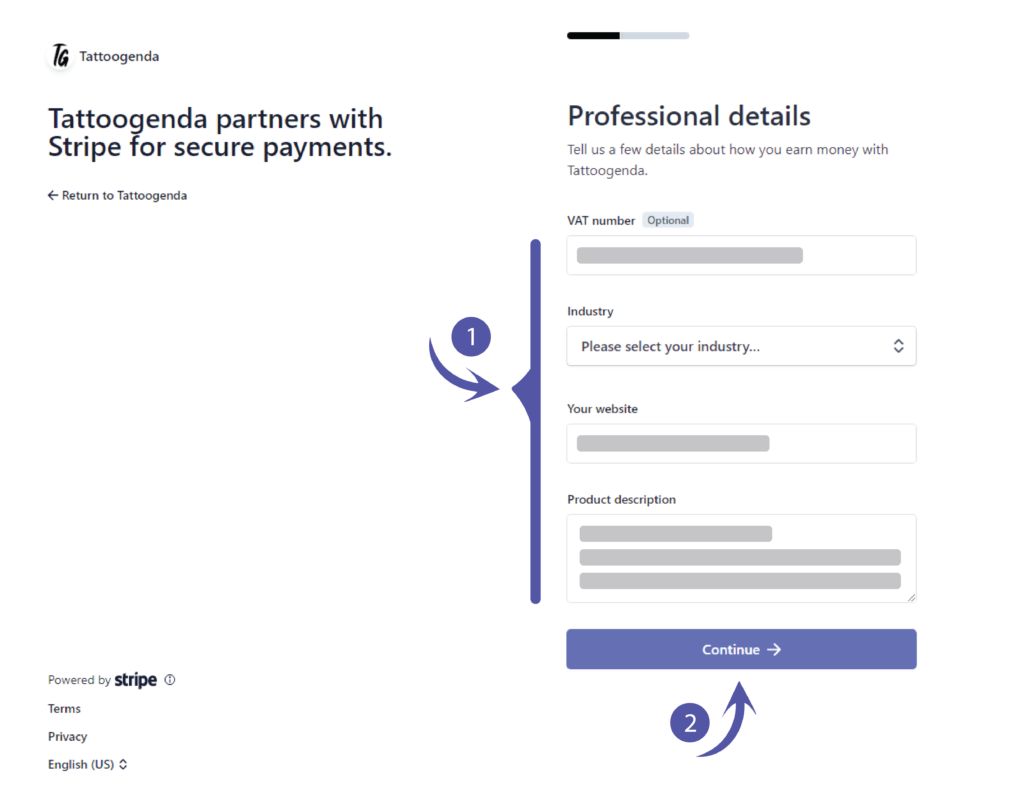
Fill out what applies to you and click continue.
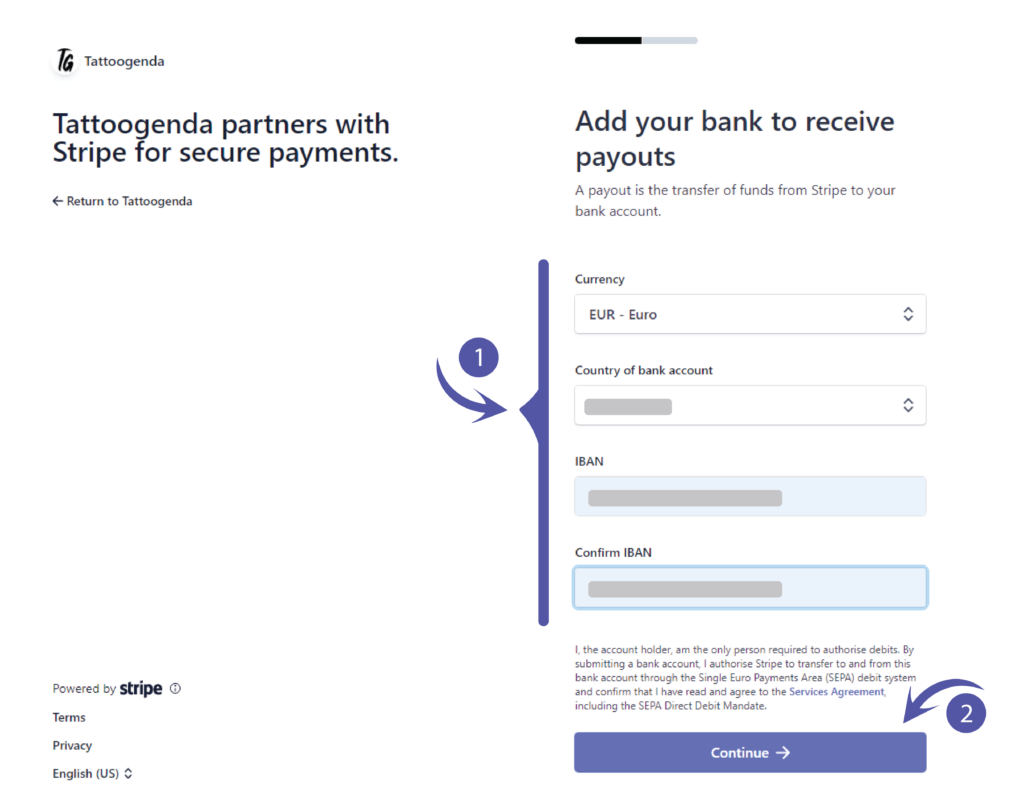
Add your bank to receive payouts.
Please fill out what applies to you and click continue..
Add public details for customers.
De ‘Statement descriptor’ will be automatically filled out if you have entered a website.
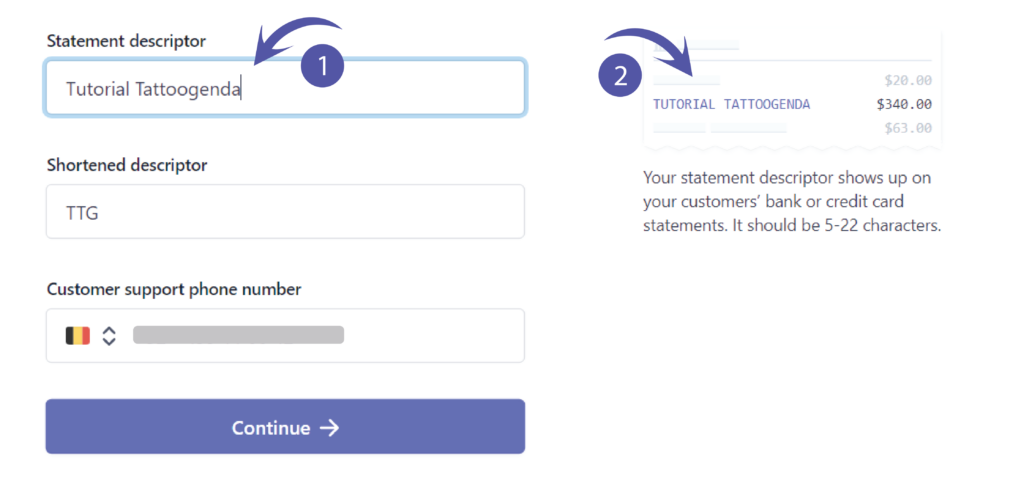
However, you can change this into anything you’d like!
This is what your customer will see on their bankaccount when they made a payment to you.
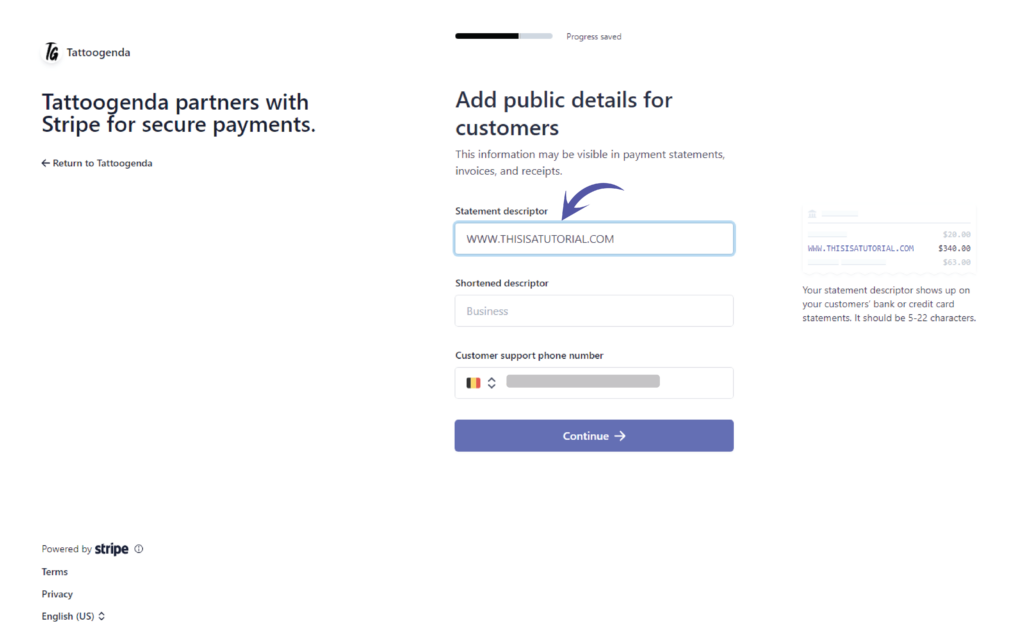
You will get a little preview that shows you how it will look like.
Fill out what applies to your studio.
Do the same with the shortened descriptor.
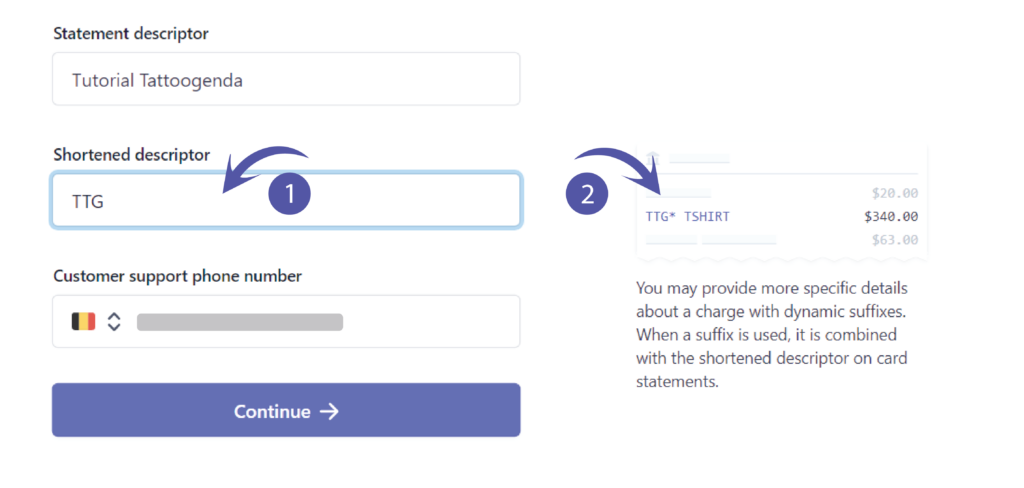
Fill out your support phone number and click continue.

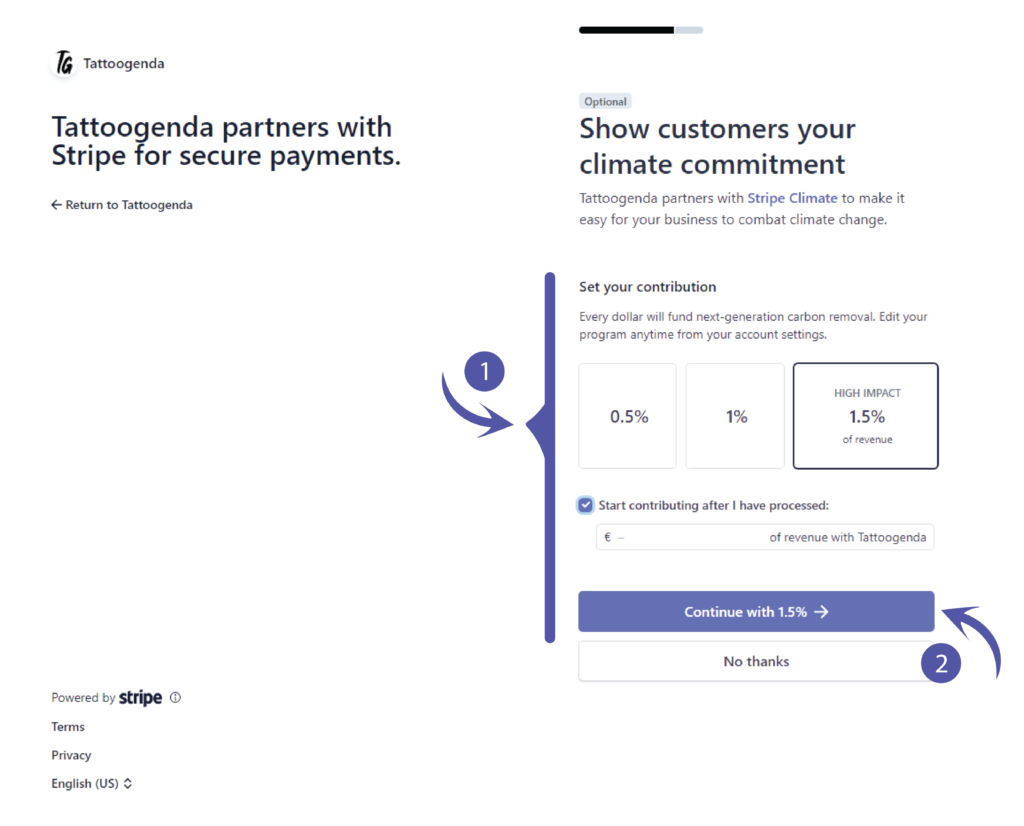
Show customers your climate commitment.
If you do not wish to contribute anything you can choose no thanks.
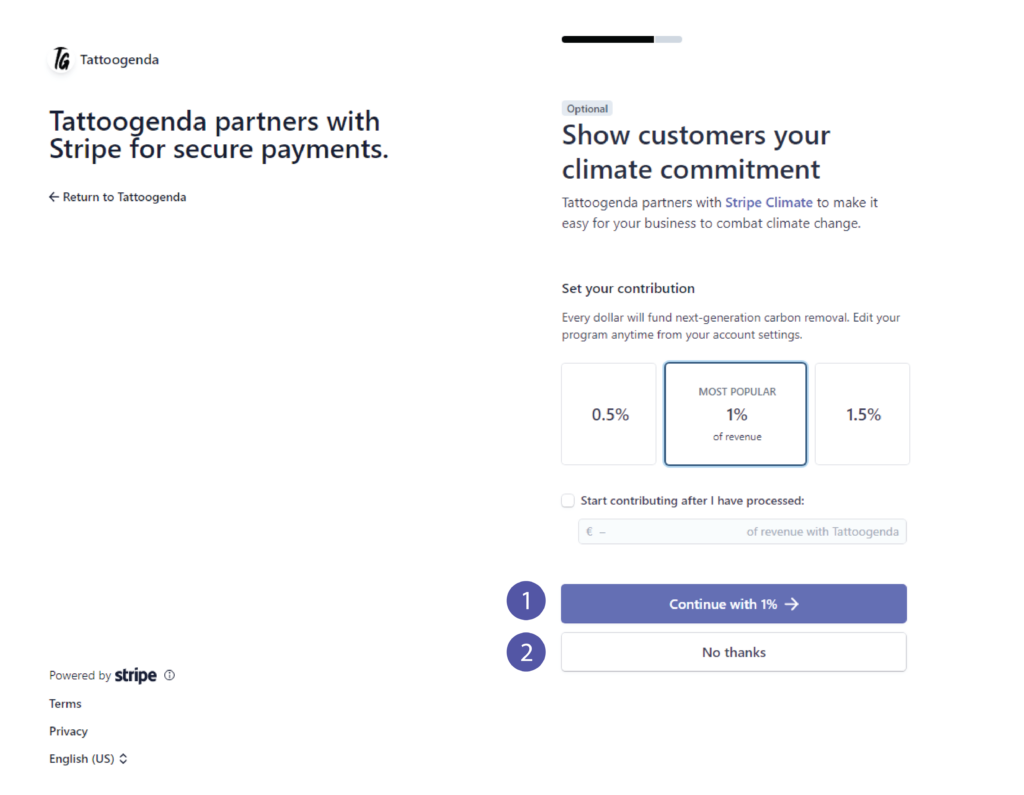
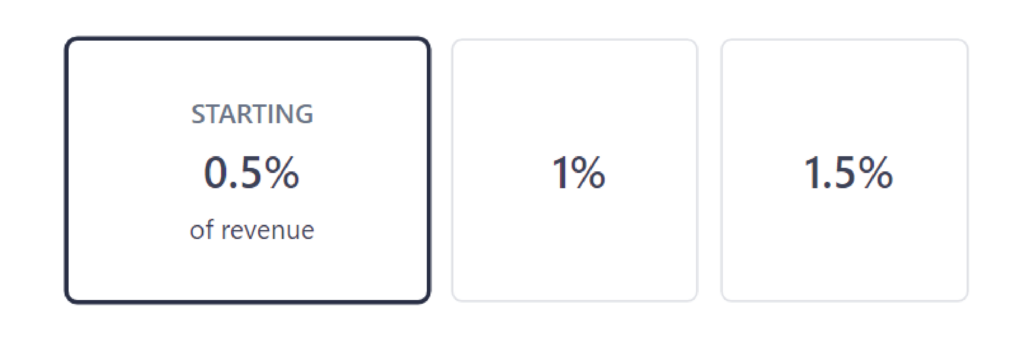
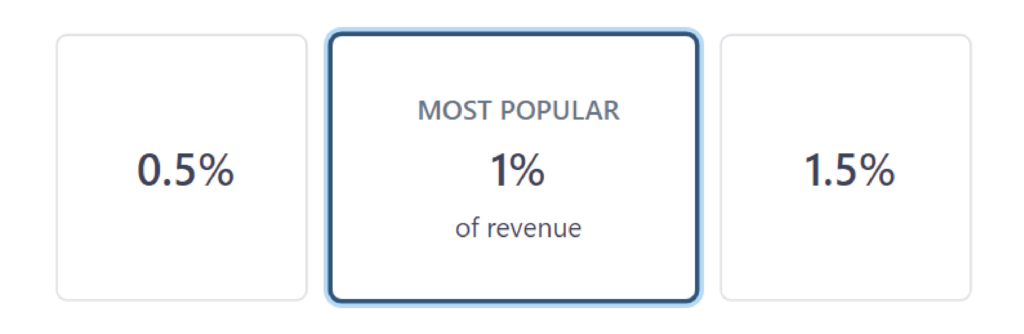
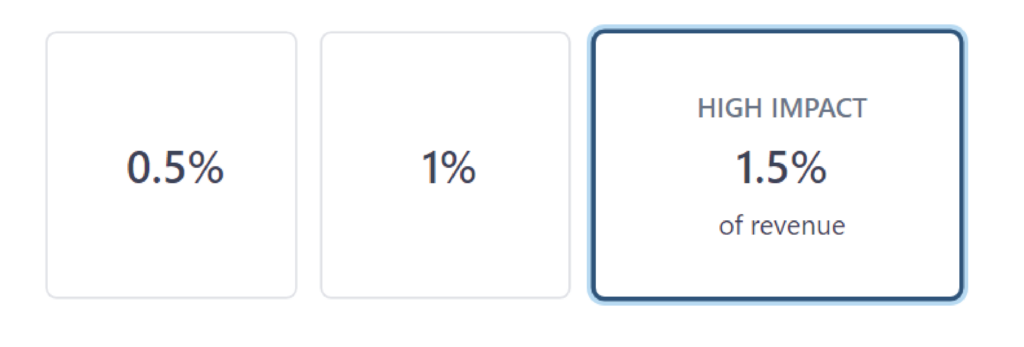
If you chose ‘No thanks’ you can skip this part.
You can choose to contribute after you have processed by checking the checkbox.
Klik op ‘Continue with (e.g. 1.5% )’.
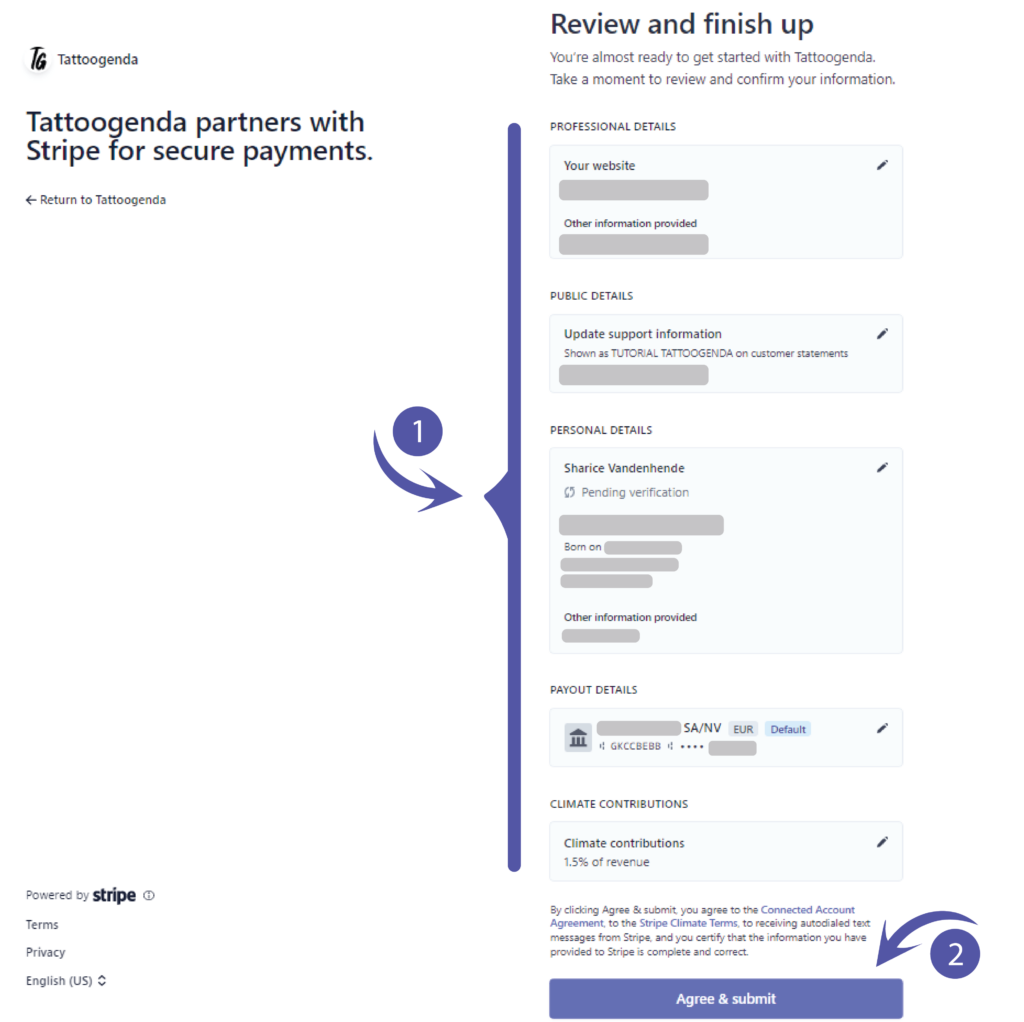
Review and finish up.
This will hold all the information you have just filled out.
Please check for any mistakes or preferred changes.
After reviewing click ‘Agree & Submit’.
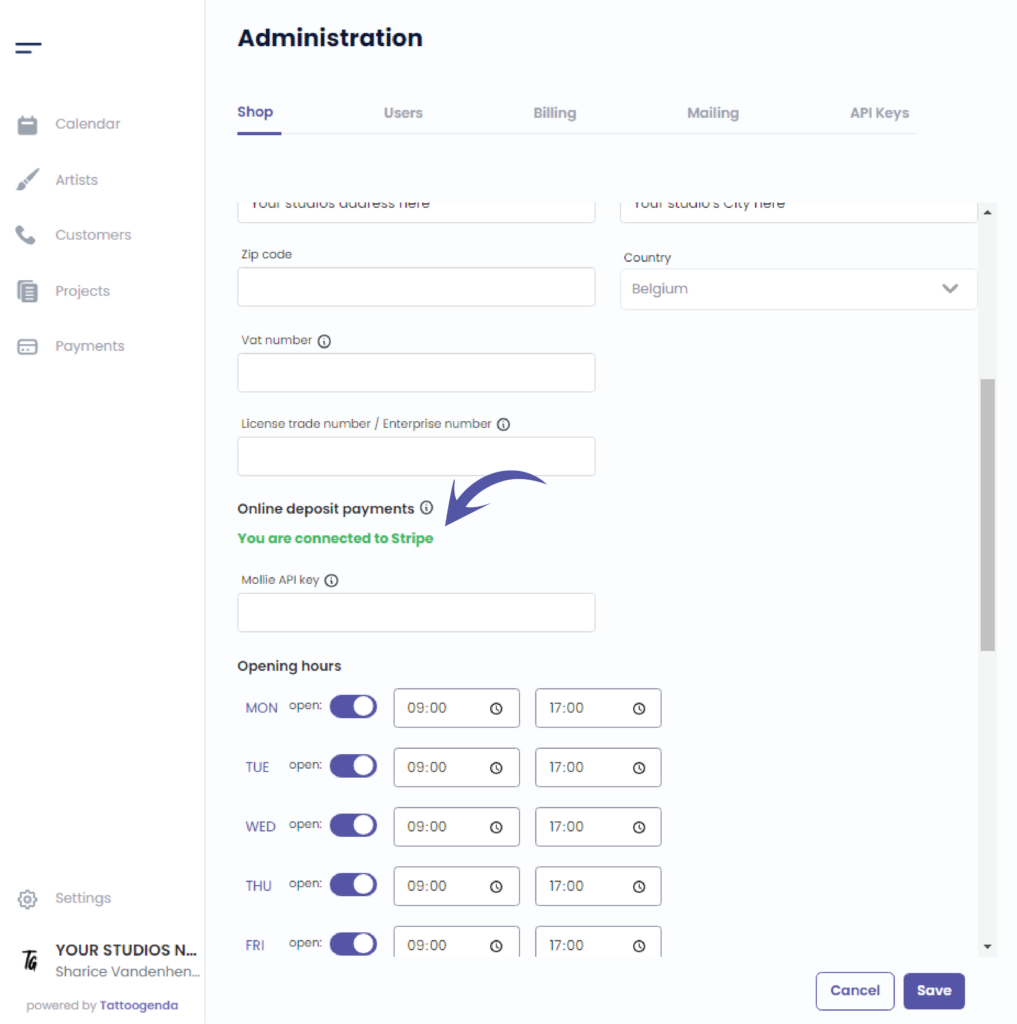
Je zult automatically brought back to your Tattoogenda software.
Please give it a little time to process and it will turn green.
‘You are connected to Stripe’.
This confirms the setup was successful.
Heb je nog steeds een probleem of een vraag?
Hieronder vind je een kleine link met de naam ‘Nog steeds vast? Hoe kunnen we helpen!’
Geschreven door
Sharice Vandenhende
Door Tattoogenda


 English
  Dutch
Dutch  Dutch (Belgium)
  French
  German
  Spanish