

There’s two ways to edit a project
Through an appointment
Through projects
EDIT A PROJECT OF AN EXISTING APPOINTMENT #
Aller à ‘Calendrier’
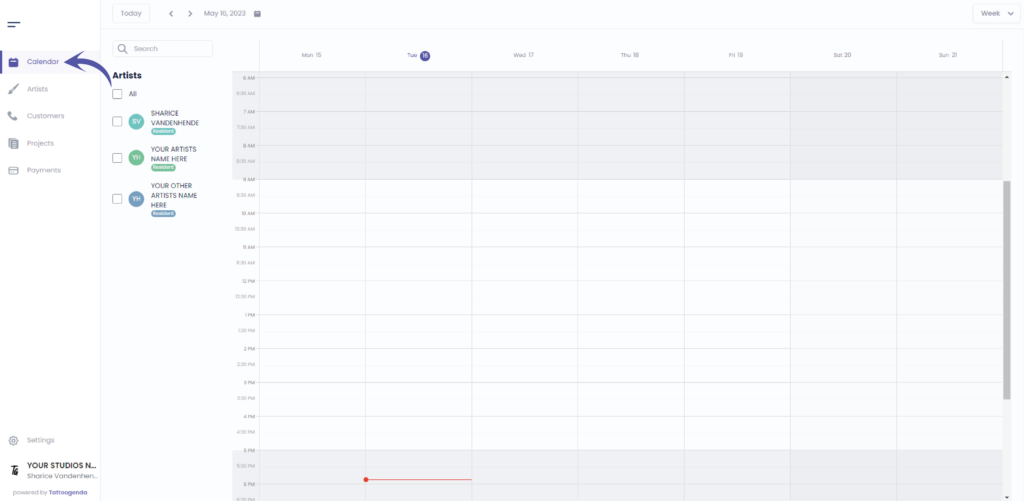
Click on the calendar on your appointment related to this project you wish to edit
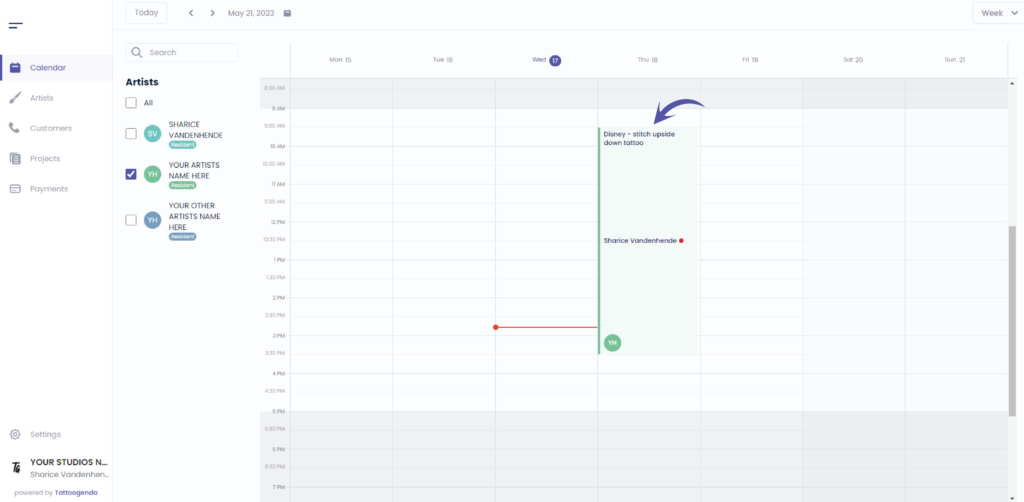
Cliquez sur ‘Edit project’
Clicking on the purple button ‘Détails du projet’ does exactly the same as clicking on ‘Edit project’.
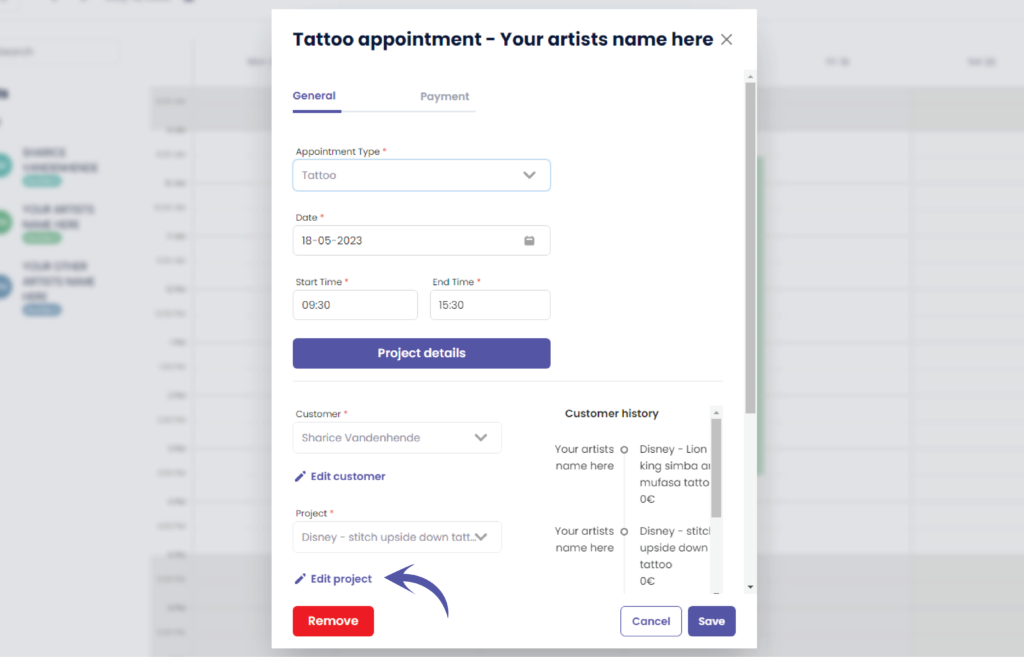
You are now at the editing screen
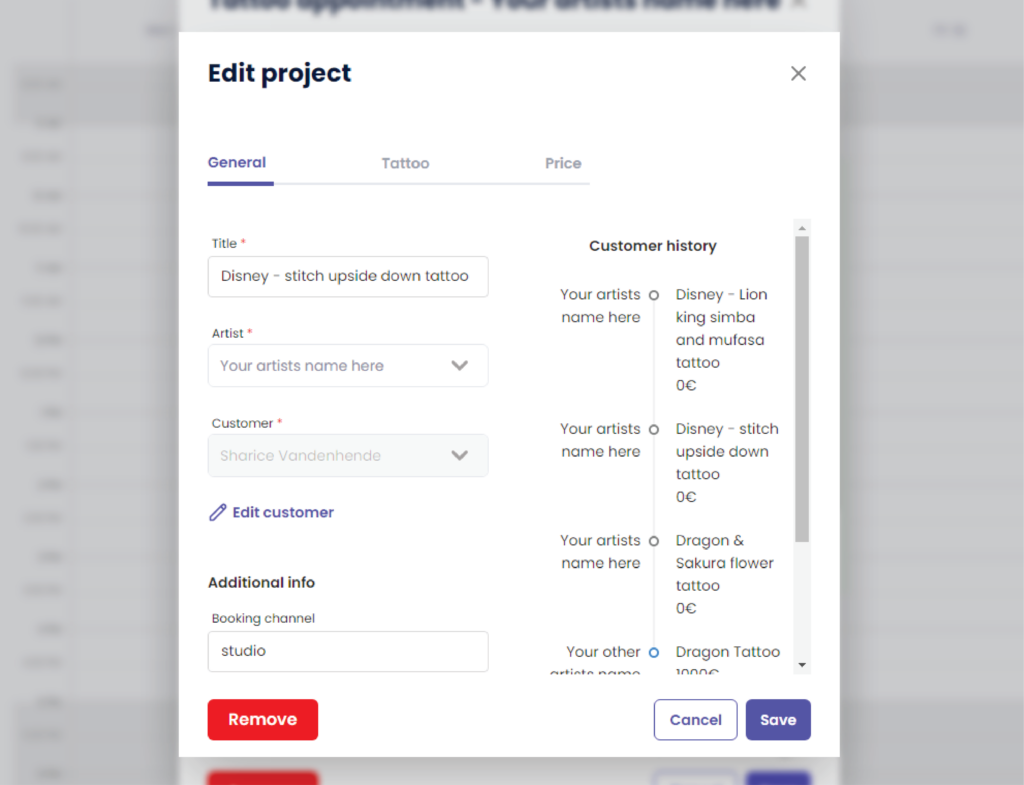
Edit the project according to your needs you can do this for all tabs
Price might ne pas être disponible for you if you don’t own the ‘Un studio plus grand’ plan or higher
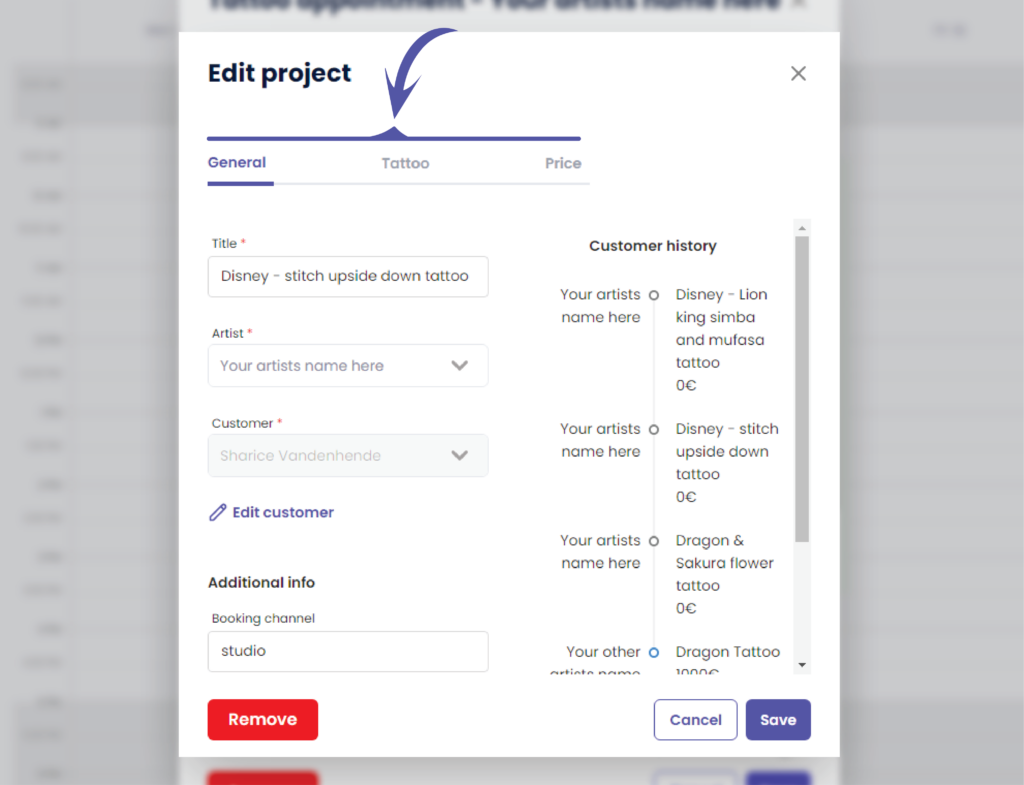
When you are done editing your project cliquer sur enregistrer
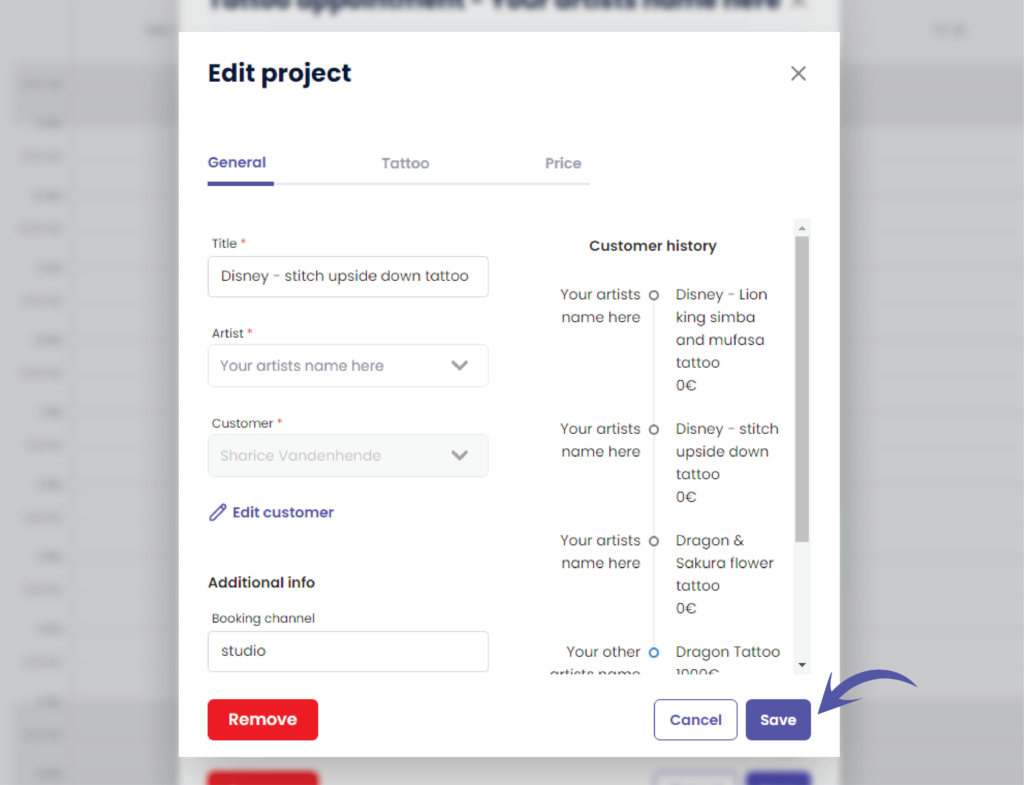
You will see a notification telling you that you have ‘Successfully updated the project’


EDIT A PROJECT THROUGH PROJECTS #
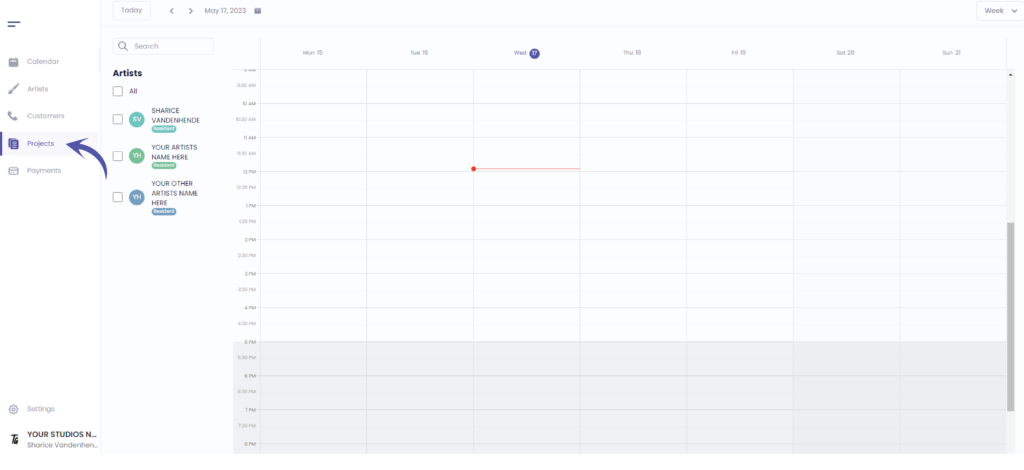
Aller à ‘Projets’
Aller à ‘Edit’ (modifier)’
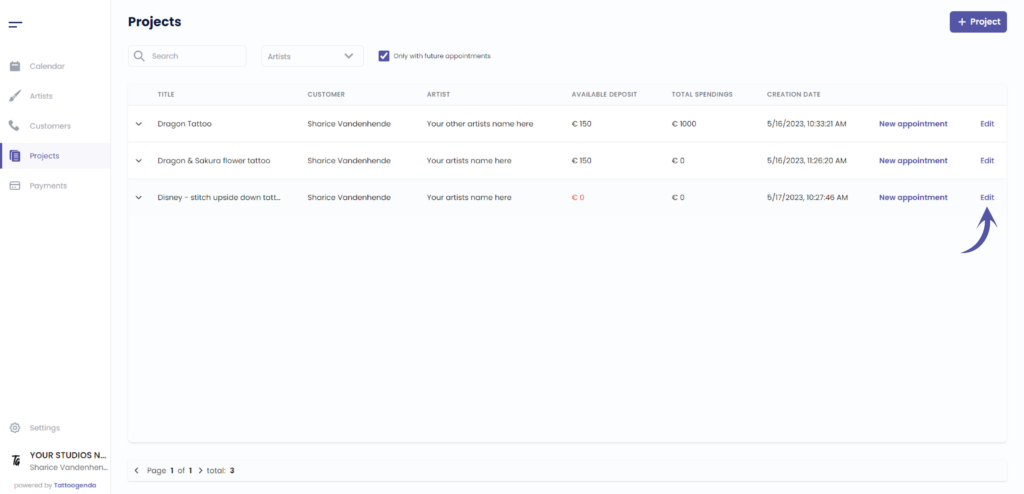
L'écran suivant s'affiche
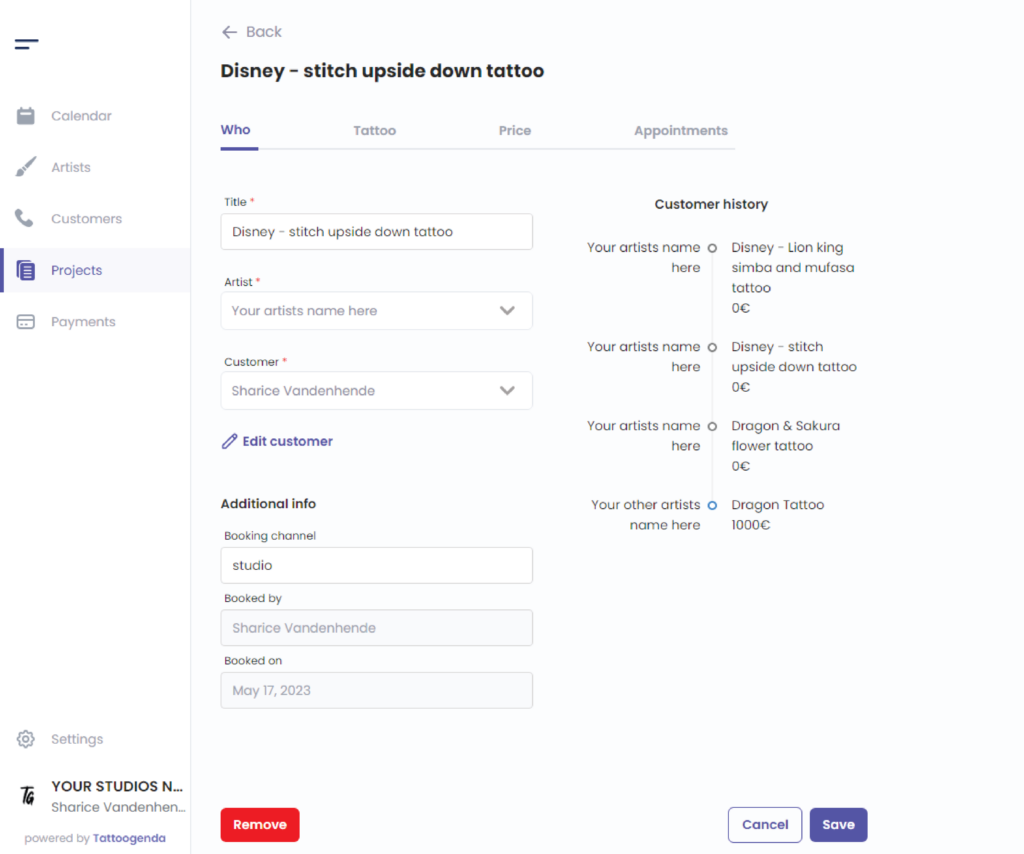
You can now edit the project according to your needs in these categories
Price might ne pas être disponible for you if you don’t own the ‘Un studio plus grand’ plan or higher

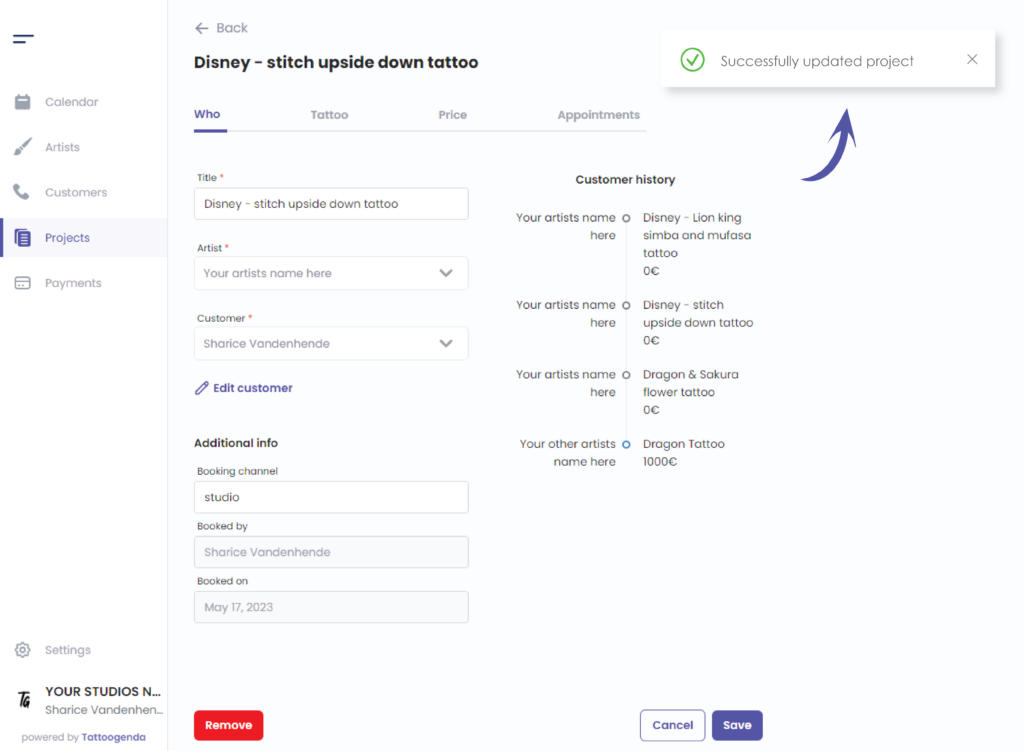
When you are done editing your project you can cliquer sur enregistrer

You will see a notification that says that you have ‘Successfully updated your project’
Vous avez encore un problème ou une question ?
Vous trouverez ci-dessous un petit lien intitulé ‘Toujours bloqué ? Comment pouvons-nous vous aider ?’
Rédigé par
Sharice Vandenhende
Par Tattoogenda


 English
  Dutch
Dutch  Dutch (Belgium)
  French
  German
  Spanish