

Dans votre Logiciel Tattoogenda studio,
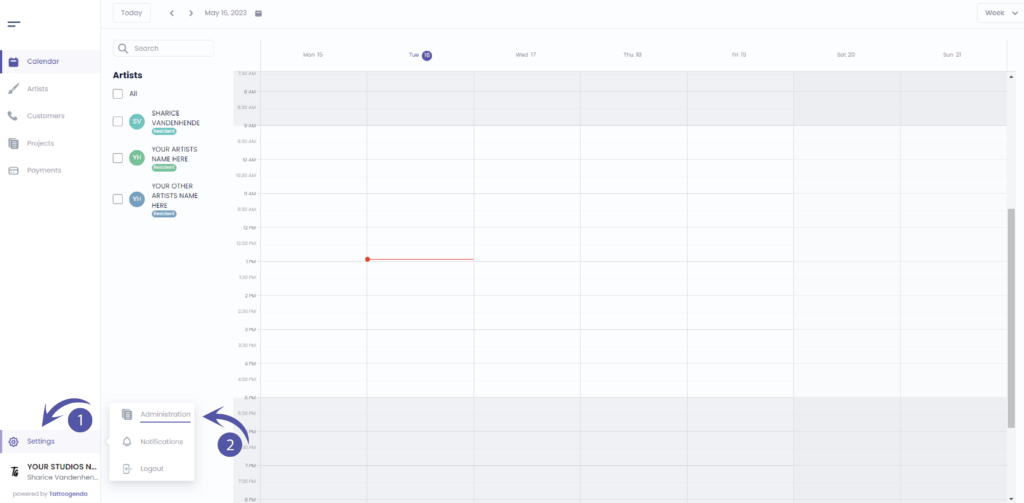
vous trouverez vos paramètres en bas à gauche de votre écran, au-dessus du nom de votre studio.
Accédez à vos paramètres et choisissez ‘Administration’
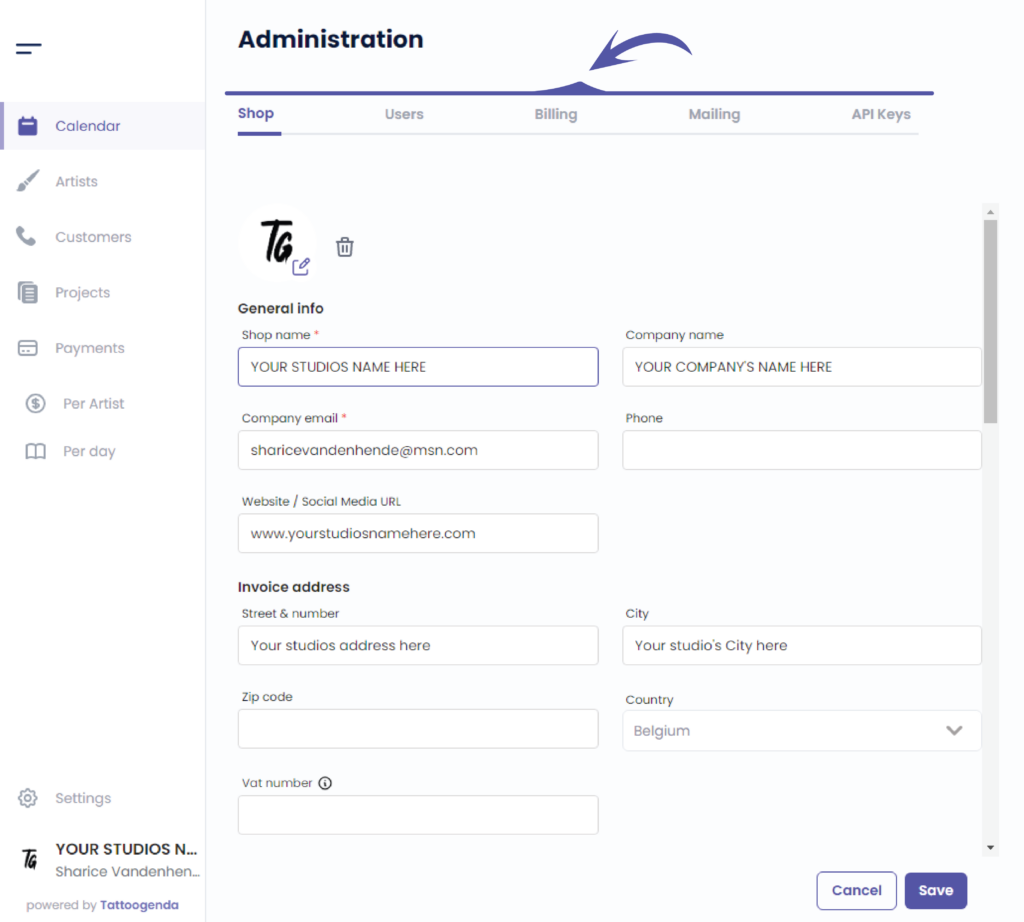
Dans votre administration, vous pouvez naviguer à travers les onglets suivants
Boutique, utilisateurs, facturation, publipostage, clés API
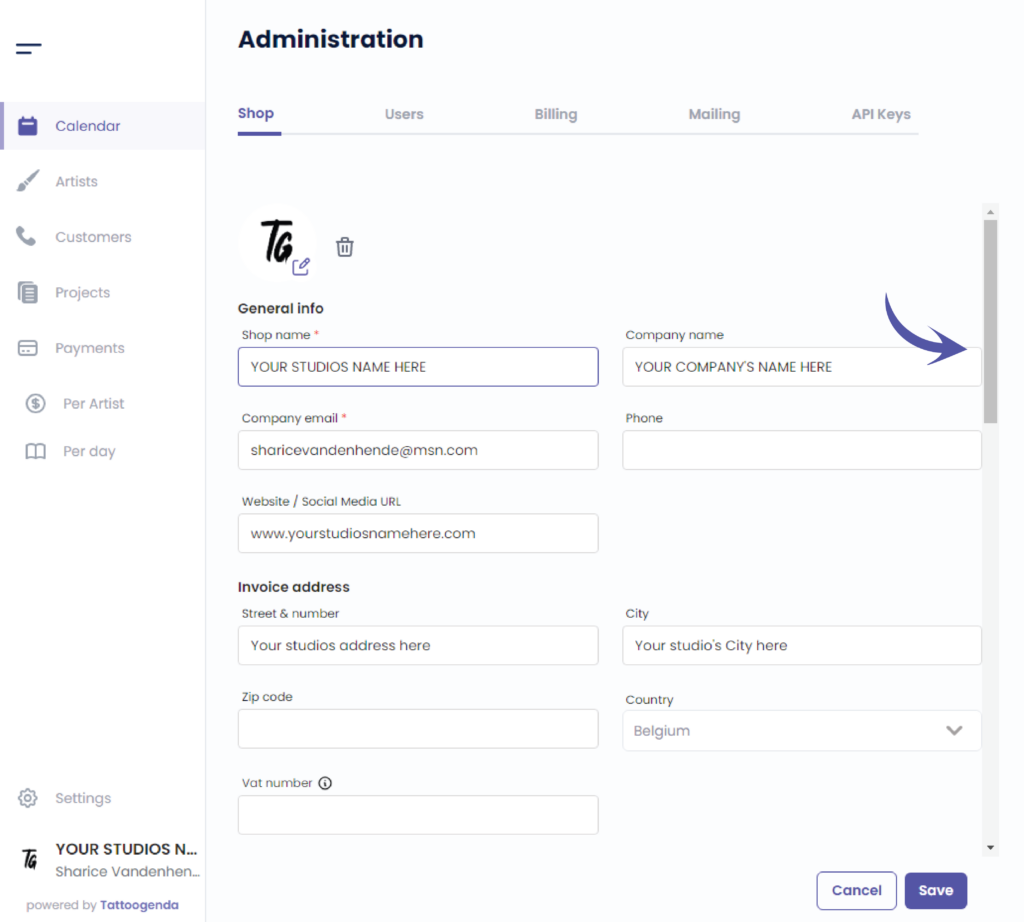
Use the scrollbar to scroll down until we see ‘online deposit payments’
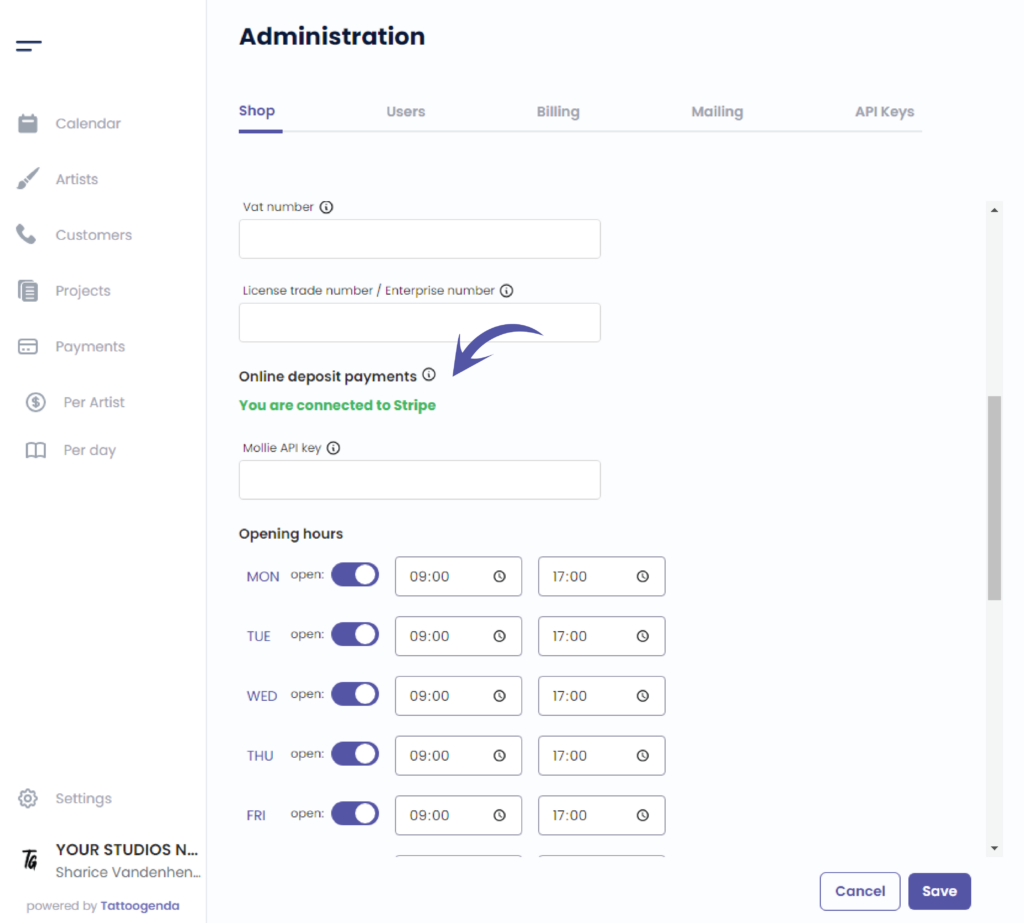
The online deposit payment details
In the screenshot below you see how it looks when you have already set up your Stripe account.
Stripe is a third party payment gateway, they keep digital payments secure, worldwide.
You need this payment gateway security to accept payments.
Your next step might be to follow our documentation article ‘Setup Stripe for deposits’. If you are not sure if you need this, keep reading untill the end of this article.
Starting from the ‘Expert Studio’ subscription plan, you can start collecting deposits from your customers.
After a new appointment gets booked, your customer receives his appointment list automated email.
In that appointment list mail there is a button your customer can click on, and pay his deposit online.
To be able to accept those digital deposit payments, you need to have a Stripe account setup.
Click on the articles below to find out more about automated emails like:
appointment list, deposit reminders, how to personalize your automated emails and how to connect Stripe to Tattoogenda
Vous avez encore un problème ou une question ?
Vous trouverez ci-dessous un petit lien intitulé ‘Toujours bloqué ? Comment pouvons-nous vous aider ?’
Rédigé par
Sharice Vandenhende
Par Tattoogenda


 English
  Dutch
Dutch  Dutch (Belgium)
  French
  German
  Spanish