

There’s two ways to edit a project
Through an appointment
Through projects
EDIT A PROJECT OF AN EXISTING APPOINTMENT #
Ir a ‘Calendario’
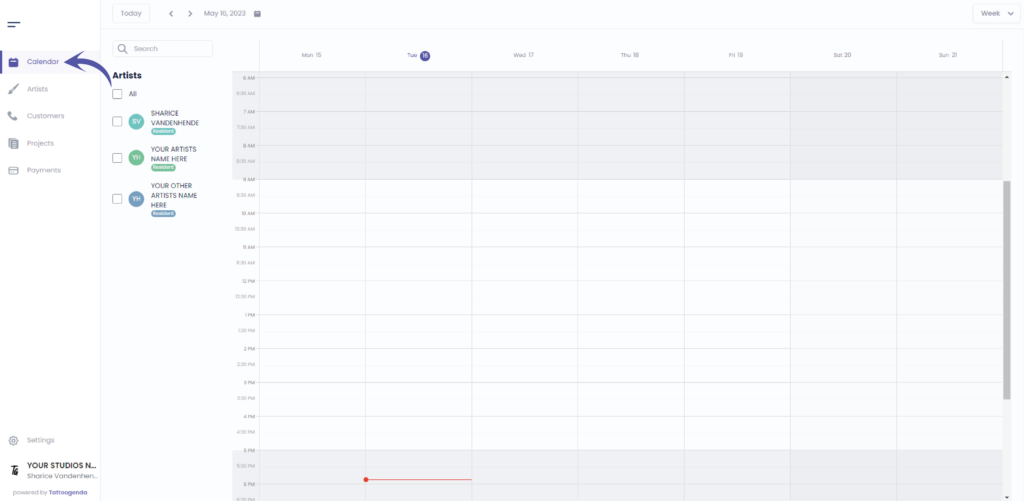
Click on the calendar on your appointment related to this project you wish to edit
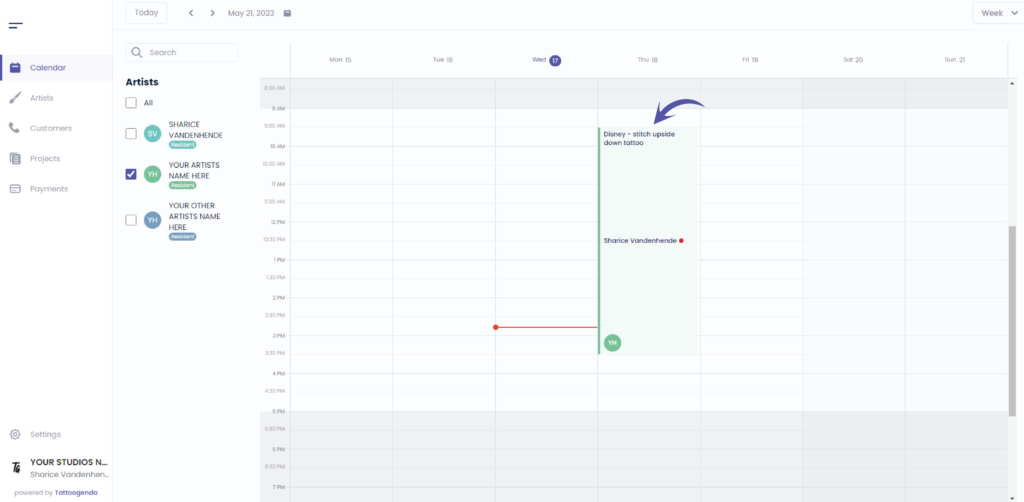
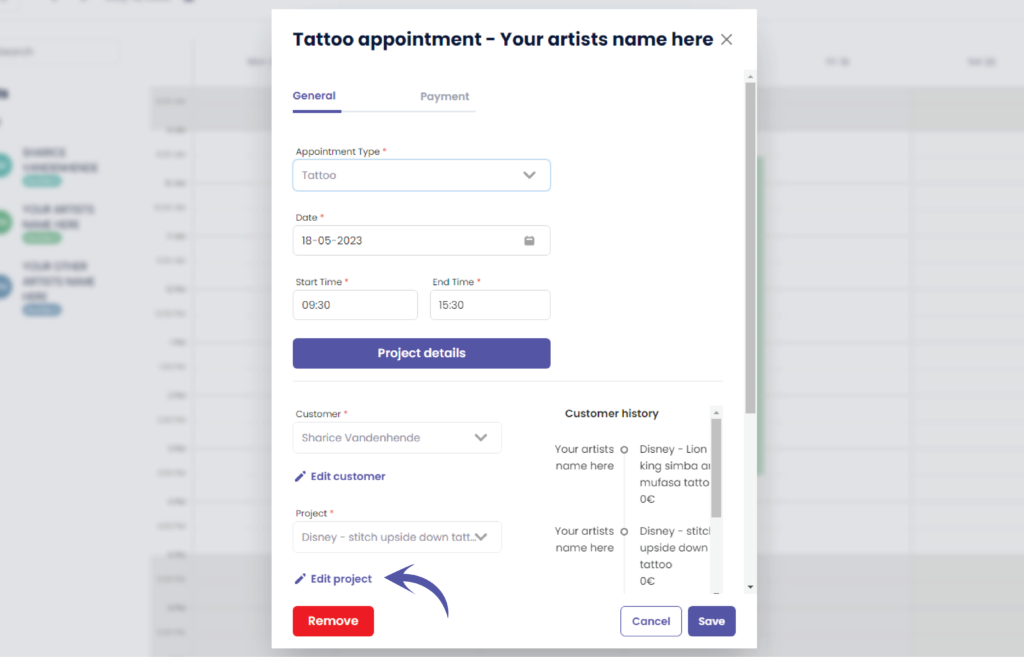
Haga clic en ‘Edit project’
Clicking on the purple button ‘Project details’ does exactly the same as clicking on ‘Edit project’.
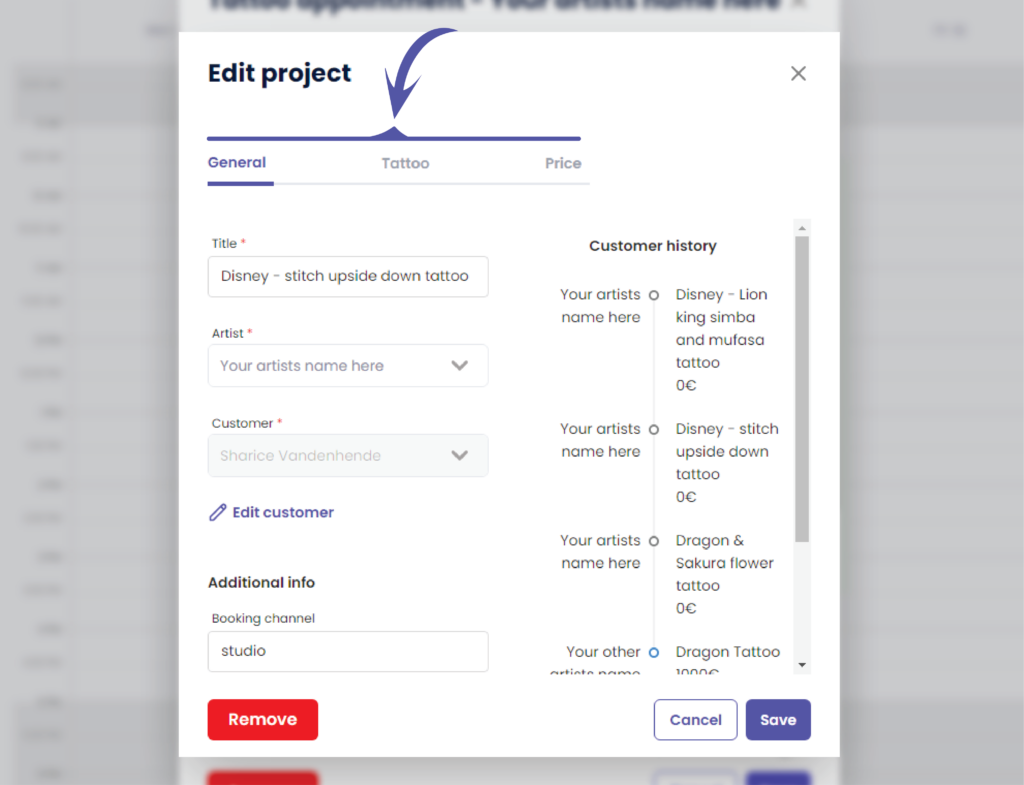
You are now at the editing screen
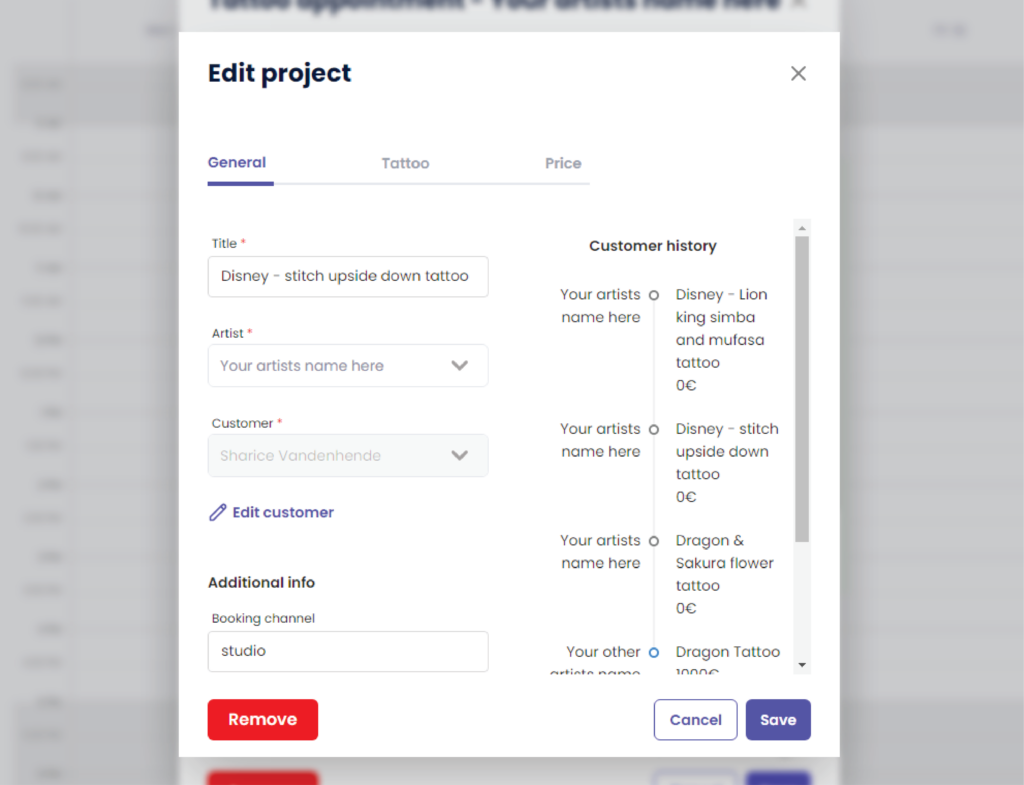
Edit the project according to your needs you can do this for all tabs
Price might no estar disponible for you if you don’t own the ‘Un estudio más grande’ plan or higher
When you are done editing your project haga clic en guardar
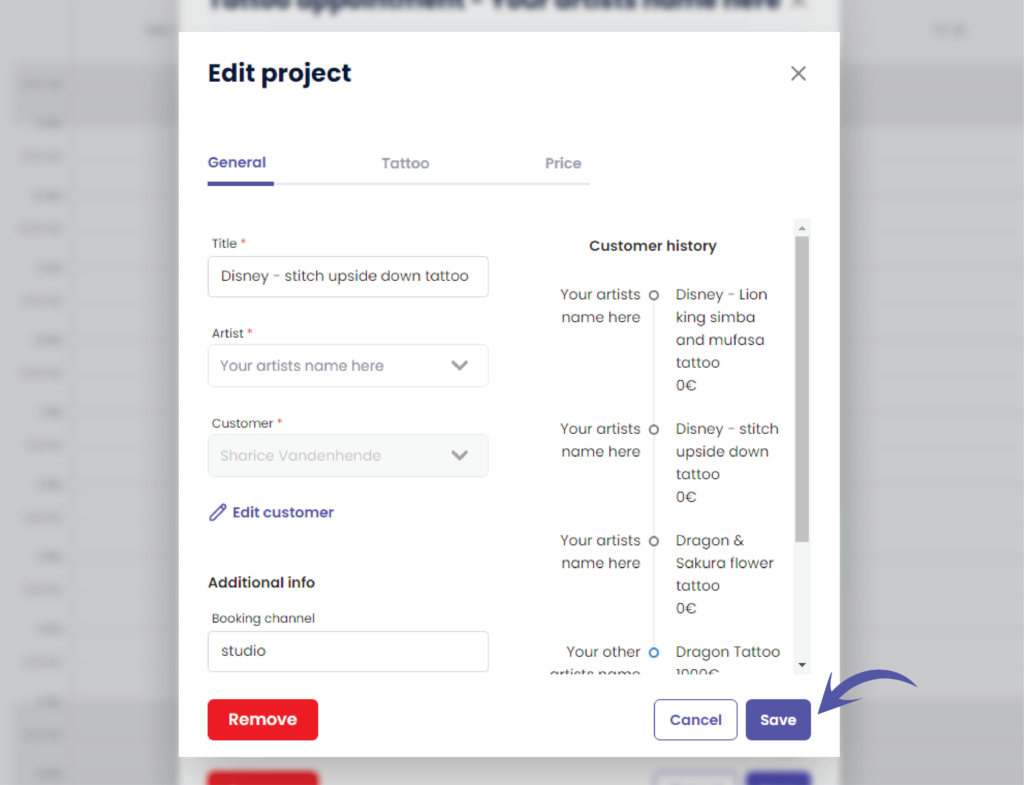
You will see a notification telling you that you have ‘Successfully updated the project’


EDIT A PROJECT THROUGH PROJECTS #
Ir a ‘Proyectos’
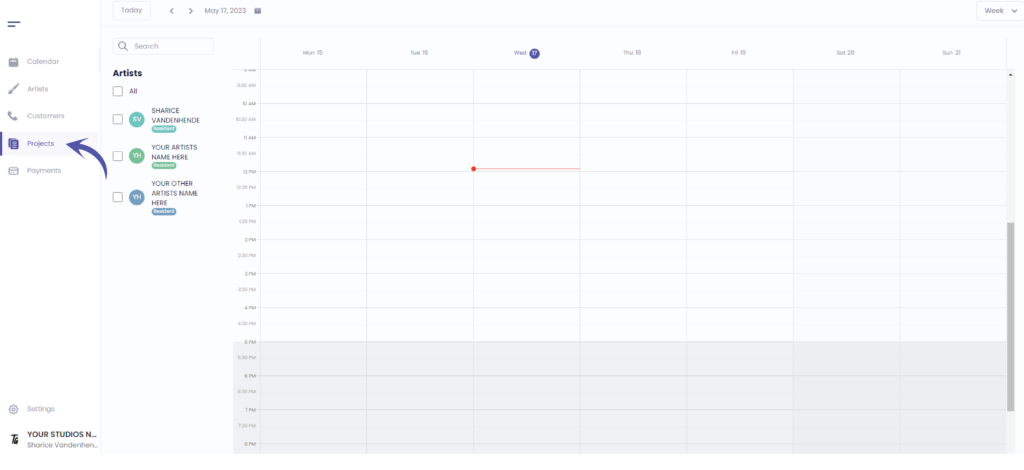
Ir a ‘Editar’
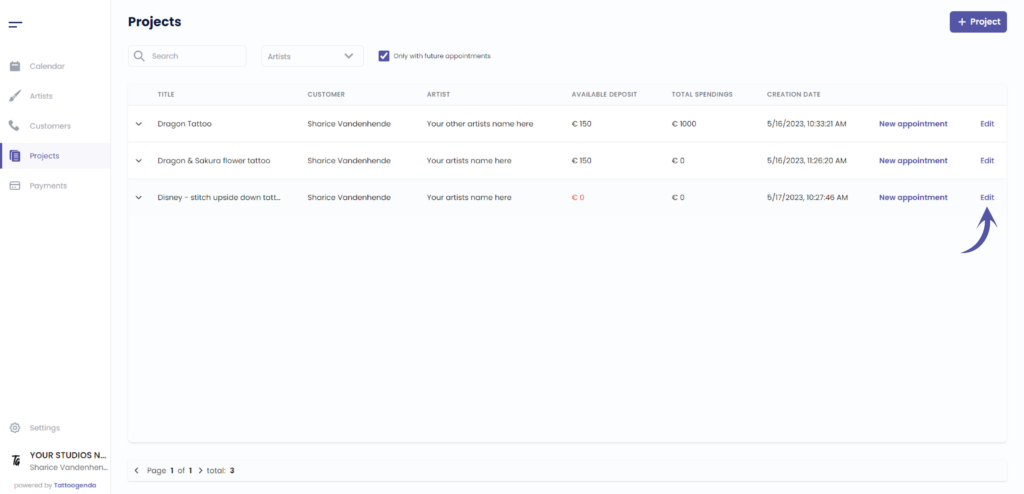
Verá la siguiente pantalla
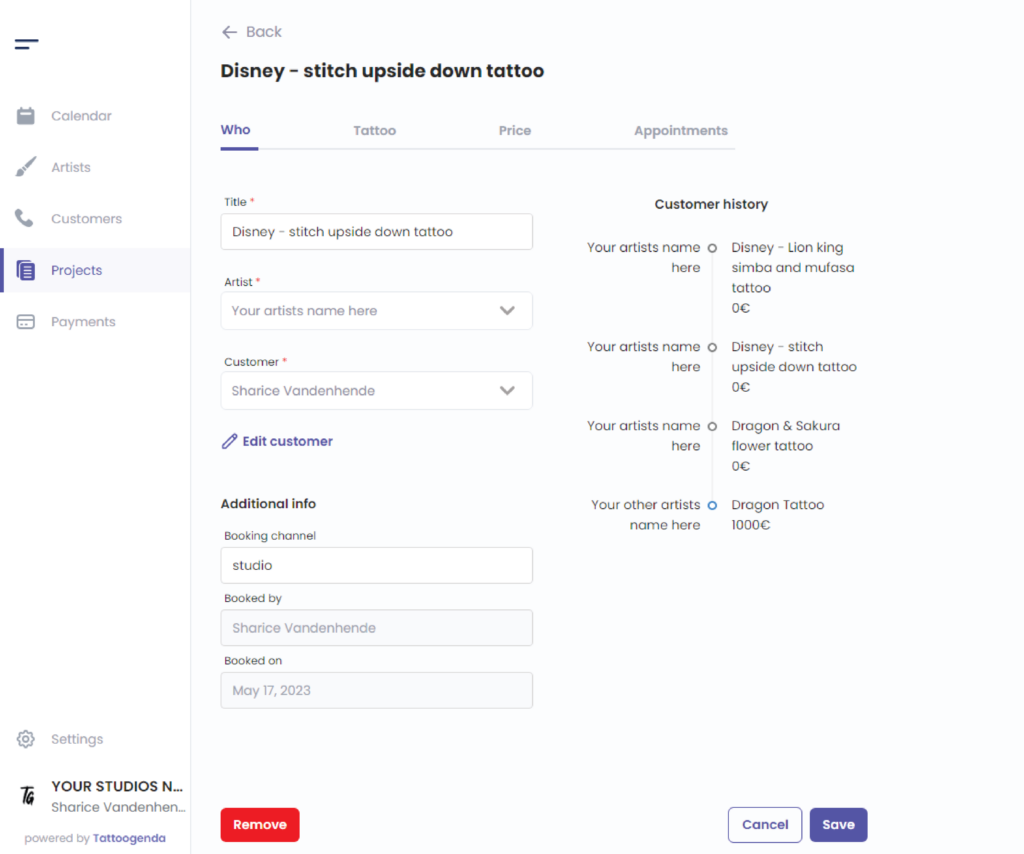
You can now edit the project according to your needs in these categories
Price might no estar disponible for you if you don’t own the ‘Un estudio más grande’ plan or higher

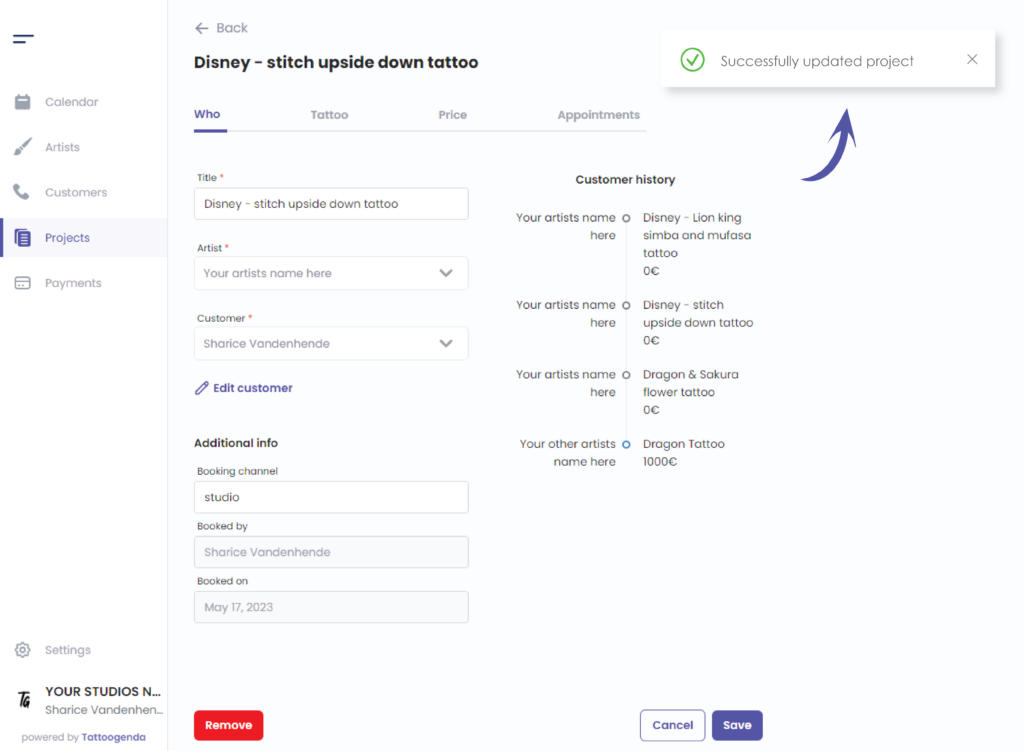
When you are done editing your project you can haga clic en guardar

You will see a notification that says that you have ‘Successfully updated your project’
¿Todavía tiene un problema o una pregunta?
A continuación encontrará un pequeño enlace llamado ‘¿Sigues atascado? ¿Cómo podemos ayudarle?’
Escrito por
Sharice Vandenhende
Por Tattoogenda


 English
  Dutch
Dutch  Dutch (Belgium)
  French
  German
  Spanish