
WICHTIG
SIE BENÖTIGEN DEN FOLGENDEN ABONNEMENTPLAN
Payments are available starting from the ‘Größeres Studio’ Plan.
Diese Optionen werden nicht verfügbar sein für Sie, wenn Sie nicht über diesen Plan oder einen höheren verfügen.

Gehe zu ‘Payments’
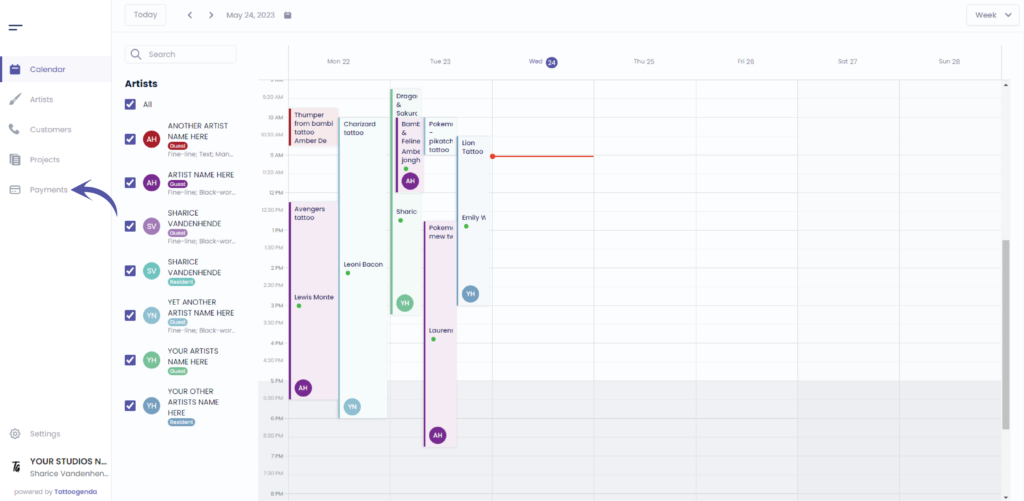
Sie sehen den folgenden Bildschirm
Klicken Sie auf ‘Payments’
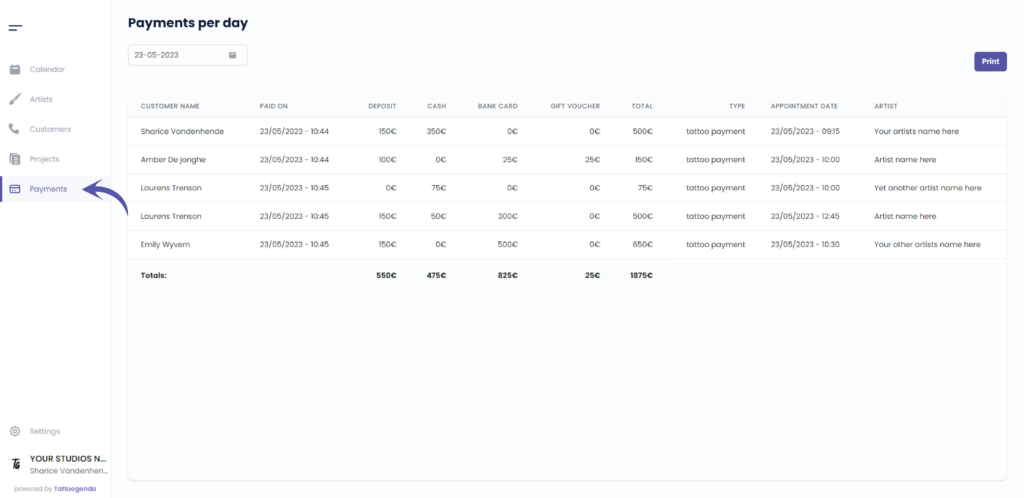
When you click on ‘Payments’ into the navigation menu,
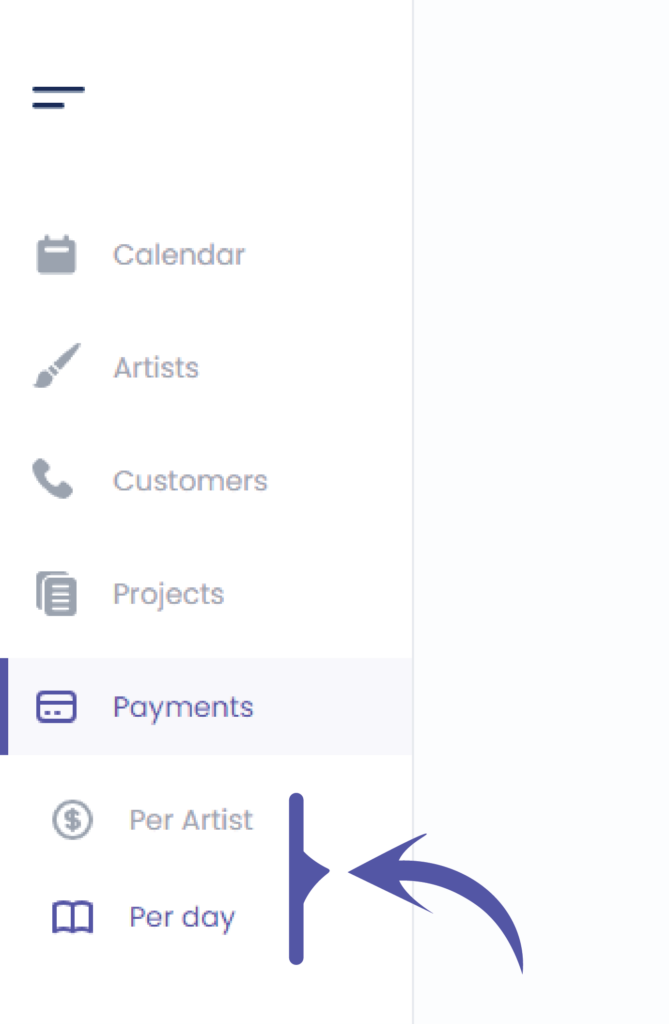
you will see two more sub tabs appear.
You will automatically be on the payments per day .
Click on ‘Per Artist’.
FILTER FOR DETAILED PAYMENTS #
Sie können filter according to your needs
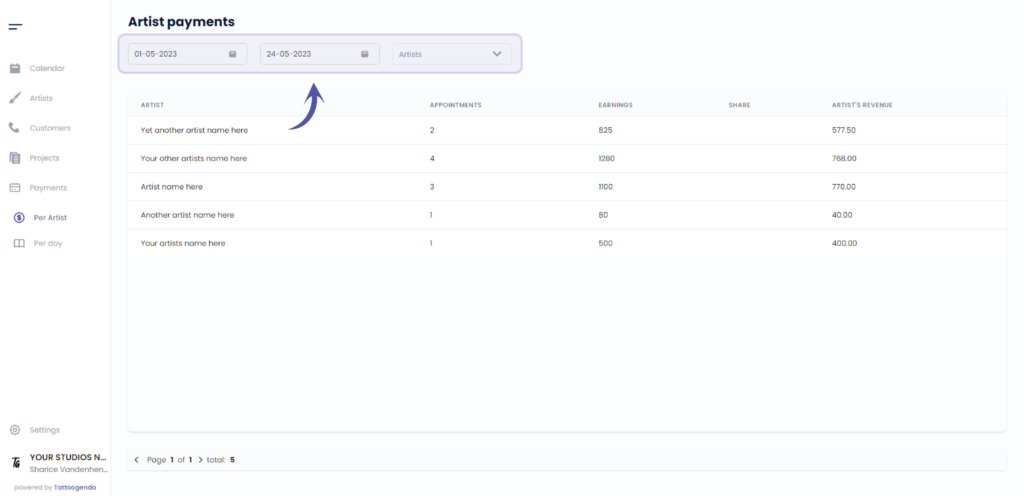
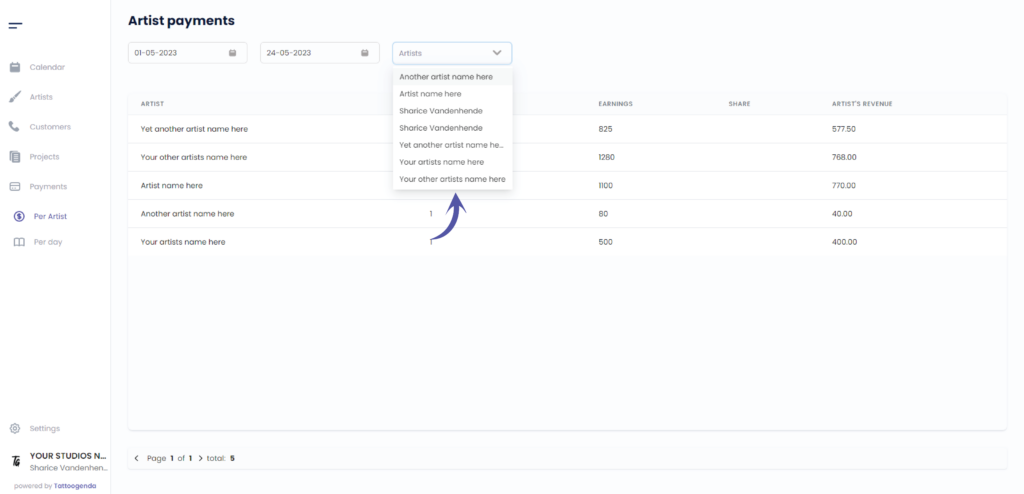
Filter by artist
NOTE: Only Managers (The one creating the TG account) and receptionists see this list.
If you are an artist in somebody’s studio, you will only see your own payments. You will not be able to draw a list of payments of others artists of your shop.
If you created a Single Artist subscription, then you are a manager as well as an artist, and then you will also only see yourself in this list since you are the only artist in this studio.
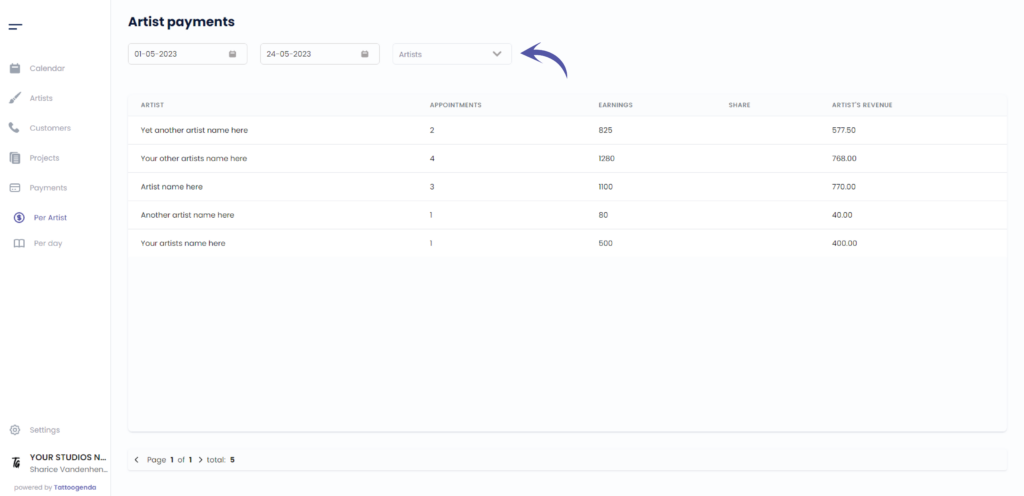
If you are a studio you can select you artist from the drop down menu
DETAILED PAYMENT LISTS PER ARTIST #
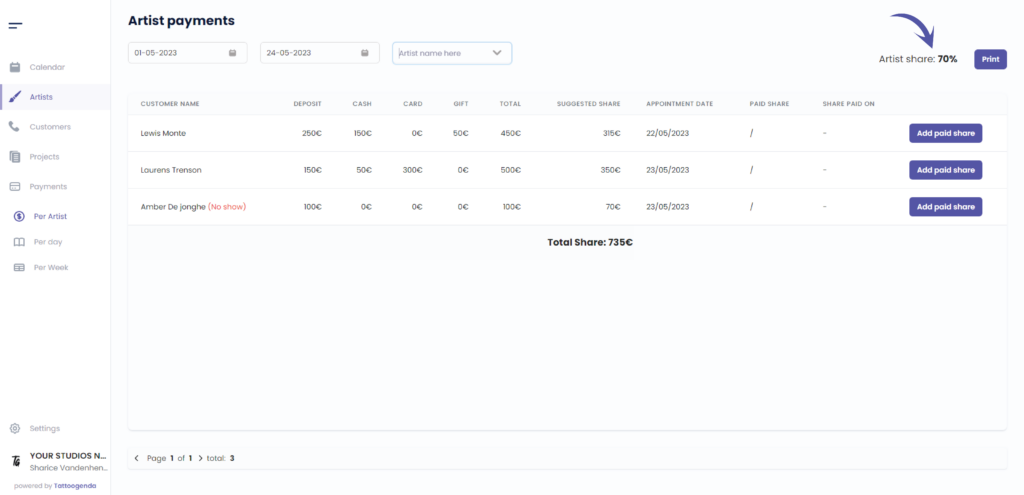
The artists share
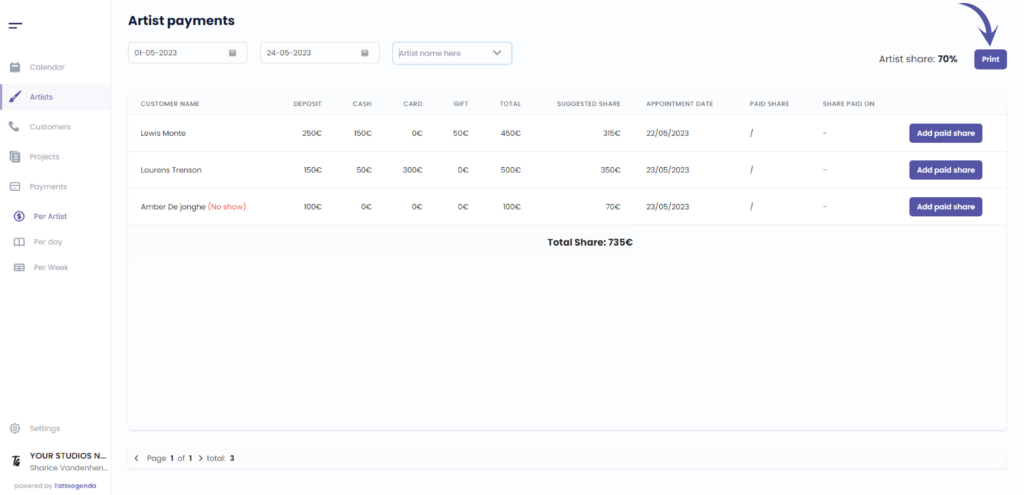
Print this list
Print this list if you need to provide a detailed income of payments according to the laws of your country
This column holds the customers name
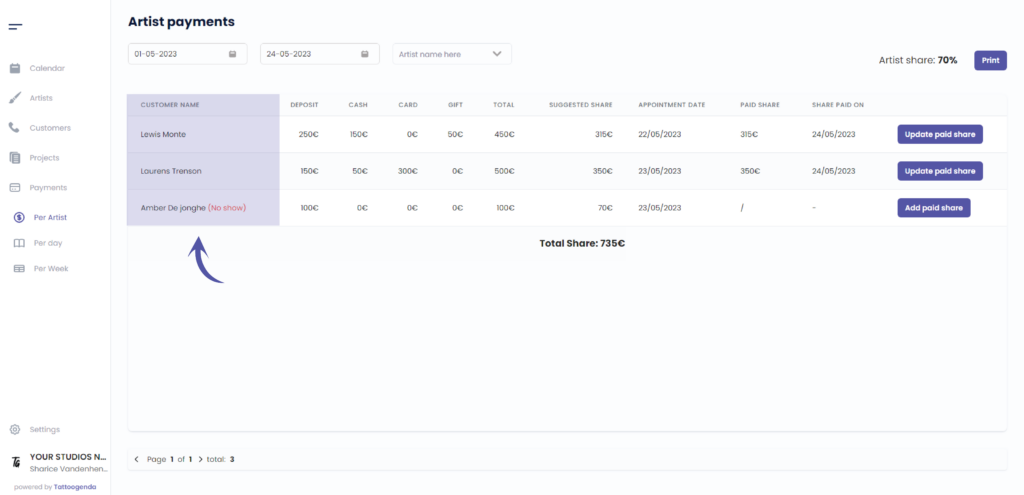
e.g. in this column we had a no show
TIP: Make sure to use the deposit when there’s a no-show or cancellation depending on your deposits rules
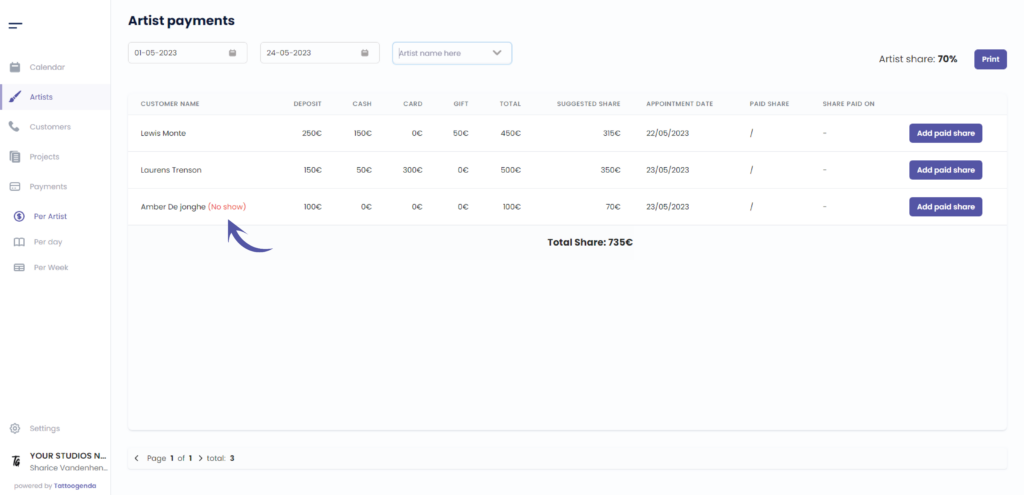
This column holds the deposit amount

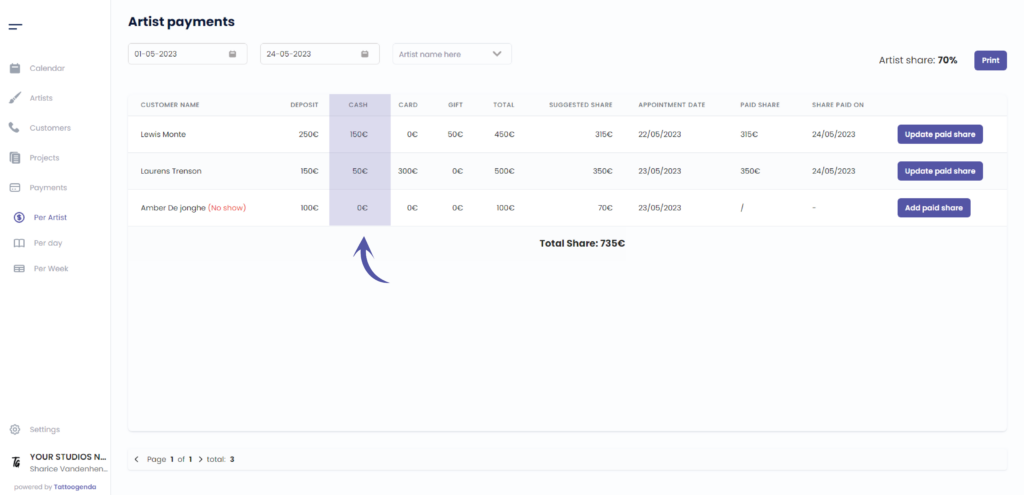
This column holds the amount paid in cash
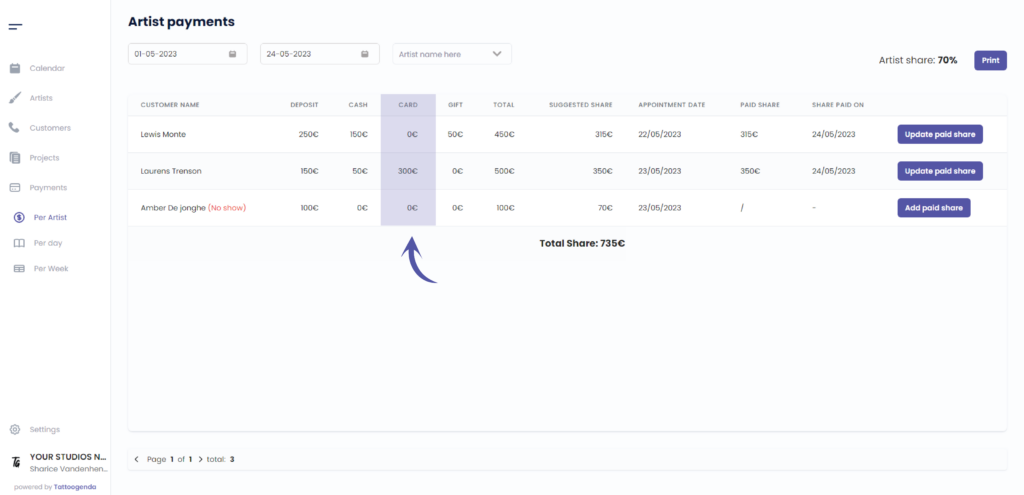
This column holds the amount paid through card
This column holds the amount paid through gift voucher
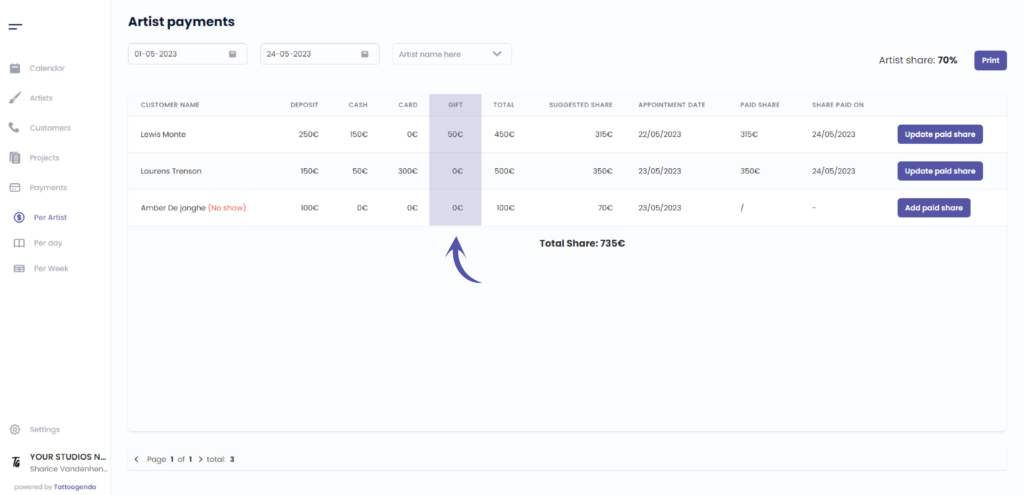
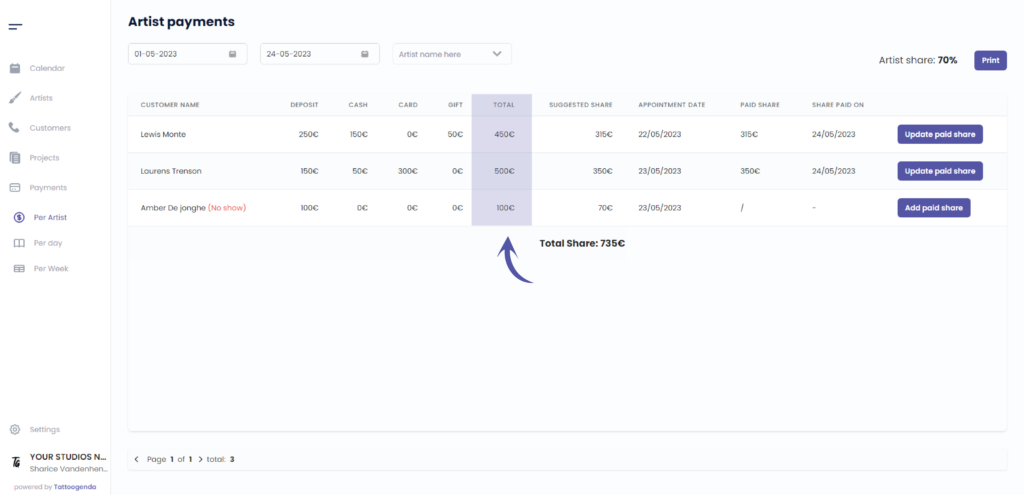
This column holds the total amount
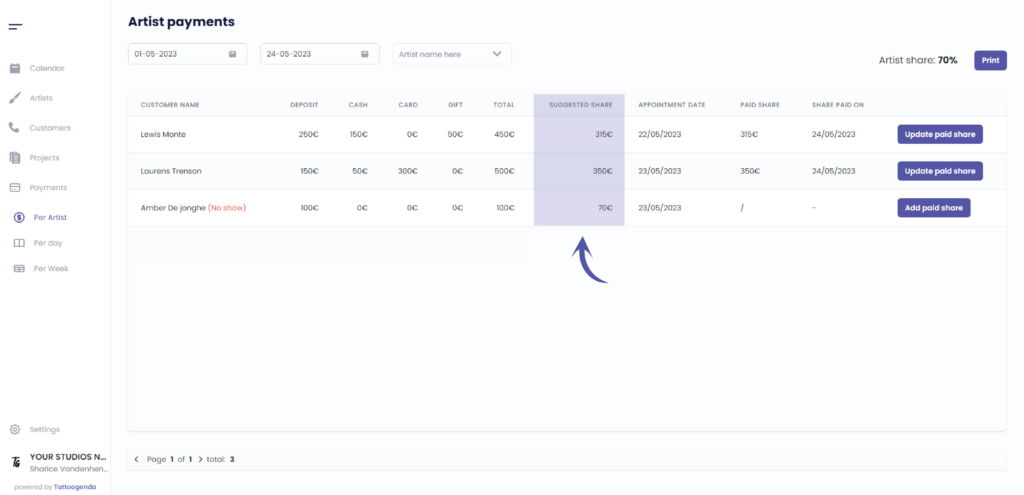
This column holds the suggested share based on the artist share
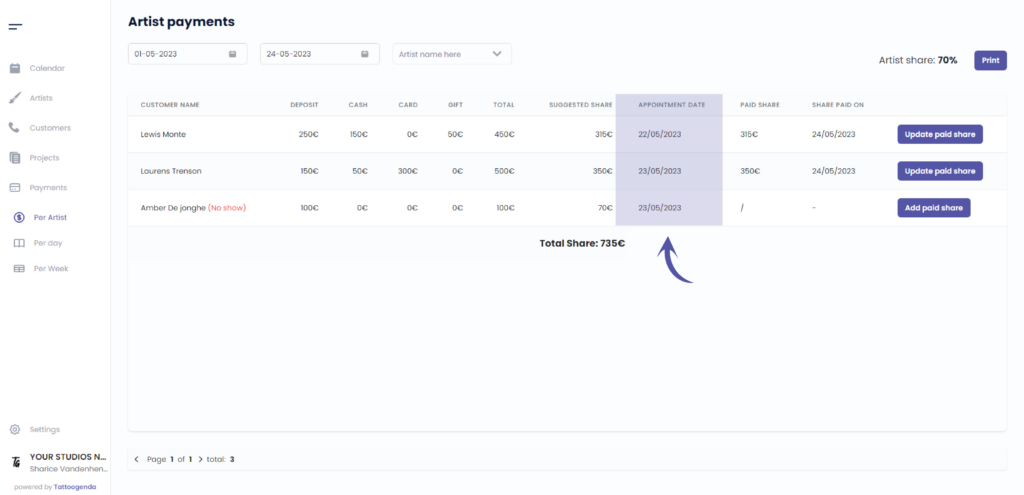
This column holds the appointments date
This column holds the paid share.
The paid share and share paid on is empty by default.
Sometimes your guest artists want to be paid on a certain day in the halfway through their guest spot period.
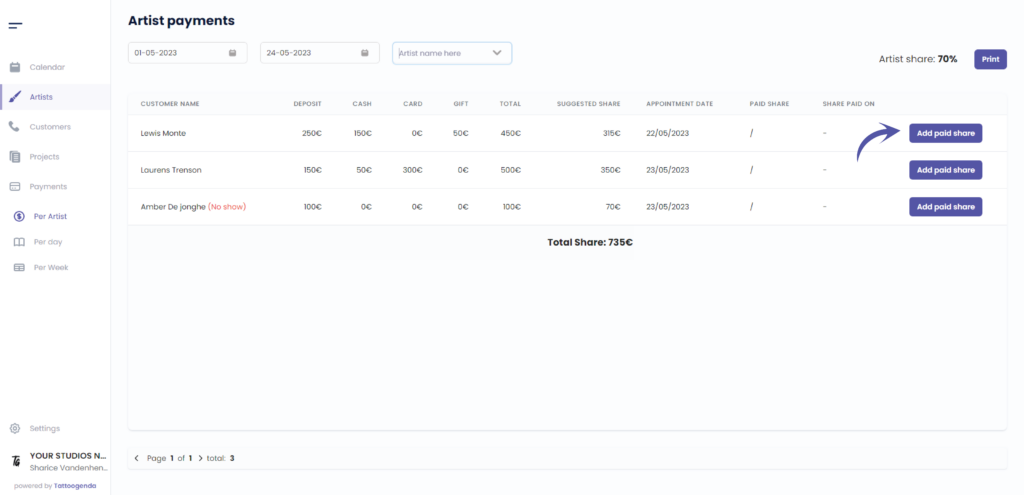
Whenever you pay out an artist, you click on ‘Add paid share’. There you enter the amount of money you gave to your artist and hit save.
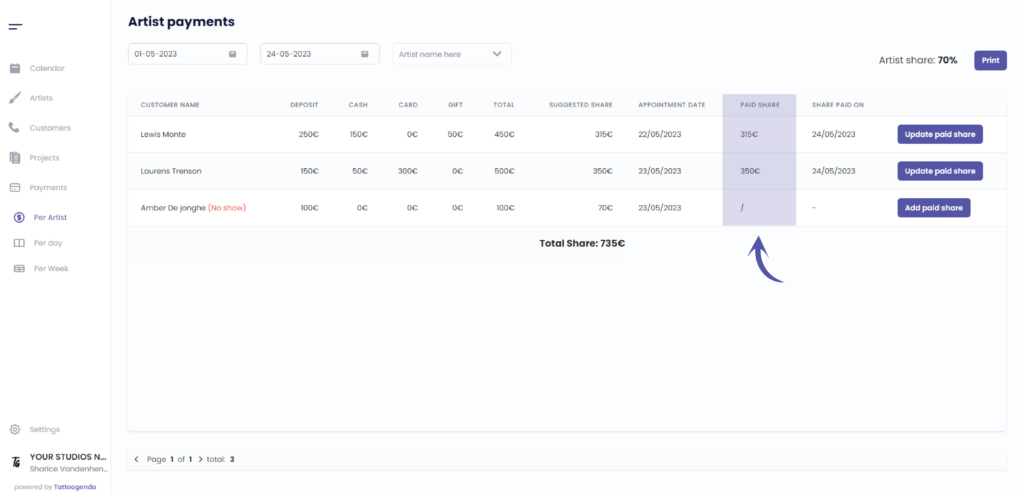
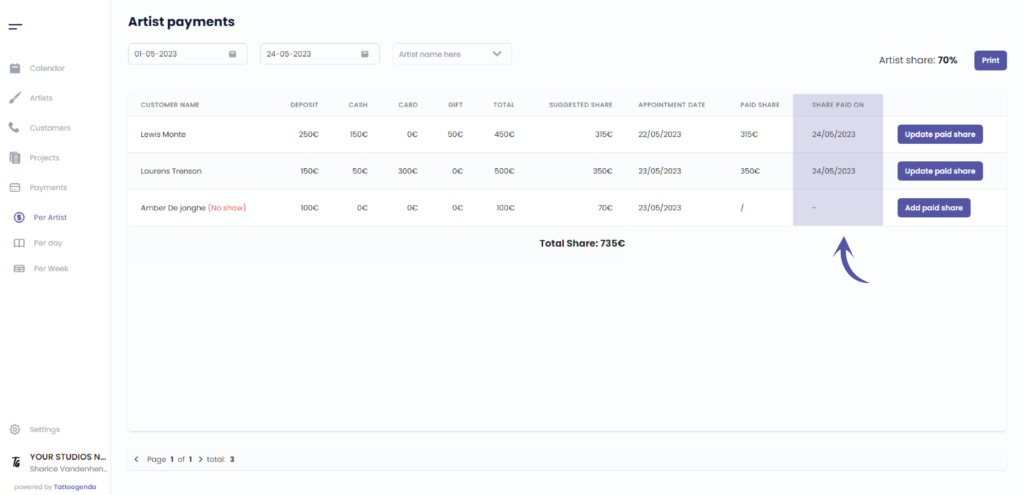
This column holds the date of the paid share
This is to keep track of when has been paid to your artist
If you clicked add paid share in the previous step the value you entered or the value that was filled in automatically
will now be in the ‘paid share’ column. This way you can keep track of which dates have been paid out, and which have not.
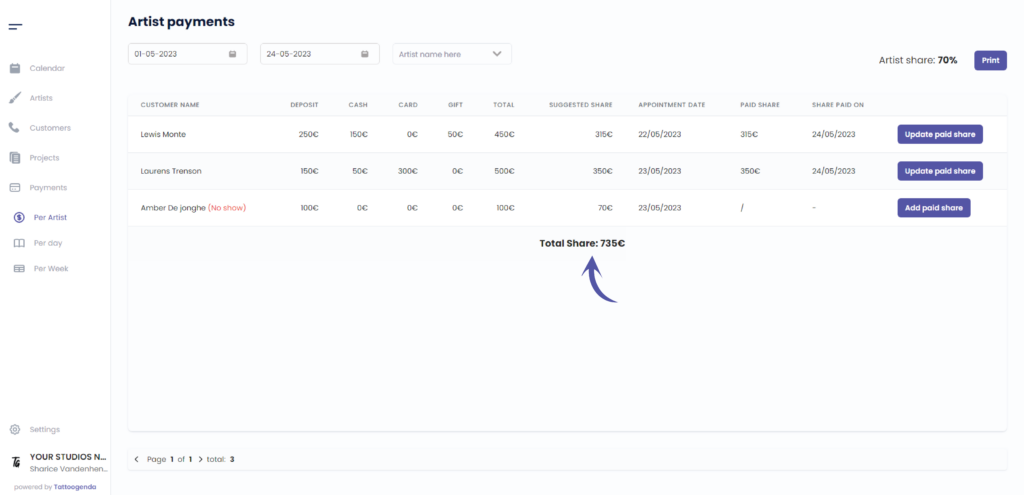
This column holds the total share amount
Add a paid share
The suggested amount can be changed here
Navigate through the pages
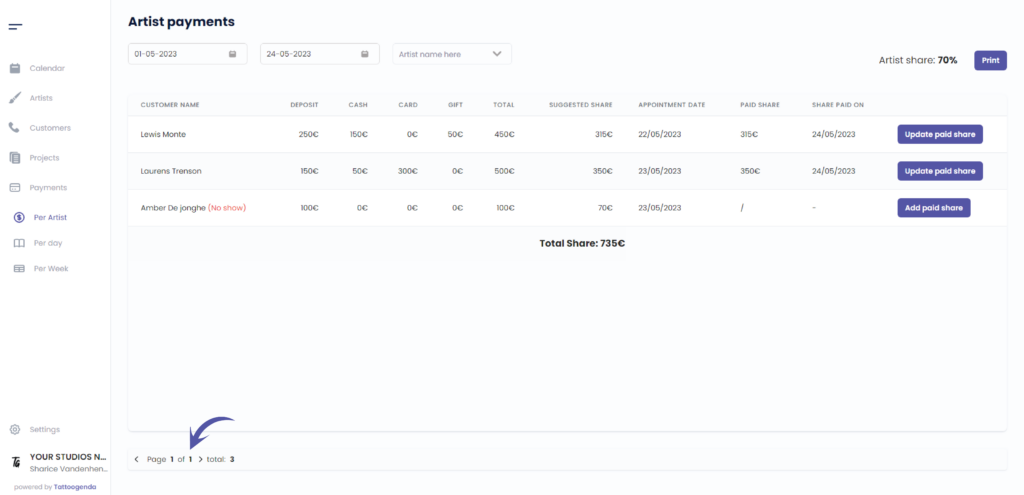
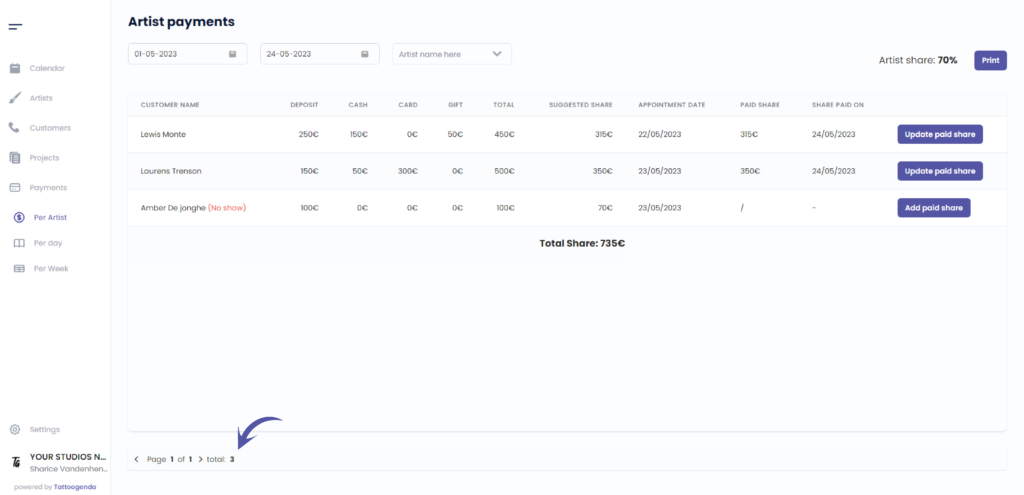
The total amount of payments
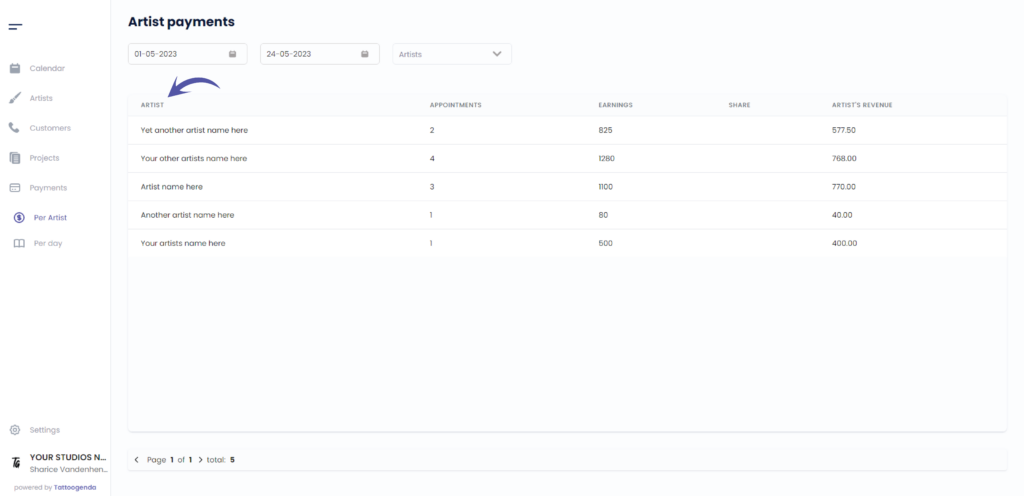
This column holds the artist’s name
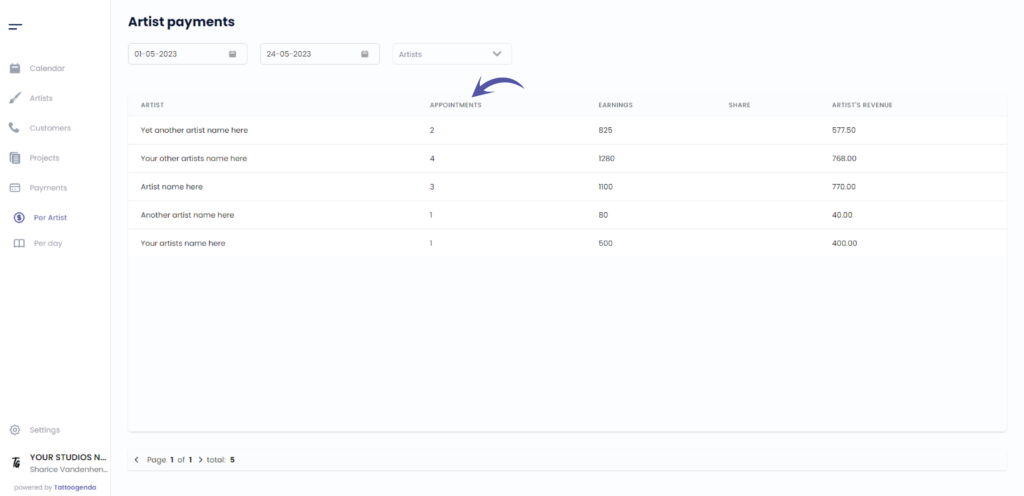
This column holds the total amount of appointments
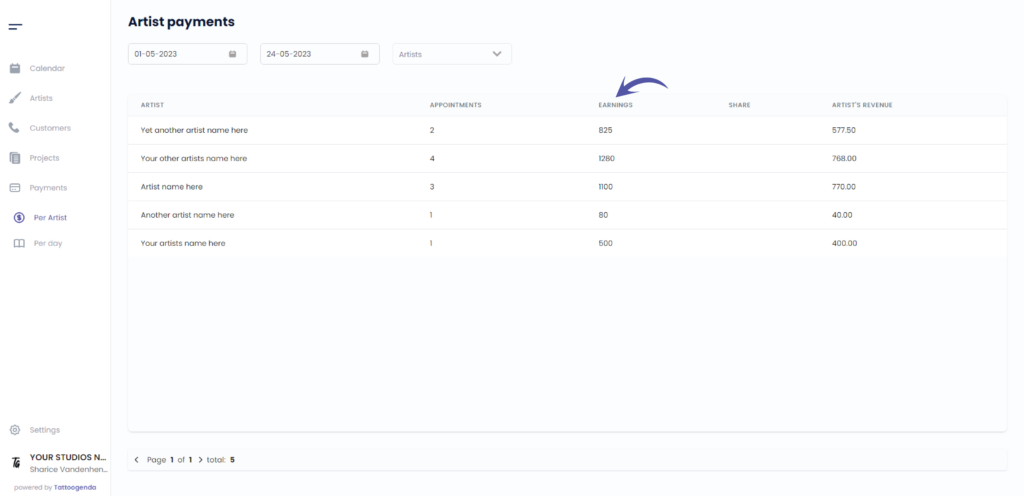
This column holds the earned total amount
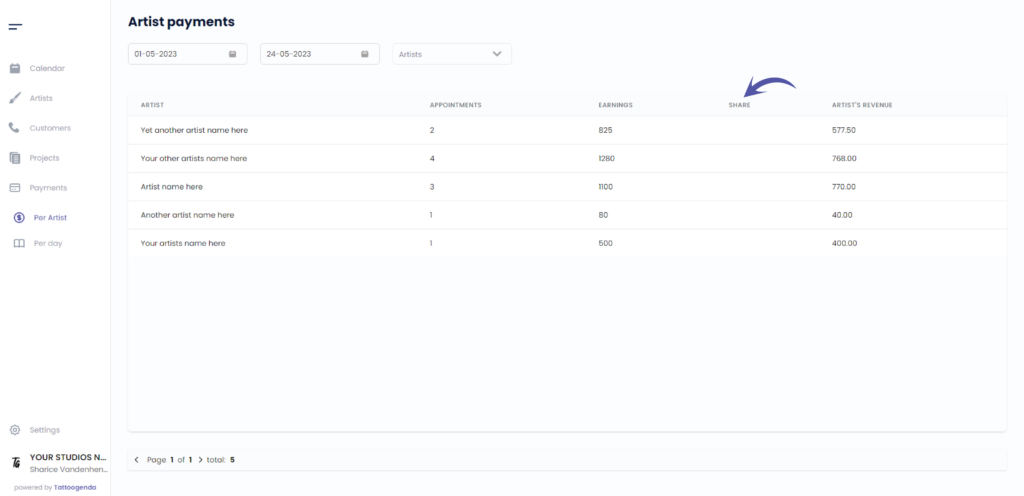
This column holds the artist’s share
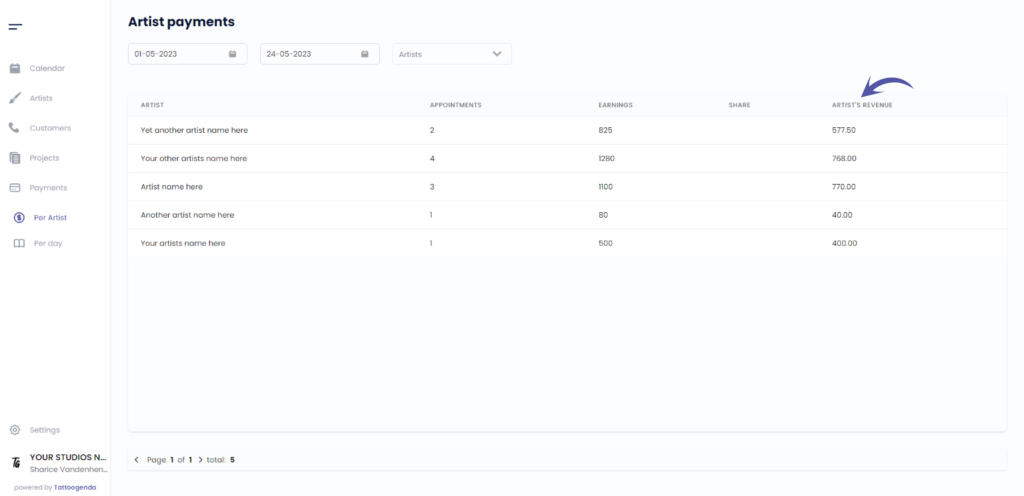
This column holds the artist’s revenue
( e.g. an artist earned €750, the artist share is 70%, the artist revenue would be €525 )
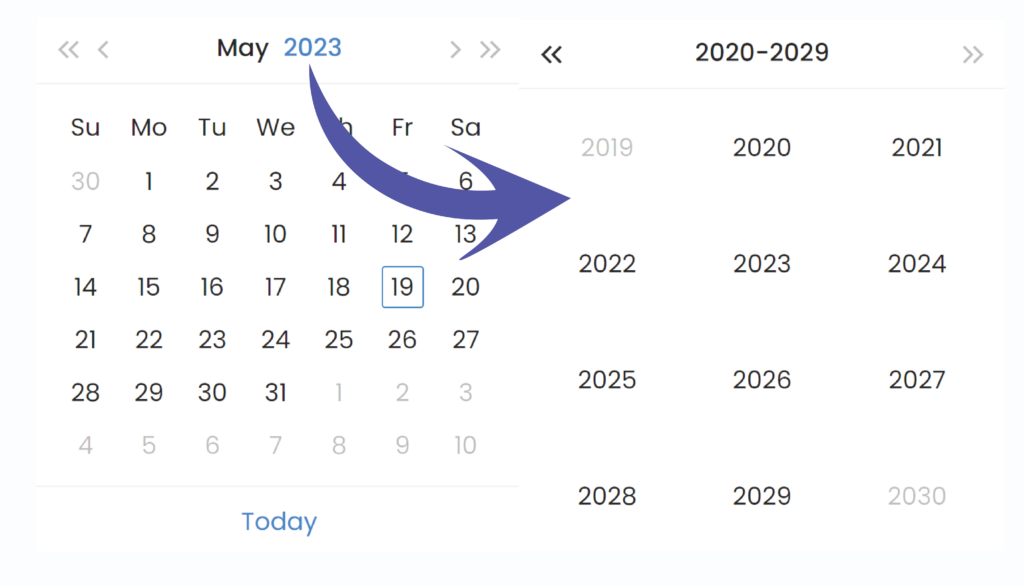
Start date
Tattoogenda will automatically select today’s month up until the date of today
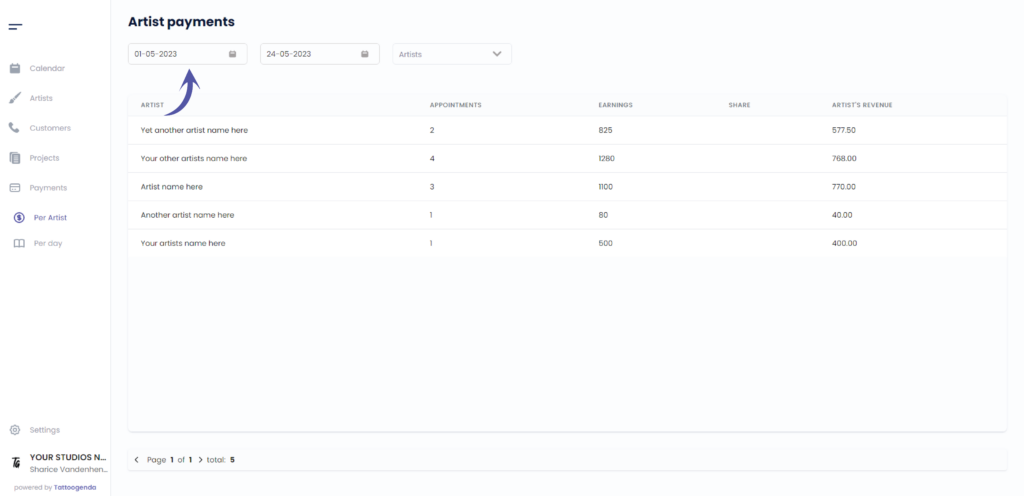
Click on the first field
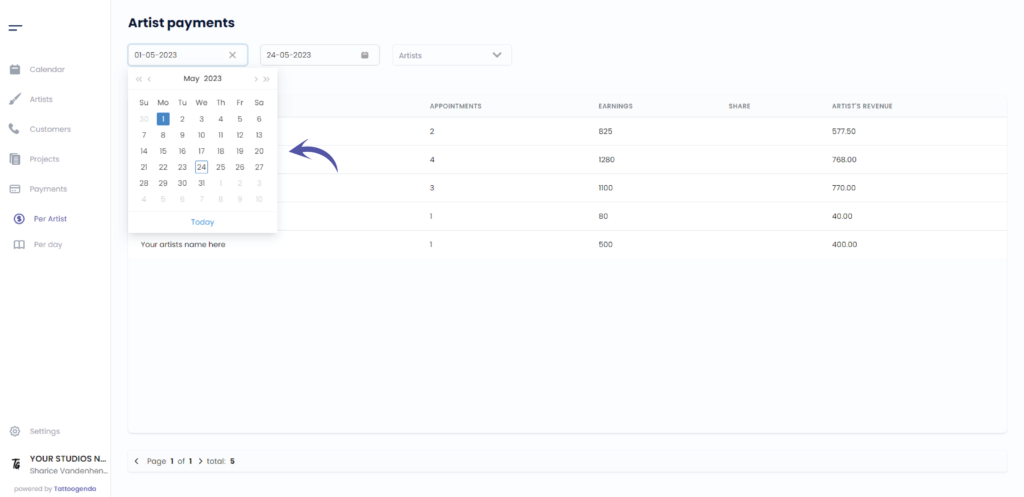
Todays date
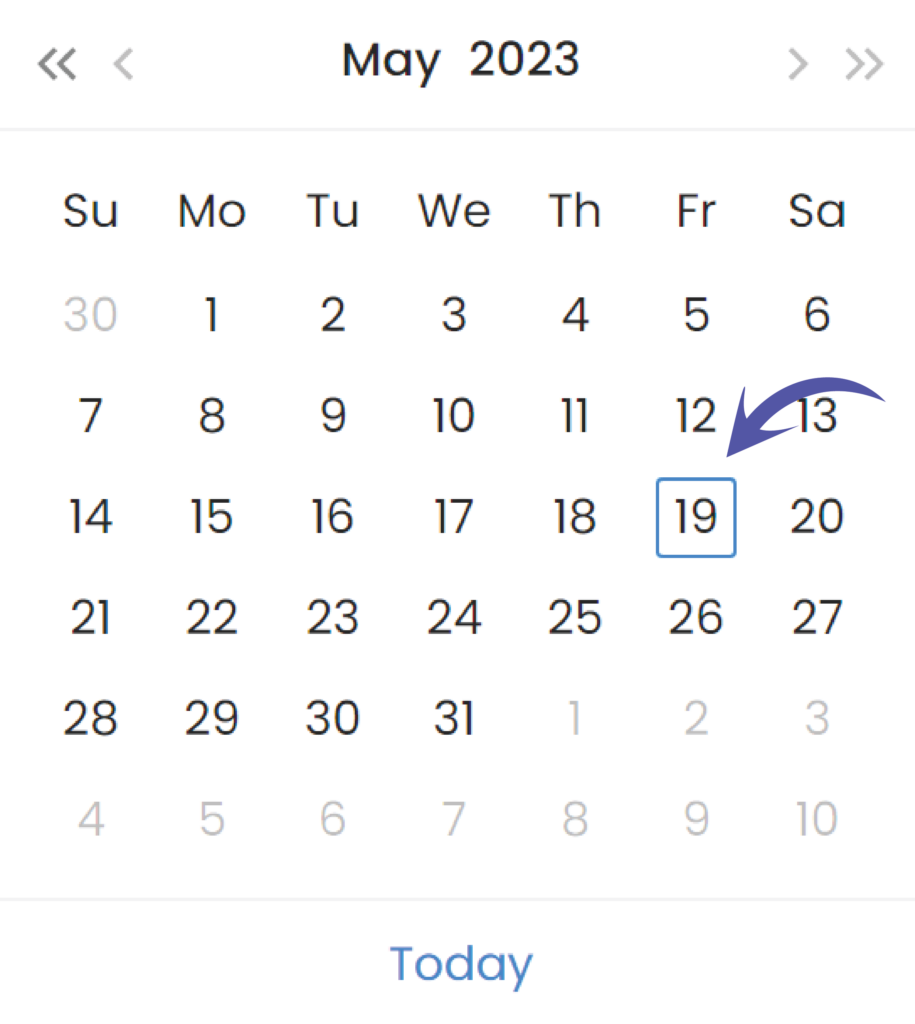
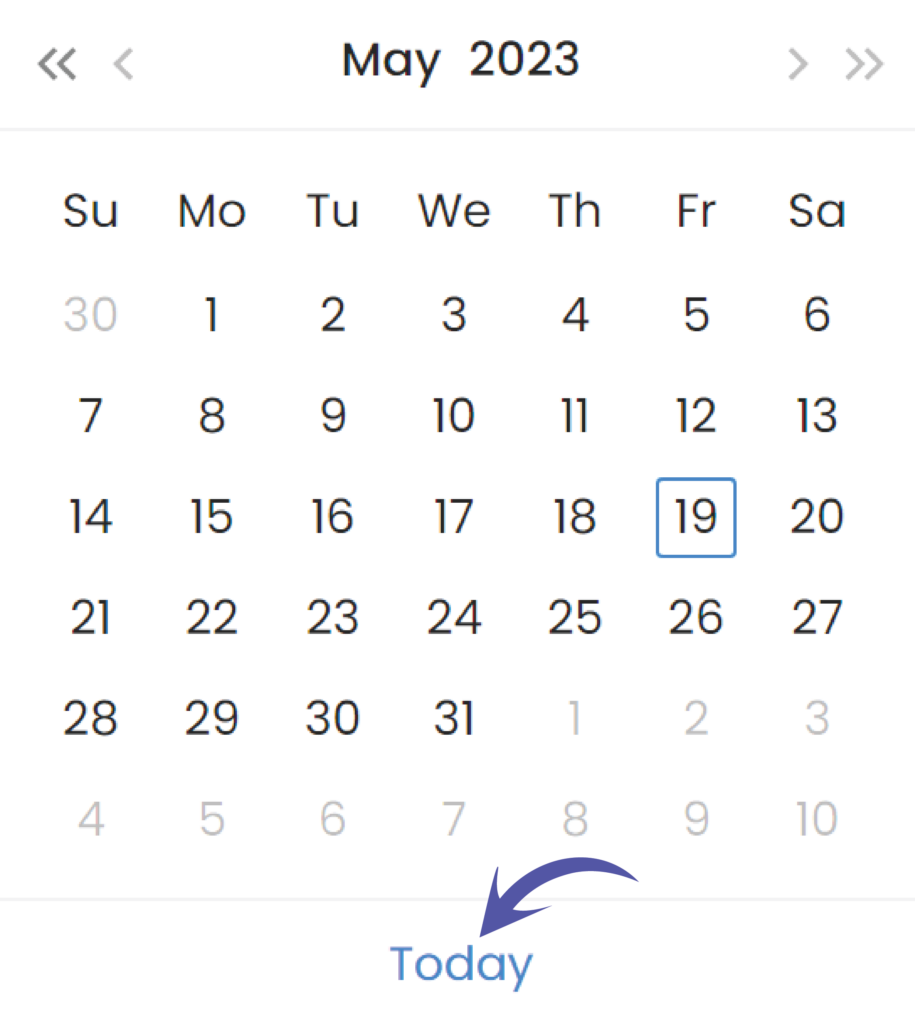
Go to today’s date
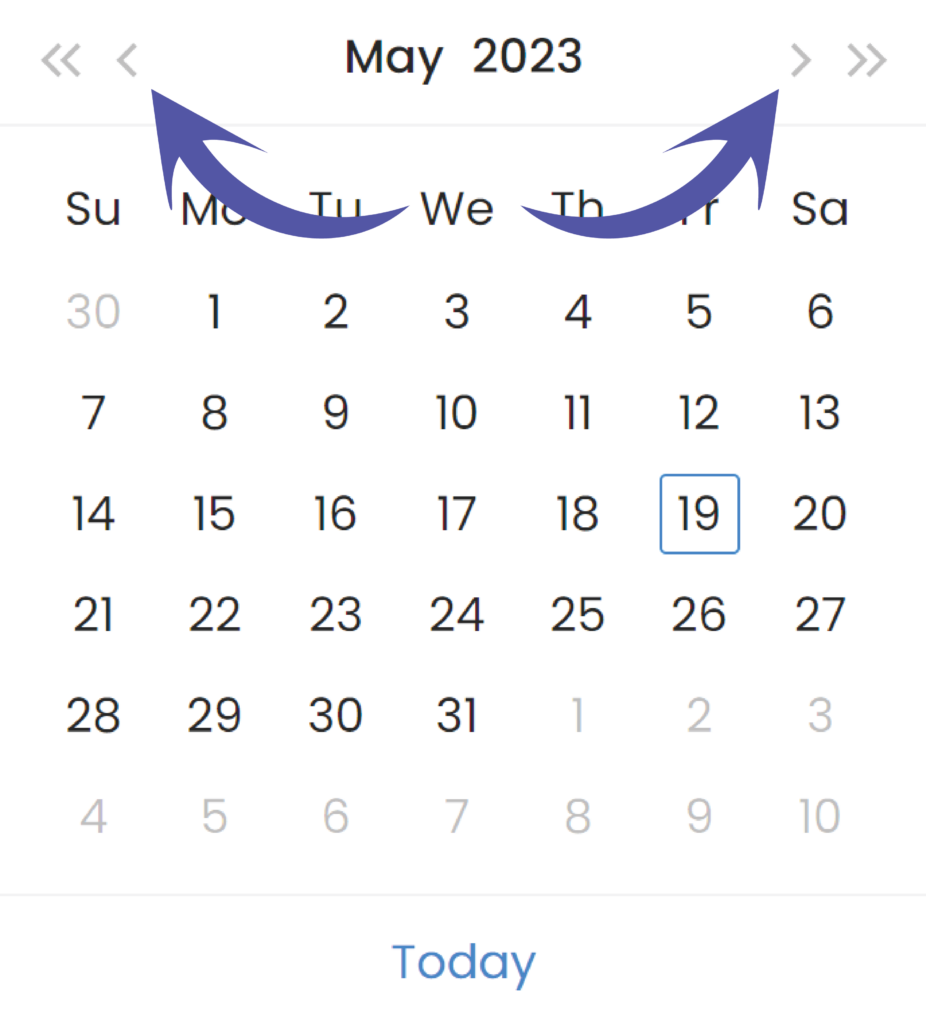
Navigate fast by month
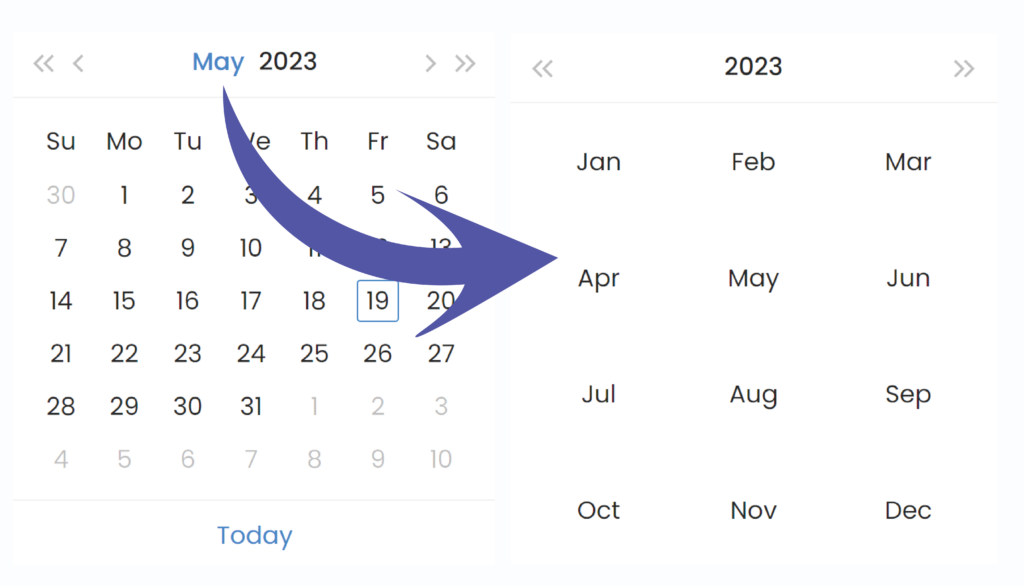
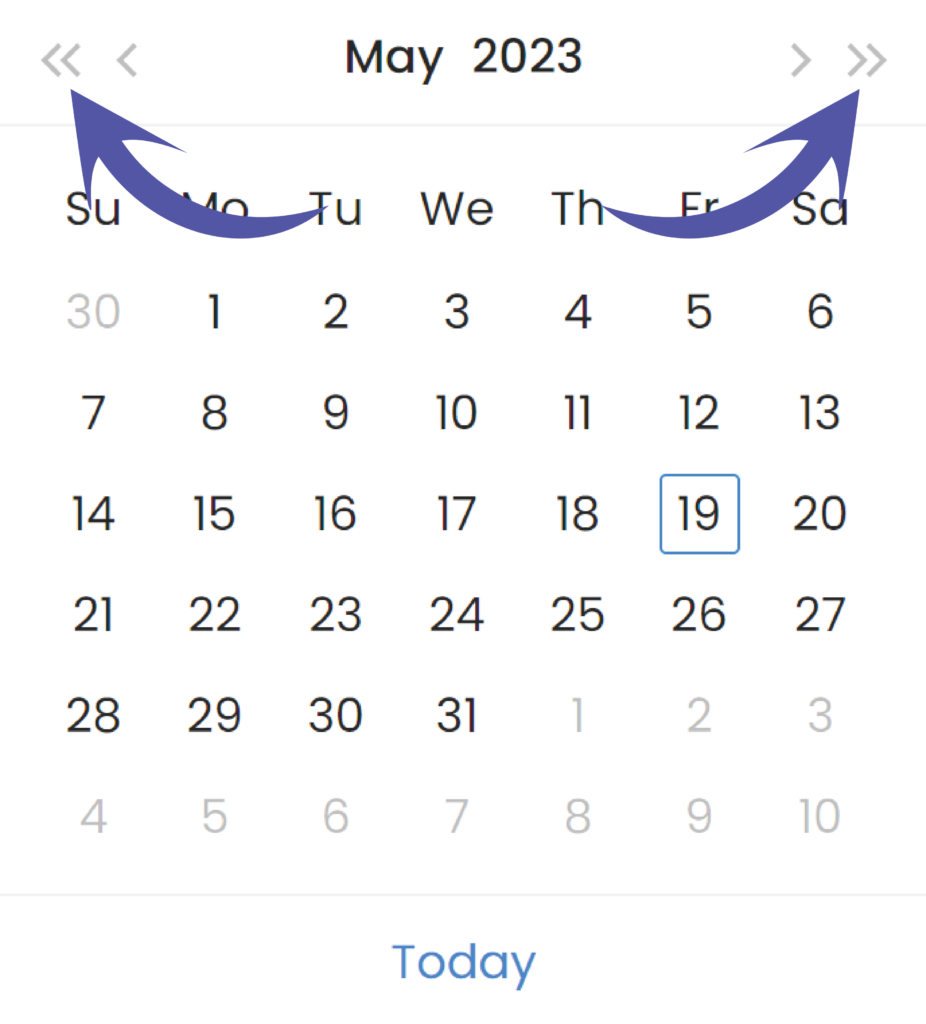
Navigate fast by year
Navigate by one month
Navigate by one year
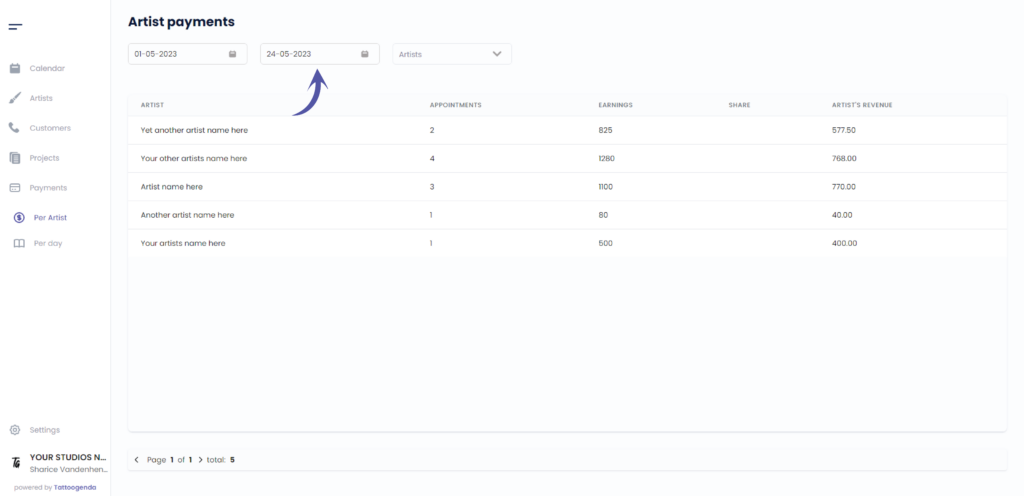
End date
Sie haben noch ein Problem oder eine Frage?
Nachstehend finden Sie einen kleinen Link mit der Bezeichnung ‘Stecken Sie immer noch fest? Wie können wir helfen?’
Geschrieben von
Sharice Vandenhende
Unter Tattoogenda


 English
  Dutch
Dutch  Dutch (Belgium)
  French
  German
  Spanish