

HOW TO EDIT AN APPOINTMNET THROUGH THE CALENDAR #
Gehe zu ‘Kalender’
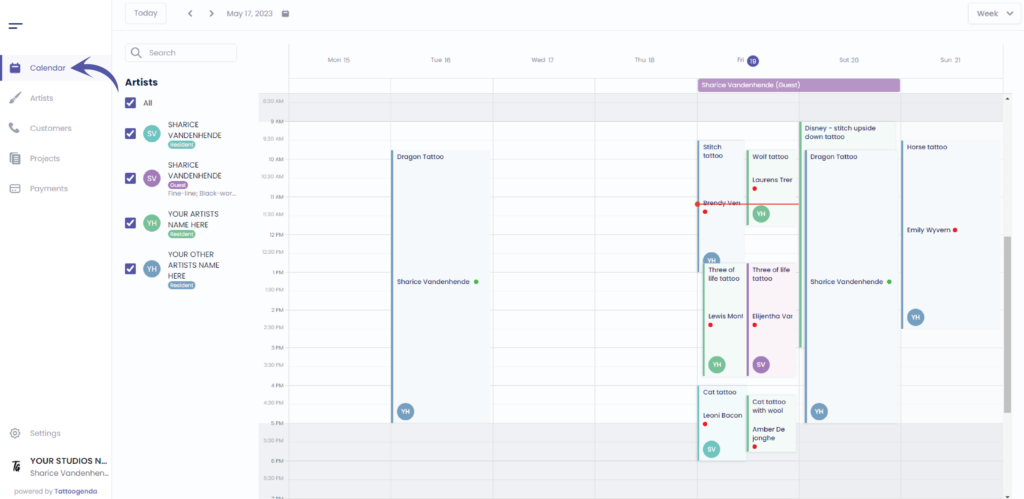
Sie sehen den folgenden Bildschirm
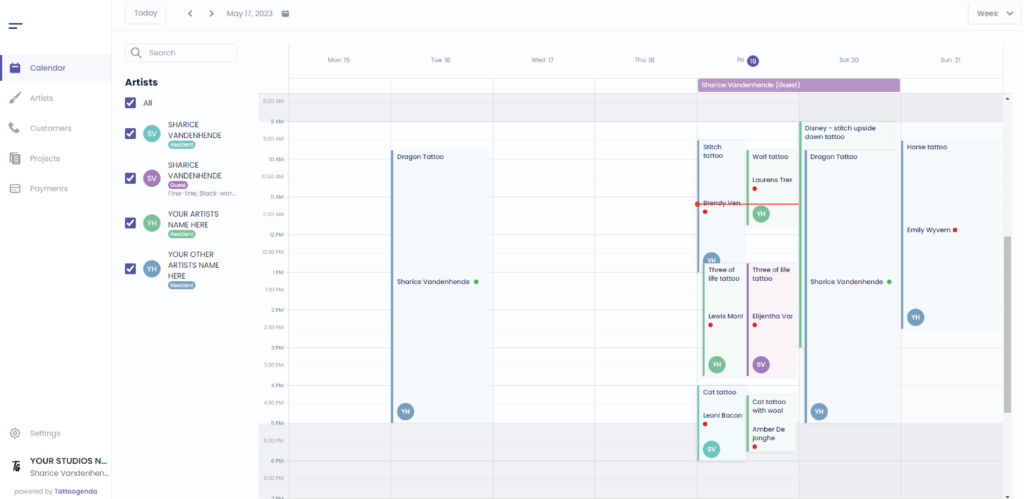
You can update an appointment date and time in in two ways:
Click on the appointment you wish to edit
OR
Select, drag and drop the appointment
Video how to update an appointment with drag and release
Click on the appointment you wish to edit
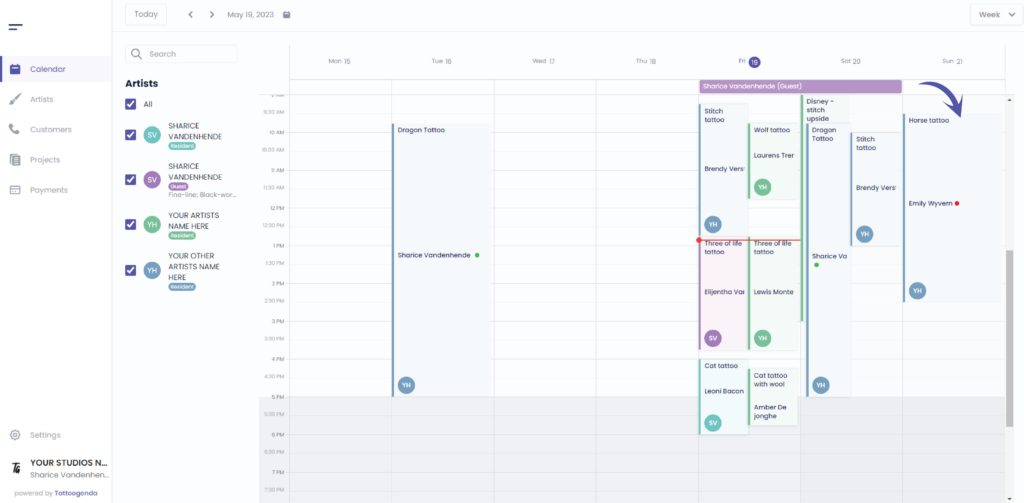
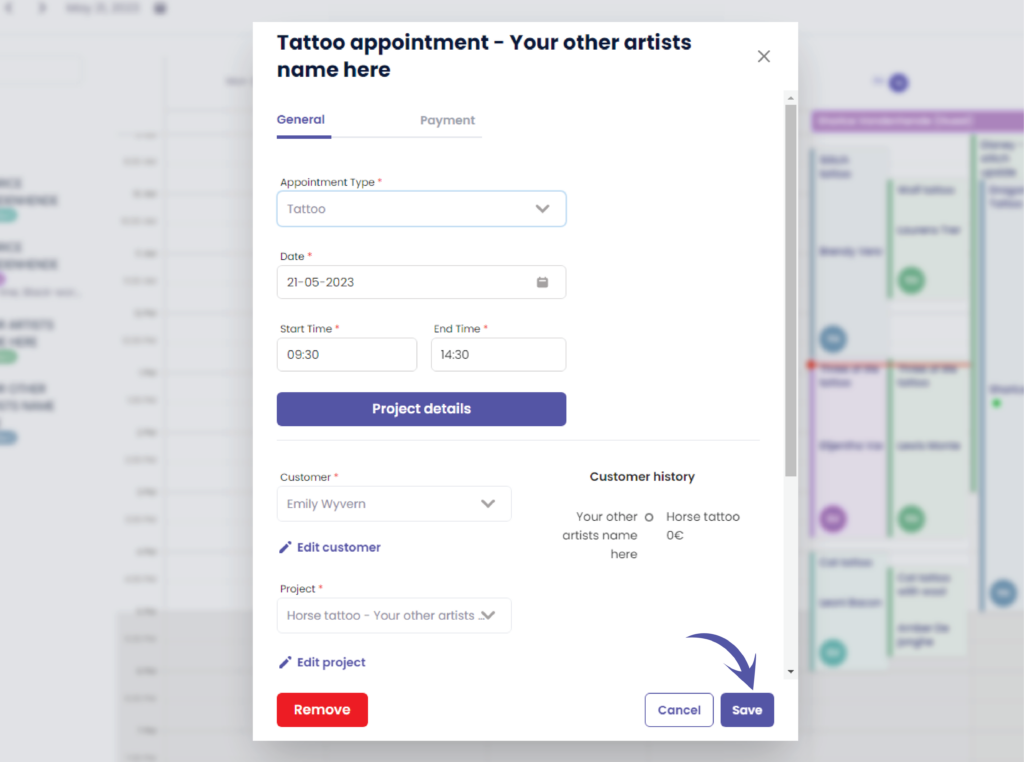
Sie sehen den folgenden Bildschirm
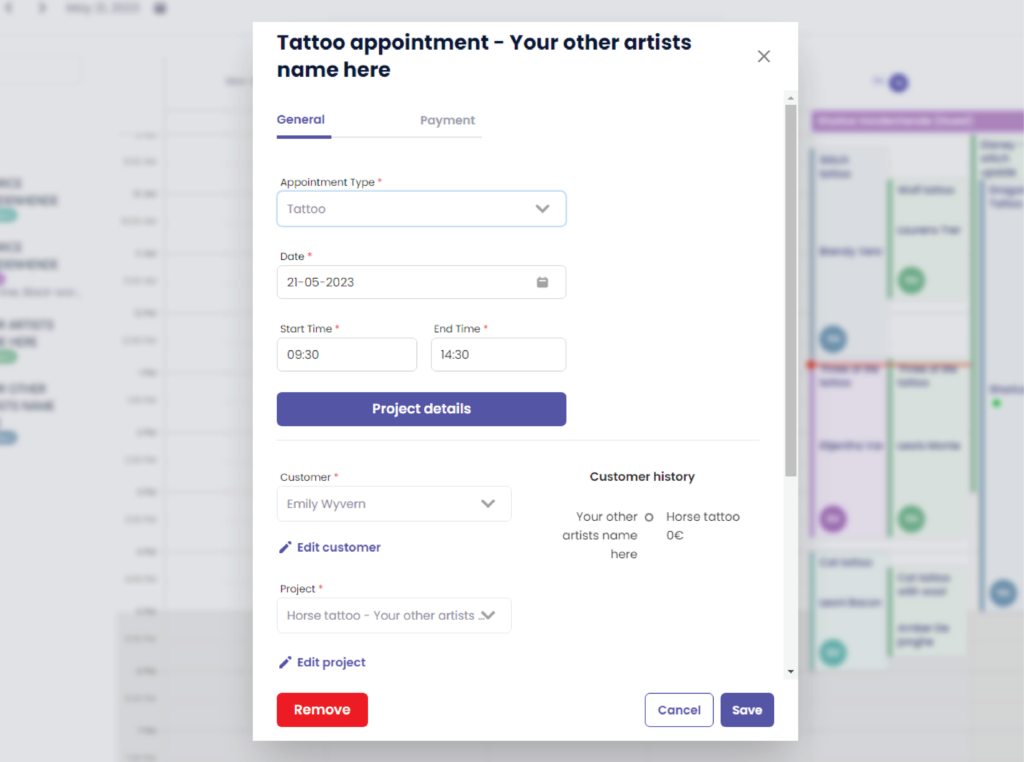
Update the appointment according to your needs
Klicken Sie auf ‘Speichern’.’ um Ihre Änderungen zu speichern
HOW TO EDIT APPOINTMENTS THROUGH PROJECTS #
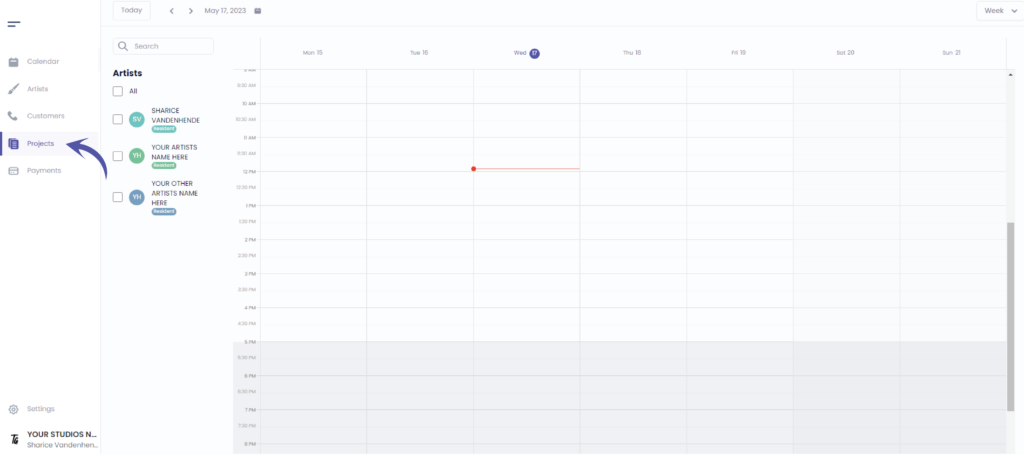
Gehe zu ‘Projekte’.’
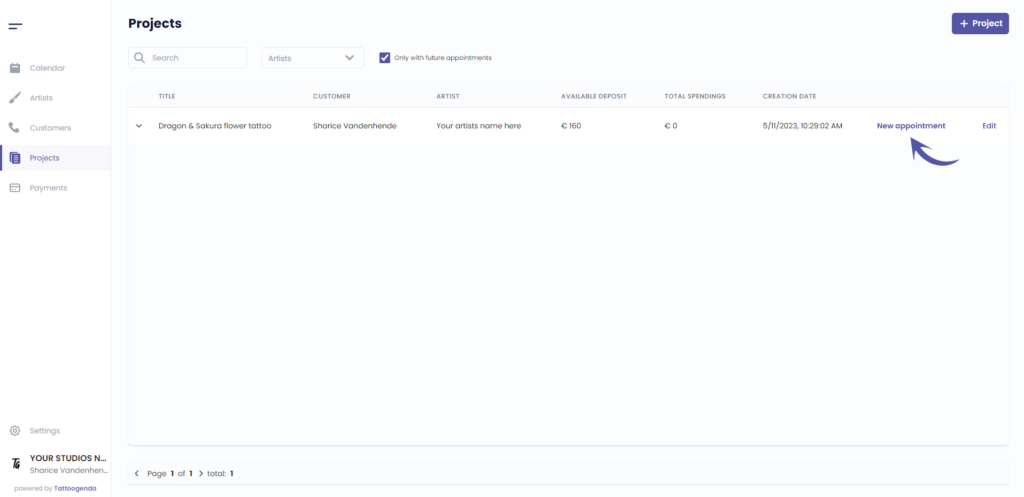
To add an appointment to an existing project
HOW TO EDIT APPOINTMENTS THROUGH CUSTOMERS #
Gehe zu ‘Customers’
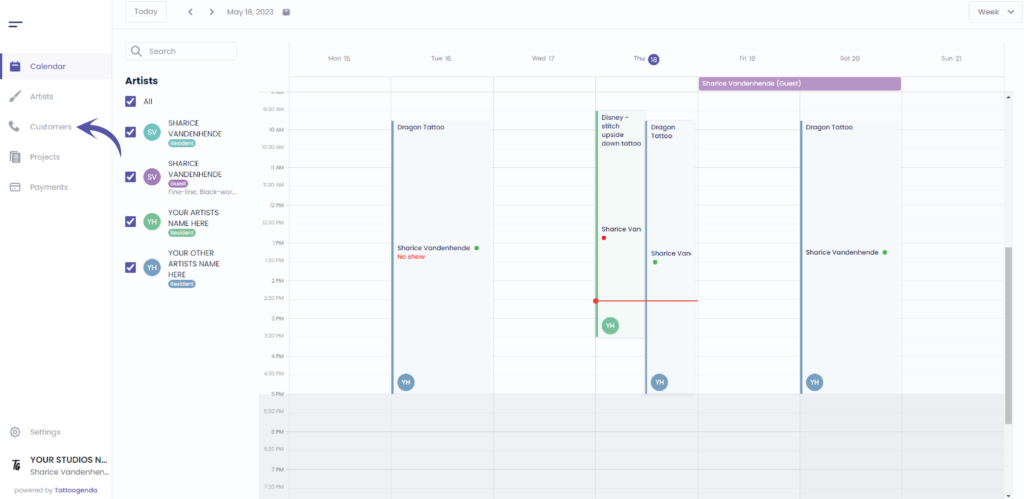
Sie sehen den folgenden Bildschirm
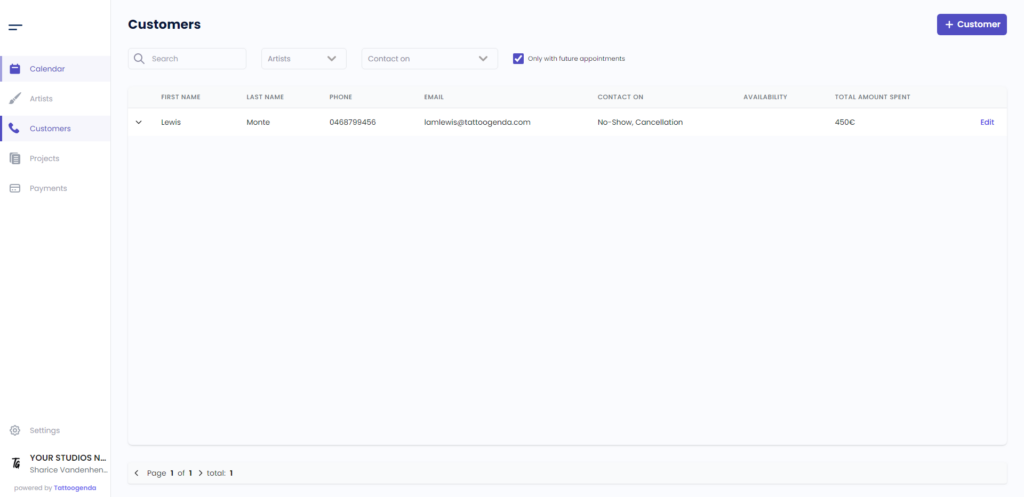
Click on the arrows to fold open more information about appointments
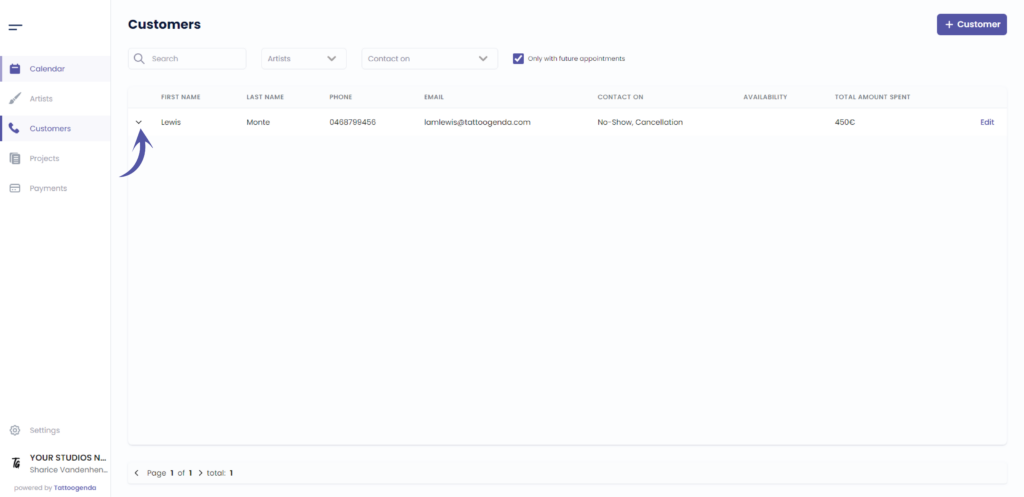
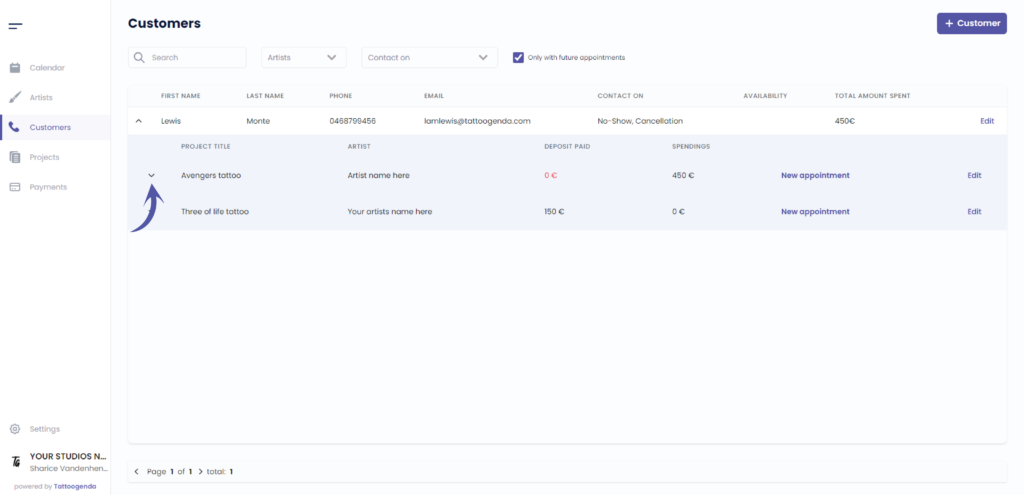
Click edit to edit an existing appointment
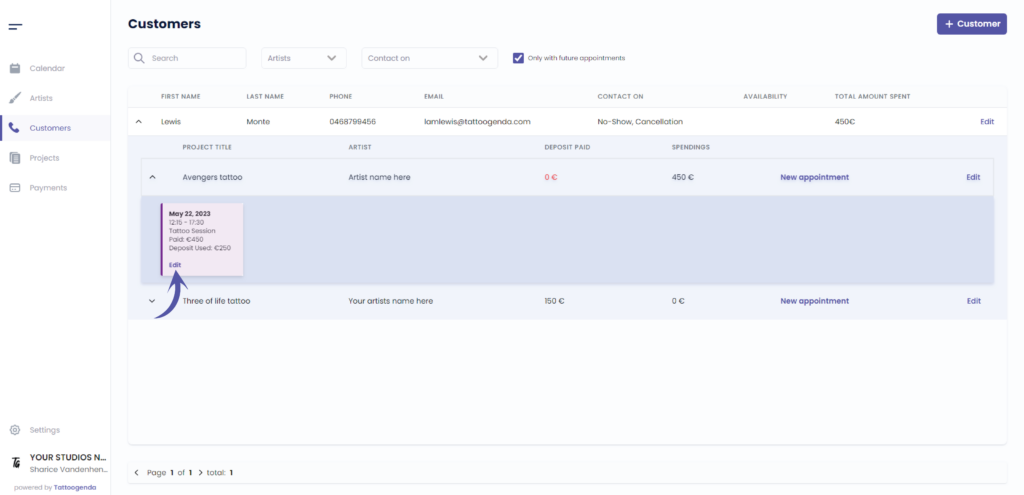
You will get the following pop up screen
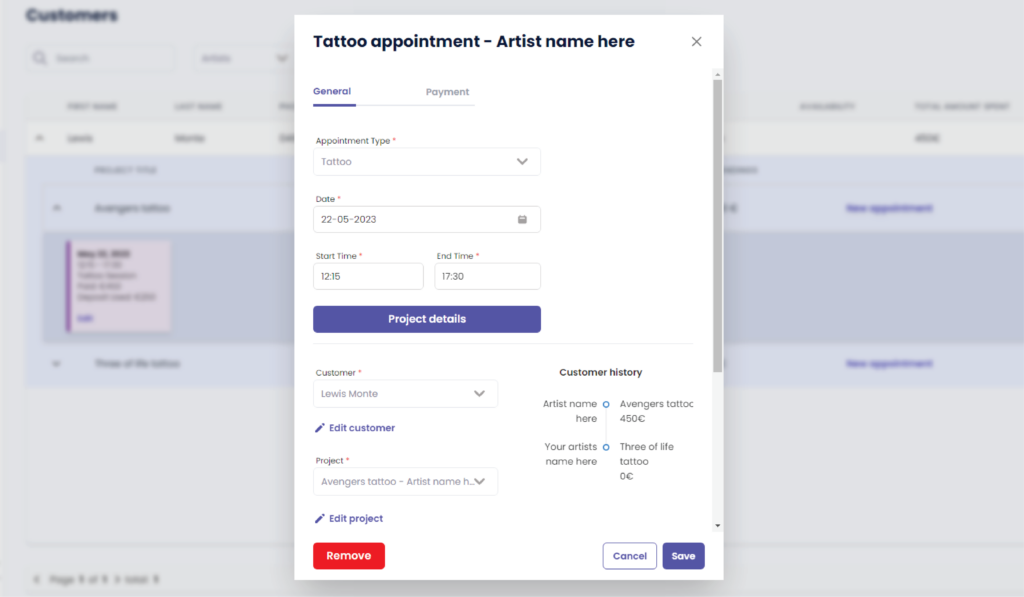
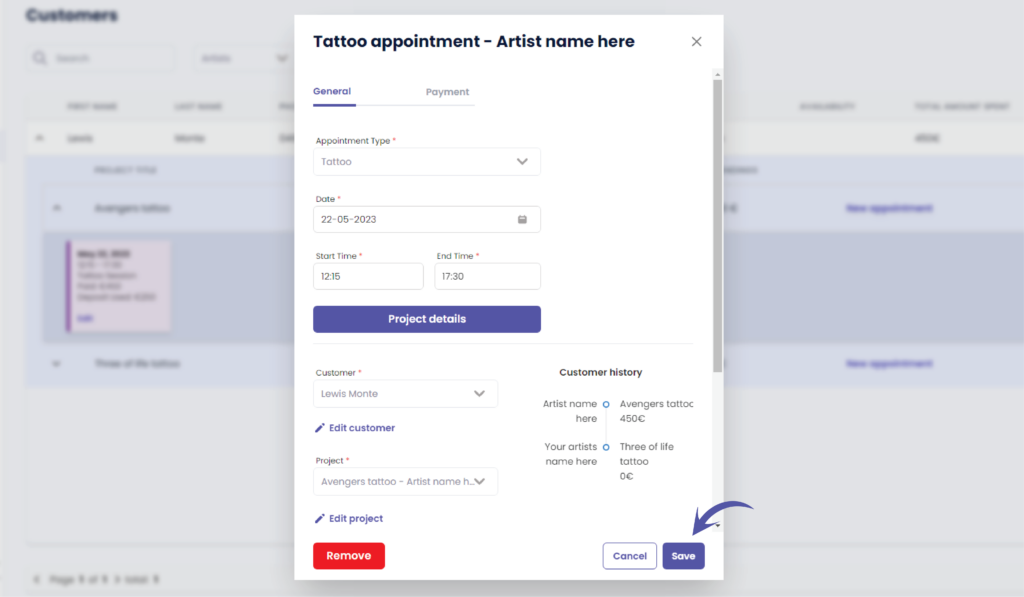
Click save after you edited your appointment
Sie haben noch ein Problem oder eine Frage?
Nachstehend finden Sie einen kleinen Link mit der Bezeichnung ‘Stecken Sie immer noch fest? Wie können wir helfen?’
Geschrieben von
Sharice Vandenhende
Unter Tattoogenda


 English
  Dutch
Dutch  Dutch (Belgium)
  French
  German
  Spanish